
Documentation Index
Fetch the complete documentation index at: https://docs.elitea.ai/llms.txt
Use this file to discover all available pages before exploring further.
Introduction
This guide explains how to discover, access, and use public agents from the Chat interface, as well as their permissions and limitations.Overview
What Are Public Agents?
Public Agents:- Pre-configured AI assistants designed for specific tasks
- Created by community members and approved by moderators
- Contain specialized instructions, model configurations, and integrated toolkits
- Examples: Data analysis agents, code review assistants, documentation generators
Key Characteristics
- Community-Driven: Shared by other Elitea users after quality review
- Easily Identifiable: Marked with a “Public” chip/badge for quick recognition
- Read-Only Core Config: Core configuration cannot be modified (with temporary adjustments noted below)
- Immediately Usable: Add to conversations and start using right away
- Discoverable: Browse Latest, My Likes, and Trending sections
Accessing Public Agents from Chat
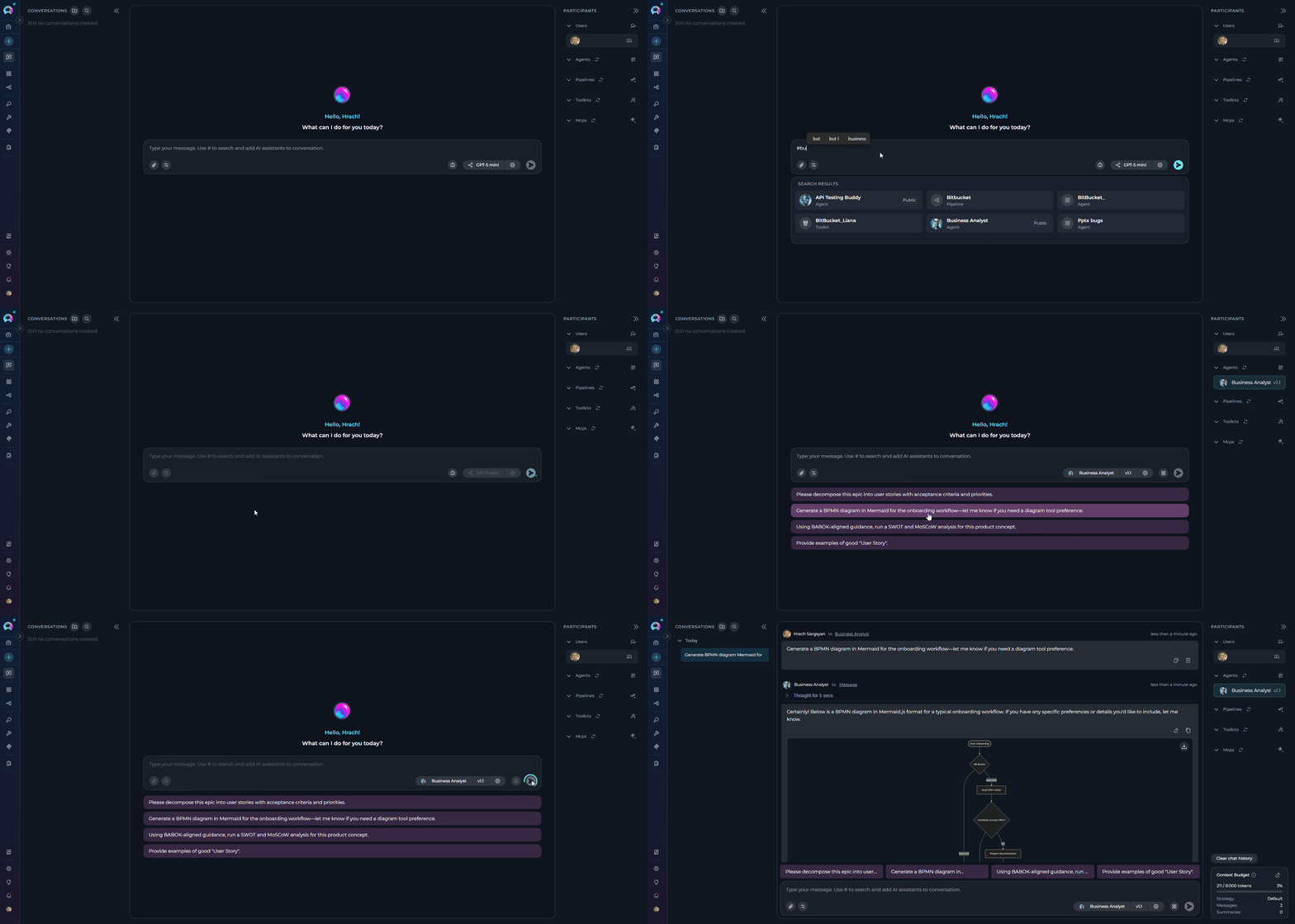
Public agents are accessible directly within any conversation through the Chat interface.Method 1: Using the # Search
The quickest way to find and add public agents is using the# symbol:
-
Open or Create a Conversation:
- Navigate to Chat in the main sidebar
- Click + Create for a new conversation, or open an existing one
-
Search for Public Agents:
- In the message input box, type
#followed by the name or keywords - A dropdown list appears showing matching agents
- The list includes both your own agents and public community agents
- Public agents are marked with a “Public” chip/badge for easy identification
- In the message input box, type
-
Select the Agent:
- Click on the desired agent from the dropdown
- The selected agent appears as a chip above the input box
-
Send Your Message:
- Type your message or question
- Click Send or press Enter
- The public agent will process your request
Method 2: Using the Participants Panel
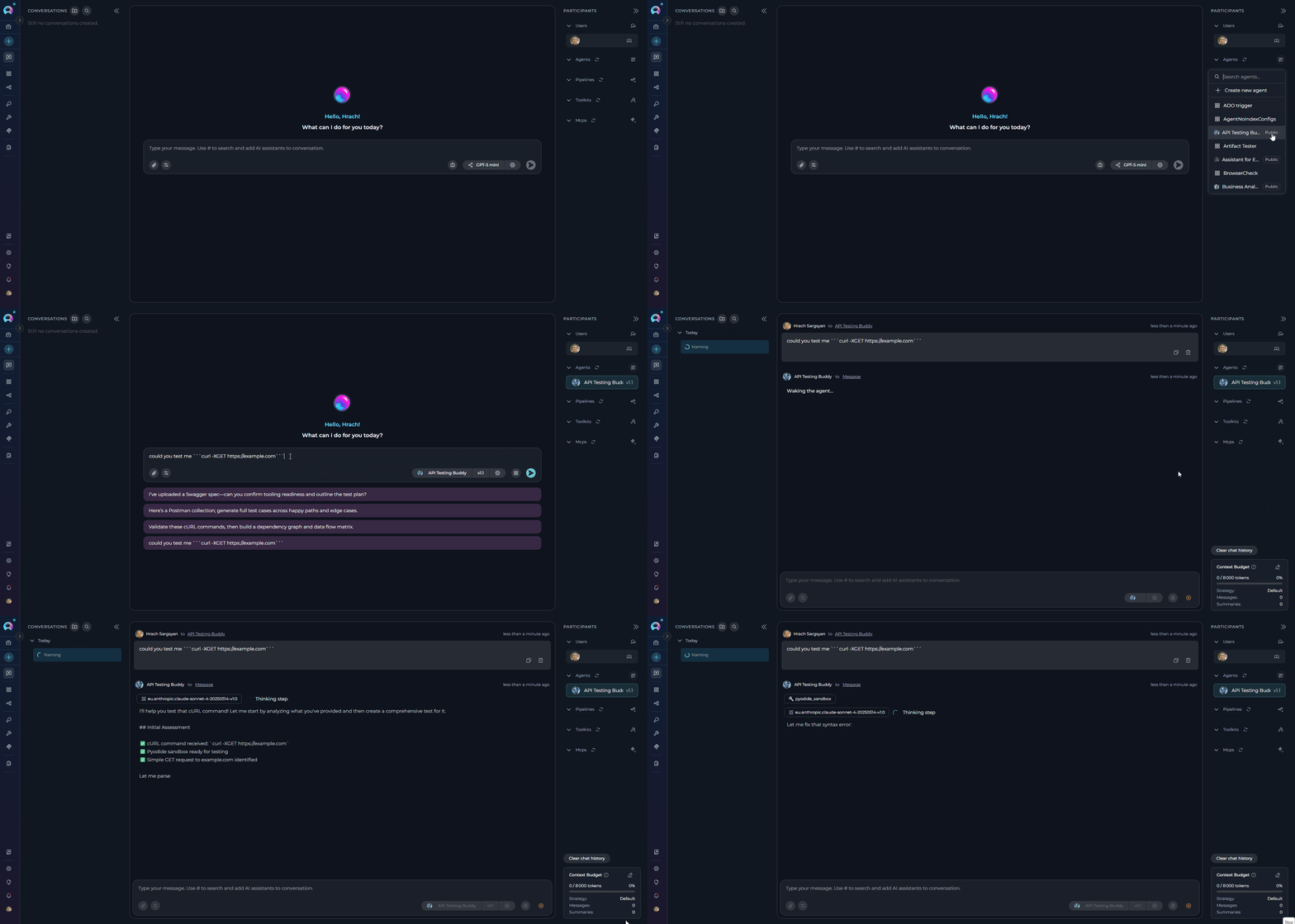
You can also add public agents through the PARTICIPANTS panel on the right side:-
Locate the Participants Panel:
- On the right side of the chat interface, find the PARTICIPANTS section
- You’ll see a collapsible section for Agents
-
Add Public Agents:
- Click the + icon next to Agents
- A dropdown list appears with available agents, including public ones
- Public agents are marked with a “Public” chip/badge
- Select the public agent you want to add
-
Interact with the Agent:
- Click on the participant in the PARTICIPANTS list to activate it
- Type your message and send
Using Public Agents
Using Public Agents
Step-by-Step:-
Add the Public Agent:
- Use
#AgentNamein the input box, OR - Click + next to Agents in the PARTICIPANTS panel
- Use
-
Activate the Agent:
- Click on the agent name in the PARTICIPANTS list
- The active agent is highlighted in the list
-
Interact:
- Type your message or click a conversation starter if available
- Send your message
- The public agent processes your request and responds
Public agents are marked with a “Public” chip/badge, making them easily identifiable. This badge appears on the agent card in lists and search results, helping you quickly distinguish between your private agents and community-shared public agents.
The Business Analyst agent helps create requirements documentation, diagrams, and analysis artifacts for your projects.Scenario: You need user stories for an e-commerce shopping cart feature.Step 1: Add the Agent
Acceptance Criteria (Gherkin format):Agent Also Provides:The agent will regenerate the story in your preferred format with all necessary fields.Benefits: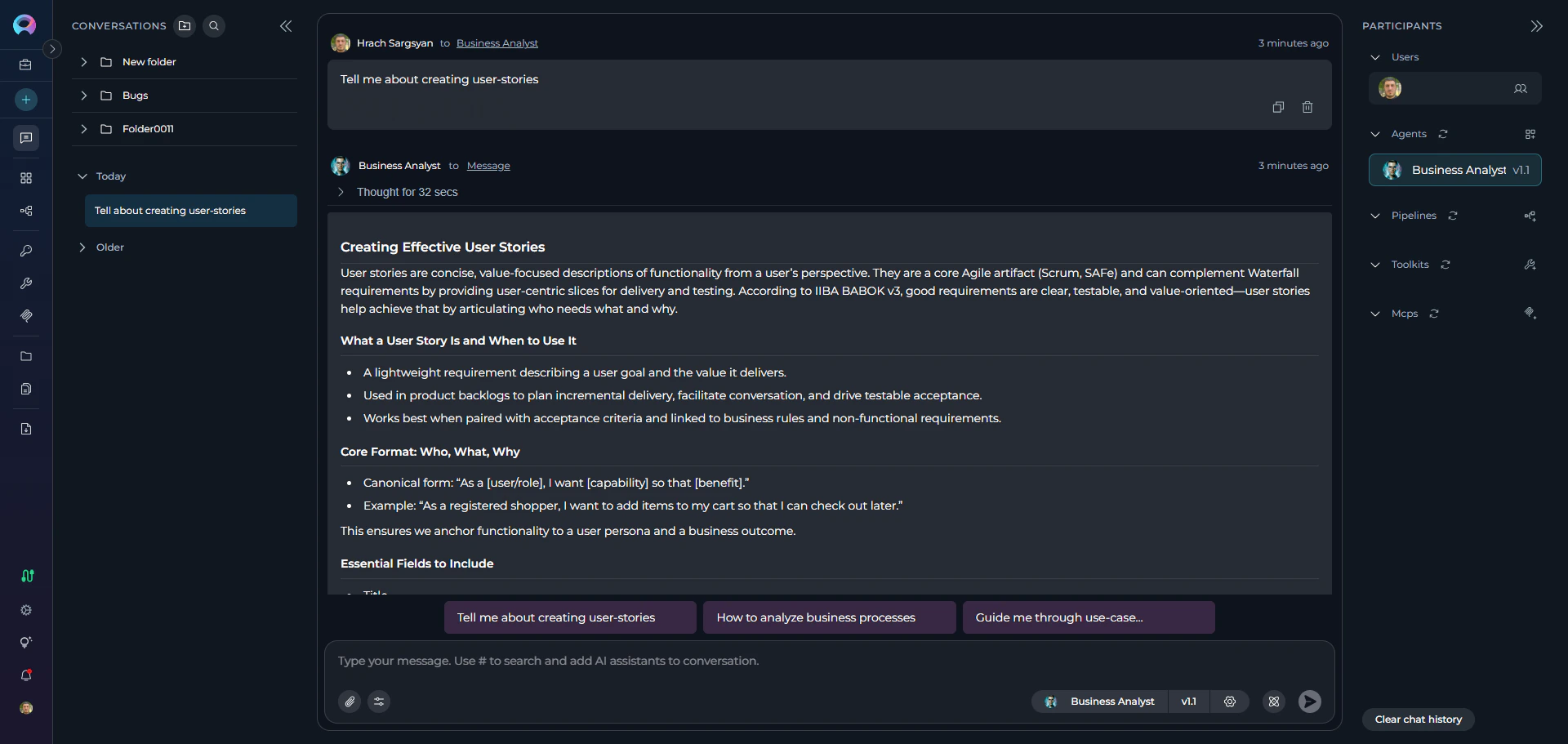
- Type
#Business Analystin the chat input box - The agent appears in PARTICIPANTS with a “Public” badge
| Title | Description | Acceptance Criteria | Priority | Story Points |
|---|---|---|---|---|
| Add item to cart | As a registered shopper, I want to add a product to my cart so that I can purchase later | See scenarios below | High | 3 |
- ✔️ Quality Checklist: INVEST criteria (Independent, Negotiable, Valuable, Estimable, Small, Testable)
- ✔️ Story Splitting Techniques: How to break down large stories
- ✔️ Non-Functional Requirements: Performance, security, accessibility considerations
- ✔️ Traceability: Links to business rules, test cases, and requirements
- ✔️ Alternative Formats: YAML, Jira markup, or Azure DevOps format
- ⚡ Fast: Get complete, well-structured user stories in seconds
- 📋 Standards-Based: Follows BABOK, IIBA, and Agile best practices
- 🔄 Adaptable: Works with Jira, Azure DevOps, Confluence, or plain Markdown
- 🎯 Complete: Includes acceptance criteria, NFRs, and traceability
Differences Between Public and Private Agents
Functionality
| Aspect | Public Agents | Private Agents |
|---|---|---|
| Execution | ✔️ Fully functional | ✔️ Fully functional |
| Add to Chat | ✔️ Via # search or + button | ✔️ Via # search or + button |
| Temporary Model Changes | ✔️ Change LLM & settings (session only) | ✔️ Full control |
| Temporary Variables | ✔️ Modify variables (session only) | ✔️ Full control |
| Save Changes | ✘ Cannot save any modifications | ✔️ Can save all changes |
| Edit Core Configuration | ✘ Prompts read-only | ✔️ Full edit access |
Permissions and Limitations
What You Can Do
✔️ Execute Public Agents:- Run public agents in your conversations
- Use them as many times as needed
- Combine multiple public agents in one conversation
- Click the agent in PARTICIPANTS → Click ⚙️ settings icon
- Agent Canvas opens with read-only core configuration
- You CAN temporarily modify:
- LLM model selection
- Model settings (Temperature, Top P, Top K, etc.)
- Variables
- You CANNOT modify or save:
- Agent prompt/instructions
- Toolkit configurations
- Other core settings
- You CAN temporarily modify:
- While you cannot save modifications to public agents, you can create your own agent
- Copy concepts and adapt them to your needs in your Private or Team projects
- Save customized versions permanently in your workspace
What You Cannot Do
✘ Save Modifications to Public Agents:- Cannot save changes to model settings, variables, or credentials
- Temporary adjustments only last for the current conversation
- Each new conversation with the public agent starts with default configuration
- Only the original author and moderators can manage publication status
- Users cannot remove public agents from the community library
Important Notes
When Creating Your Own Versions:- Learn from Public Agents: Study how successful agents are structured, understand prompt engineering techniques, and learn effective configuration patterns
- Adapt, Don’t Copy Exactly: Create variations suited to your specific needs, combine concepts from multiple public agents, and add your own improvements
- Consider Publishing: If you create something valuable, consider publishing it back to the community to share your improvements and help others
- How to Use Chat Functionality - Complete guide to Chat features
- How to Create and Edit Agents from Canvas - Learn to create your own agents
- Agents Menu Guide - Browse and manage agents
- Agents Studio Menu Guide - Discover and use public agents
Summary
Public agents provide immediate access to community-tested AI assistants and specialized capabilities without the overhead of creating them yourself. While the Public Project interface has been removed, these resources remain accessible directly from Chat, where you can:- ✔️ Search and add public agents using
#or the Participants panel - ✔️ Execute them freely in your conversations
- ✔️ Make temporary adjustments to model settings and variables for your session
- ✔️ View their core configurations (prompts and settings) in read-only mode
- ✔️ Learn from them to create your own custom versions with saved modifications