
Documentation Index
Fetch the complete documentation index at: https://docs.elitea.ai/llms.txt
Use this file to discover all available pages before exploring further.
Introduction
Purpose of this Guide
This guide is your definitive resource for integrating and utilizing the Slack within ELITEA. It provides a step-by-step walkthrough, from setting up your Slack App and Bot Token to configuring the toolkit in ELITEA and effectively using it within your Agents. By following this guide, you will unlock the power of automated messaging, streamlined workflows, and enhanced team collaboration, all directly within the ELITEA platform. This integration empowers you to leverage AI-driven automation to optimize your communication and notification workflows using the combined strengths of ELITEA and Slack.Brief Overview of Slack
Slack is a leading messaging platform for teams, enabling real-time communication, collaboration, and integration with a wide range of tools. Its API allows you to automate messages, manage channels, upload files, and interact with users and bots, making it a central hub for team productivity.- Messaging & Notifications: Send, receive, and manage messages in channels and direct messages.
- Channel Management: Create, archive, and manage channels for organized communication.
- User & Team Management: Retrieve user lists, manage user groups, and automate onboarding.
- File Sharing: Upload and share files within channels and direct messages.
- Integration & Automation: Connect Slack with other tools and automate workflows using bots and apps.
Slack Account Setup and Configuration
Account and Workspace Setup
If you don’t have a Slack account or workspace yet, here’s how to get started:- Go to Slack Website: Open your web browser and navigate to Slack’s official website.
- Sign Up: Click the “Get Started” button and provide your details. You can sign up with an email address or use Google/Apple accounts.
- Create a Workspace: Follow the on-screen instructions to create a new workspace for your team.
- Access Your Workspace: After setup, you will be redirected to your new Slack workspace.
Create and Configure a Slack App
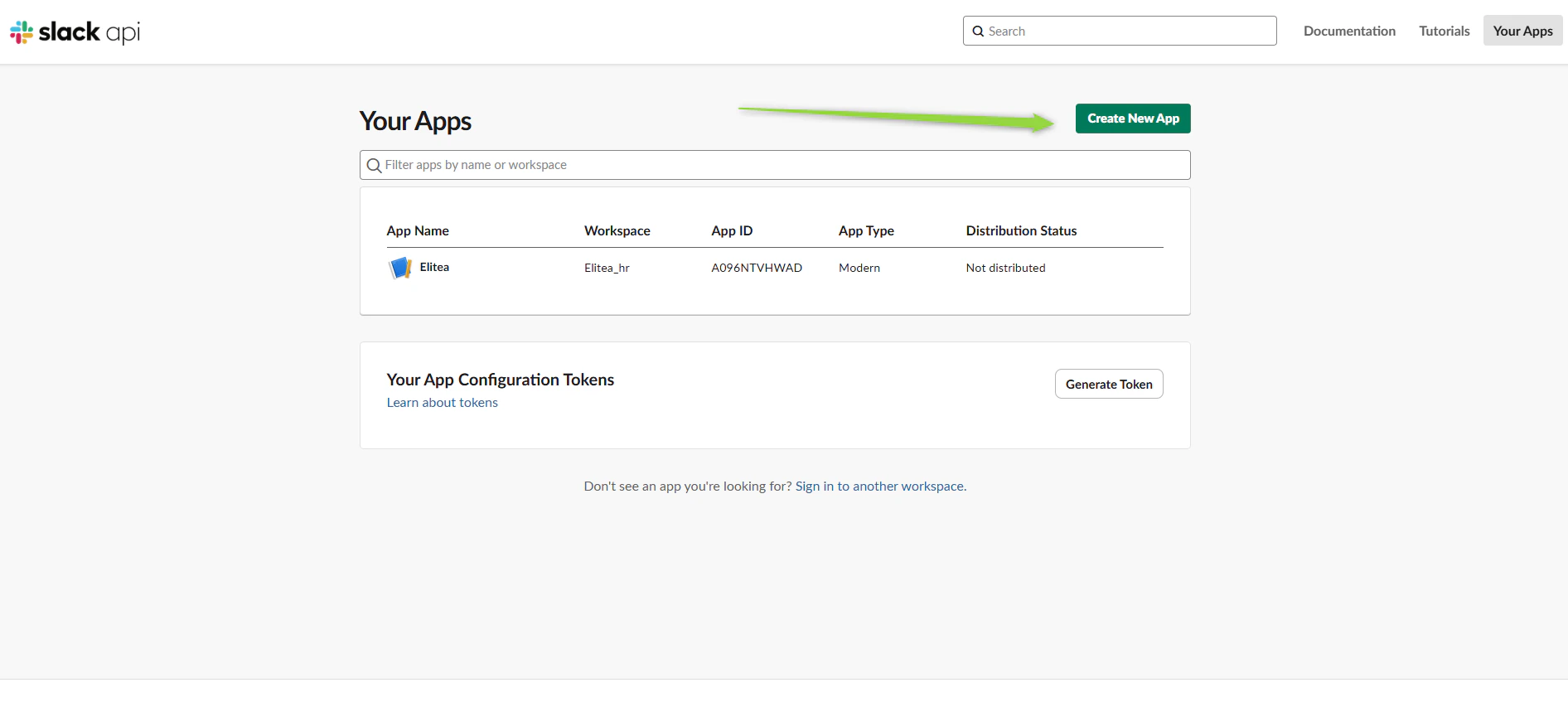
To securely integrate Slack with ELITEA, you need to create a Slack App and generate a Bot/User OAuth Token. This token will be used by ELITEA to authenticate and access your Slack workspace. Follow these steps to create a Slack App and get a Bot Token: There are two main options for authenticating your ELITEA integration with Slack: Option 1: Get a Bot User OAuth Token- Log in to Slack and go to Slack API: Your Apps.
-
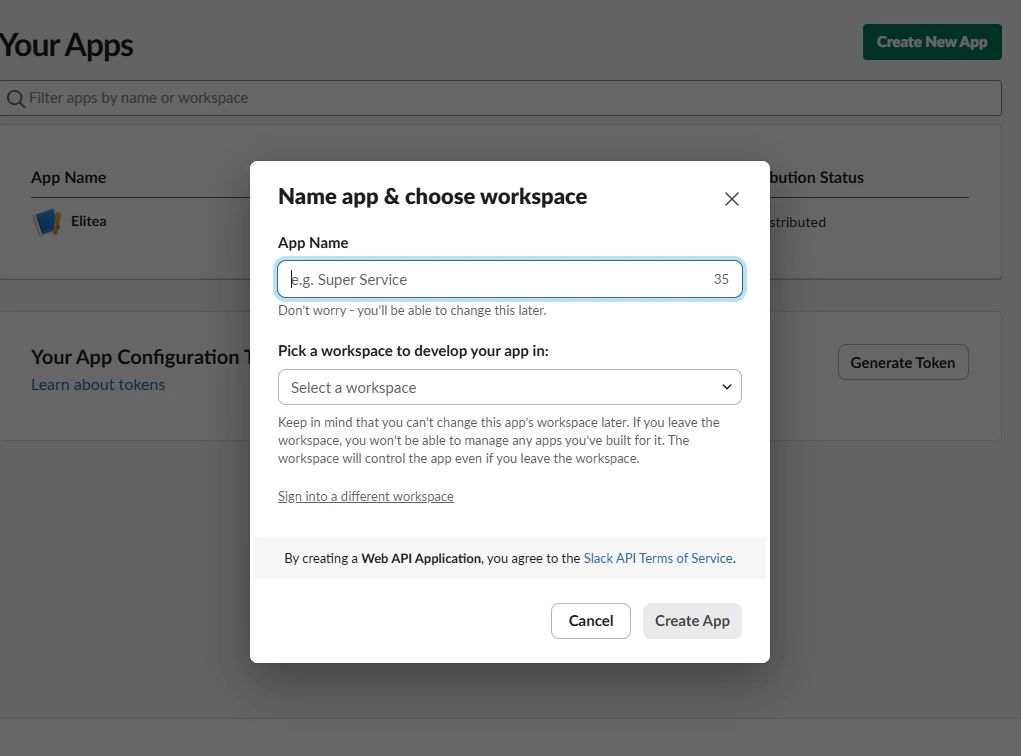
Click “Create New App” and select your workspace.
-
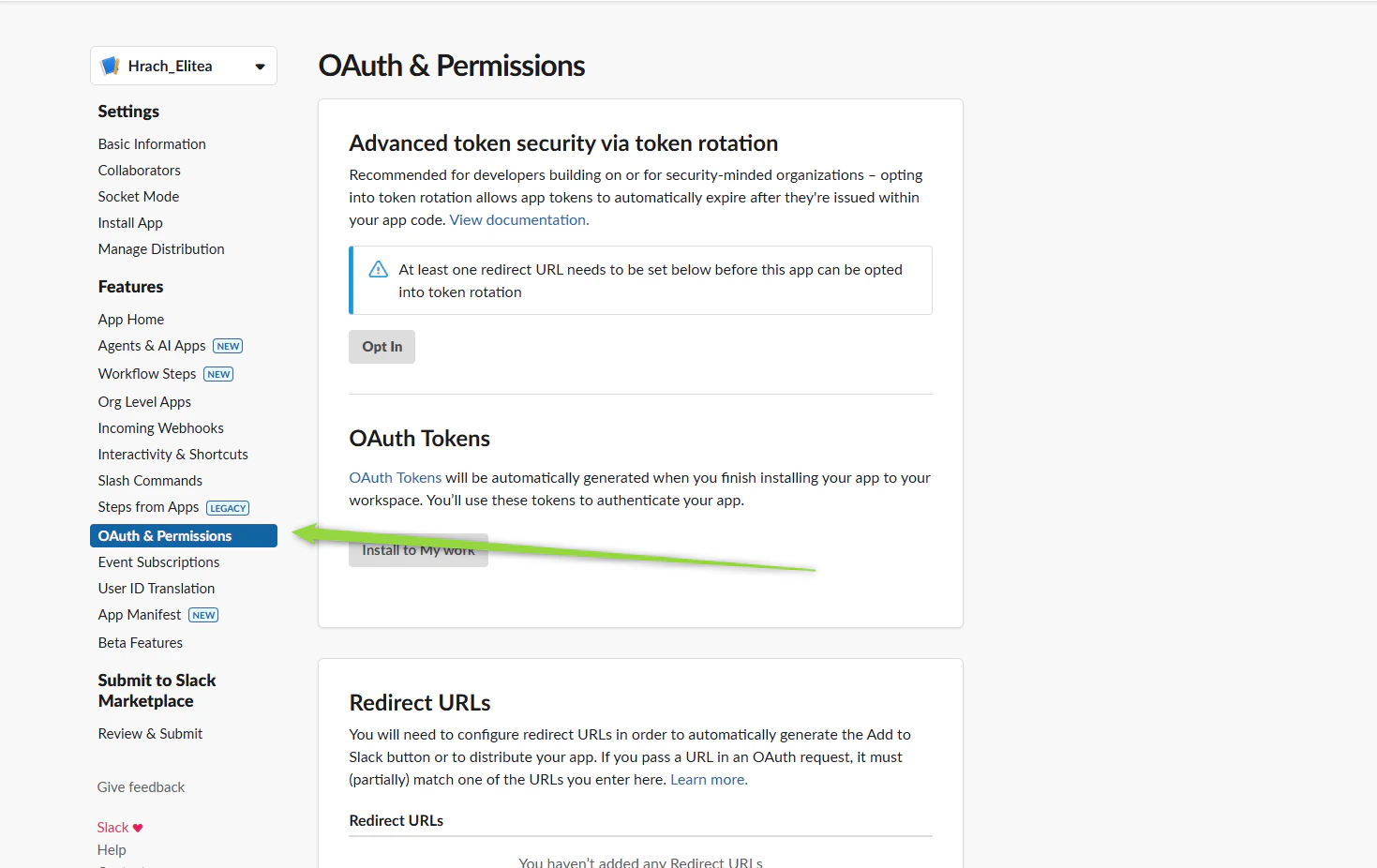
In your app settings, go to “OAuth & Permissions”.
-
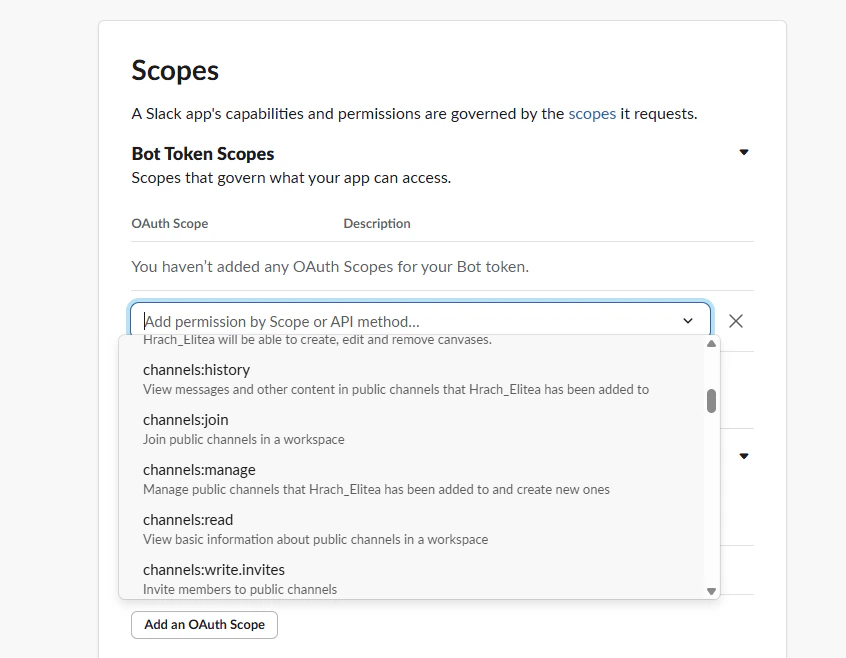
Under “Scopes”, add the required bot scopes. For the available toolkit functionality, the following scopes are mandatory:
channels:read(List workspace conversations, List channel users)groups:read(List workspace conversations for private channels)im:read(List workspace conversations for direct messages)users:read(List workspace users, Invite to conversation)chat:write(Send message, Invite to conversation, Create slack channel)channels:write(Create slack channel)groups:write(Create private channel)conversations:read(Read messages)conversations:write(Send message, Invite to conversation)
-
Click “Install App to Workspace” and authorize the app.
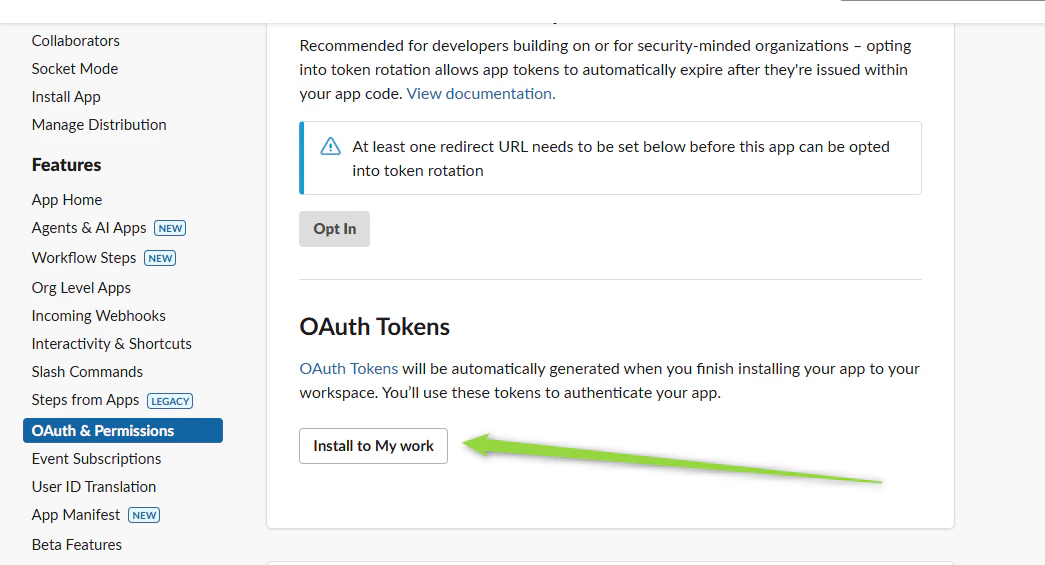
-
After installation, copy the Bot User OAuth Token (starts with
xoxb-).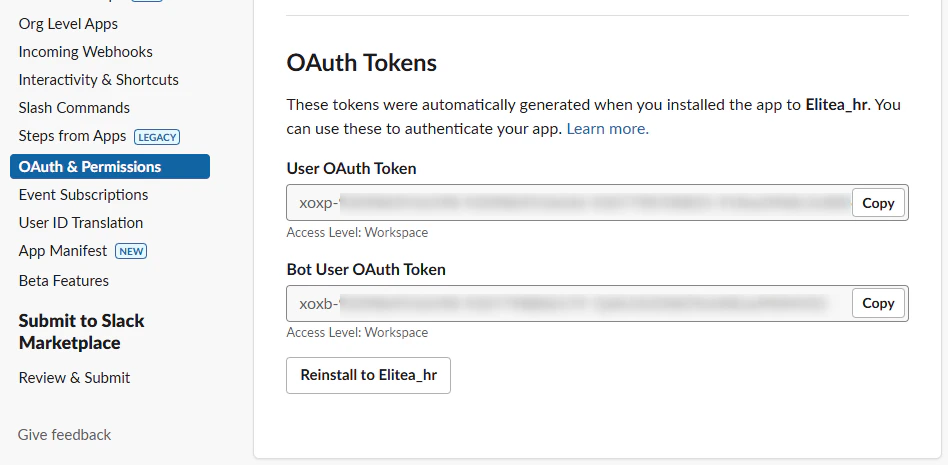
- Store the token securely (recommended: ELITEA Secrets).
- Log in to Slack and go to Slack API: Your Apps.
- Click “Create New App” and select your workspace.
- In your app settings, go to “OAuth & Permissions”.
-
Under “Scopes”, add the required user scopes. For the available toolkit functionality, the following scopes are mandatory:
channels:read(List workspace conversations, List channel users)groups:read(List workspace conversations for private channels)im:read(List workspace conversations for direct messages)users:read(List workspace users, Invite to conversation)chat:write(Send message, Invite to conversation, Create slack channel)channels:write(Create slack channel)groups:write(Create private channel)conversations:read(Read messages)conversations:write(Send message, Invite to conversation)
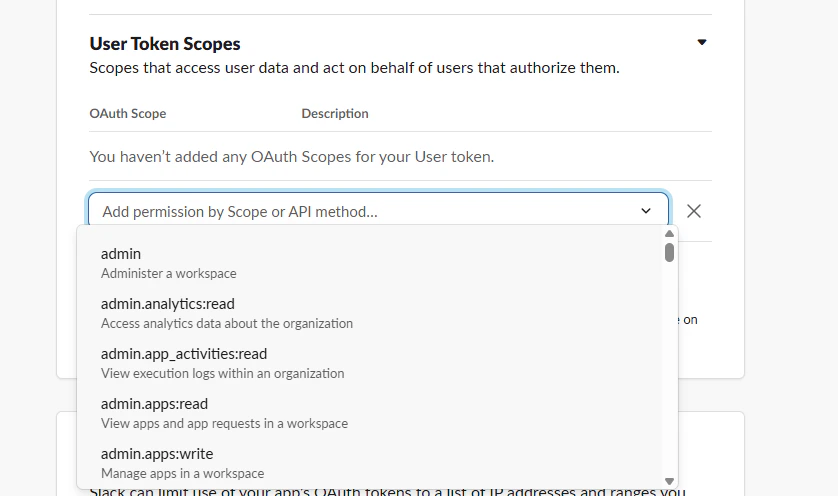
- Click “Install App to Workspace” and authorize the app.
-
After installation, copy the User OAuth Token (starts with
xoxp-). - Store the token securely (recommended: ELITEA Secrets).
You can use either token type depending on your use case and required permissions. For most automation scenarios, the Bot User OAuth Token (xoxb-) is recommended.
Get Channel ID in Slack
To configure the Slack toolkit in ELITEA, you will need the Channel ID. Here’s how to find it:How to Find the Channel ID
- Open Slack and navigate to the channel you want to use.
-
Locate the Channel ID:
- Click on the channel name, then “View channel details”. The Channel ID is usually shown in the URL as
https://app.slack.com/client/<workspace-id>/<channel-id>. - Alternatively, use the Slack API (
conversations.list) to list channels and retrieve their IDs.
- Click on the channel name, then “View channel details”. The Channel ID is usually shown in the URL as
-
Example:
- URL:
https://app.slack.com/client/T12345678/C87654321 - Channel ID:
C87654321
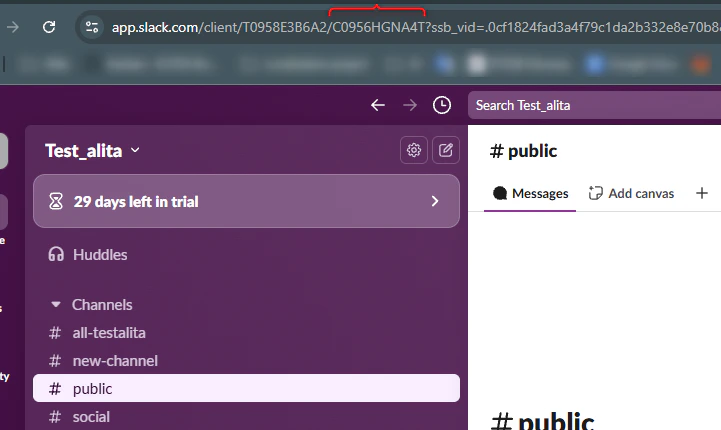
- URL:
Note: For ELITEA Slack toolkit configuration, you only need to provide the Channel ID. Workspace ID is not required.
Invite Your Slack App to the Channel
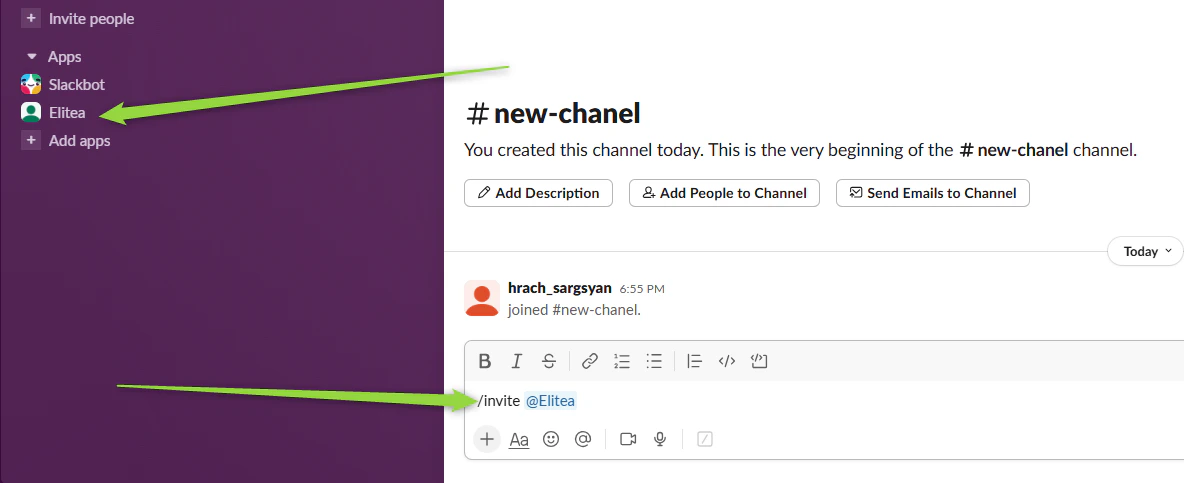
Purpose: Your Slack app (bot) must be a member of the channel to send and read messages, create channels, and perform other actions. Inviting the app ensures it has the necessary access to interact with the channel via the API. Steps to Invite the App:- In Slack, go to the channel you want your app to access.
- In the message input box, type
/invite @<your-app-name>and press Enter.- Replace
<your-app-name>with the name of your Slack app/bot (e.g.,/invite @MyBot).
- Replace
- You should see a confirmation that the app has been added to the channel.
- The app can now send and read messages, and perform other permitted actions in this channel.
If you do not invite the app to the channel, API requests to post or read messages may fail with a “not_in_channel” error.
Slack Integration with ELITEA
Agent Creation/Configuration
To integrate Slack, you’ll need to configure it within an ELITEA Agent. You can either create a new Agent or modify an existing one.- Navigate to Agents: In ELITEA, go to the Agents menu.
- Create or Edit Agent:
- New Agent: Click ”+ Agent” to create a new Agent. Define Agent details like name, description, type, and instructions and save it.
- Existing Agent: Select the Agent you want to integrate with Slack and click on its name to edit.
- Access Toolkits Section: In the Agent configuration, scroll down to the “Toolkits” section.
Toolkit Configuration
This section details how to configure the Slack toolkit within your ELITEA Agent.-
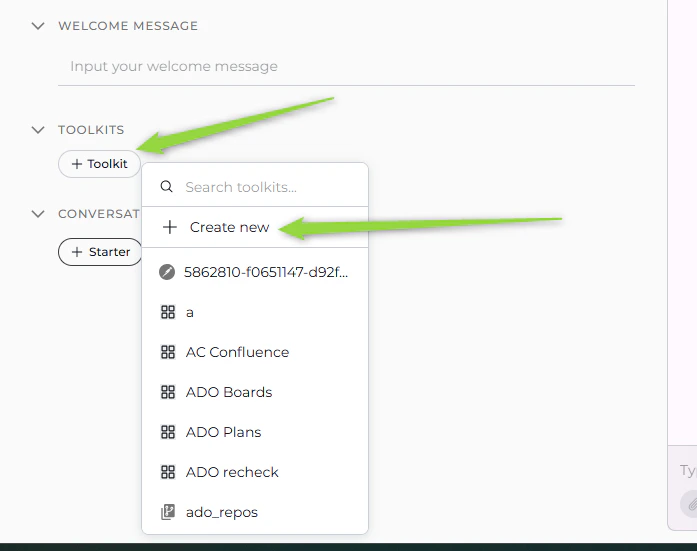
Add Toolkit: In the “Toolkits” section, click the ”+ Toolkit” button.
-
Select “Create new”. You will be redirected to the new toolkit creation page.
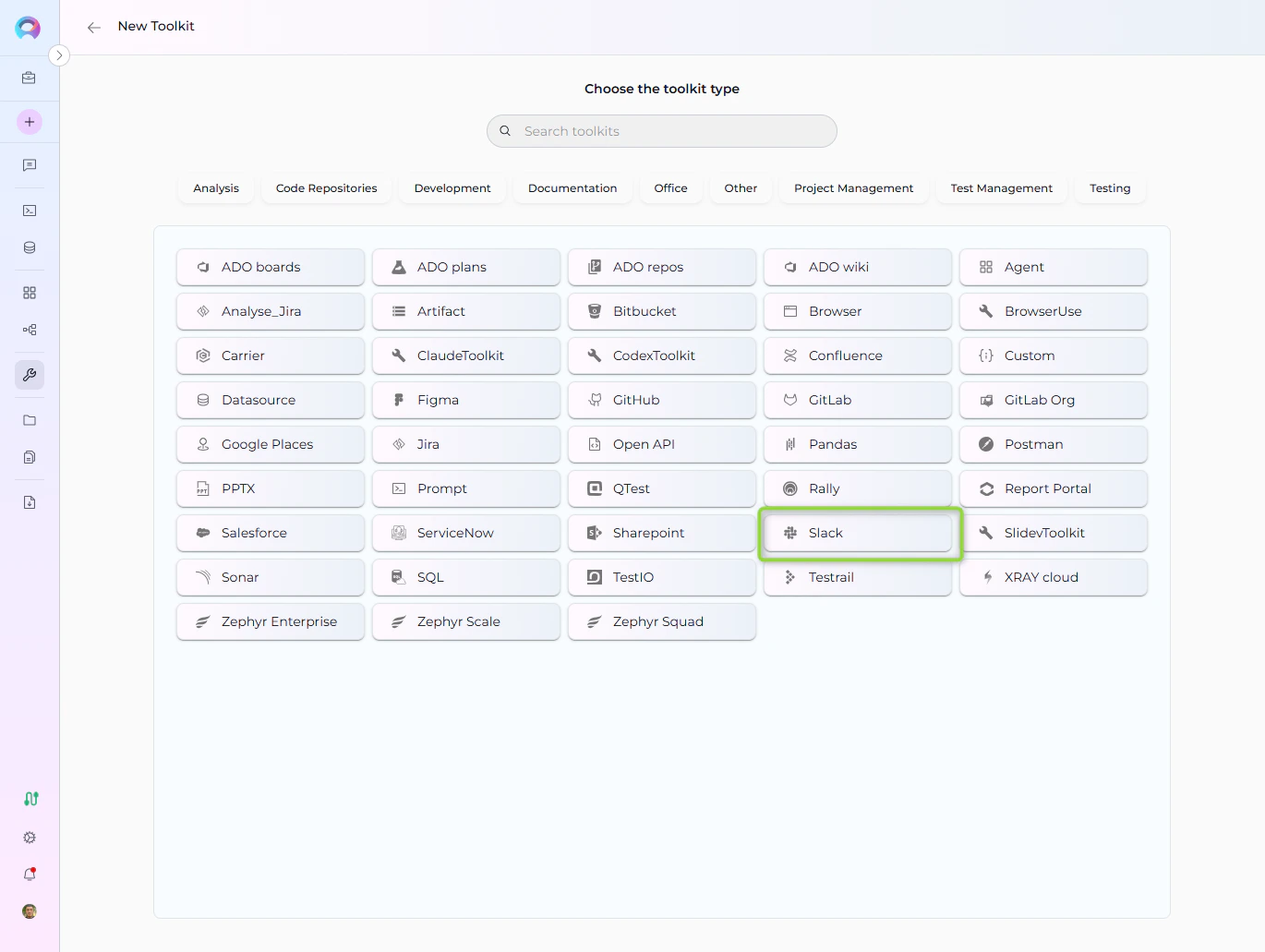
- Select Slack from the toolkits list.
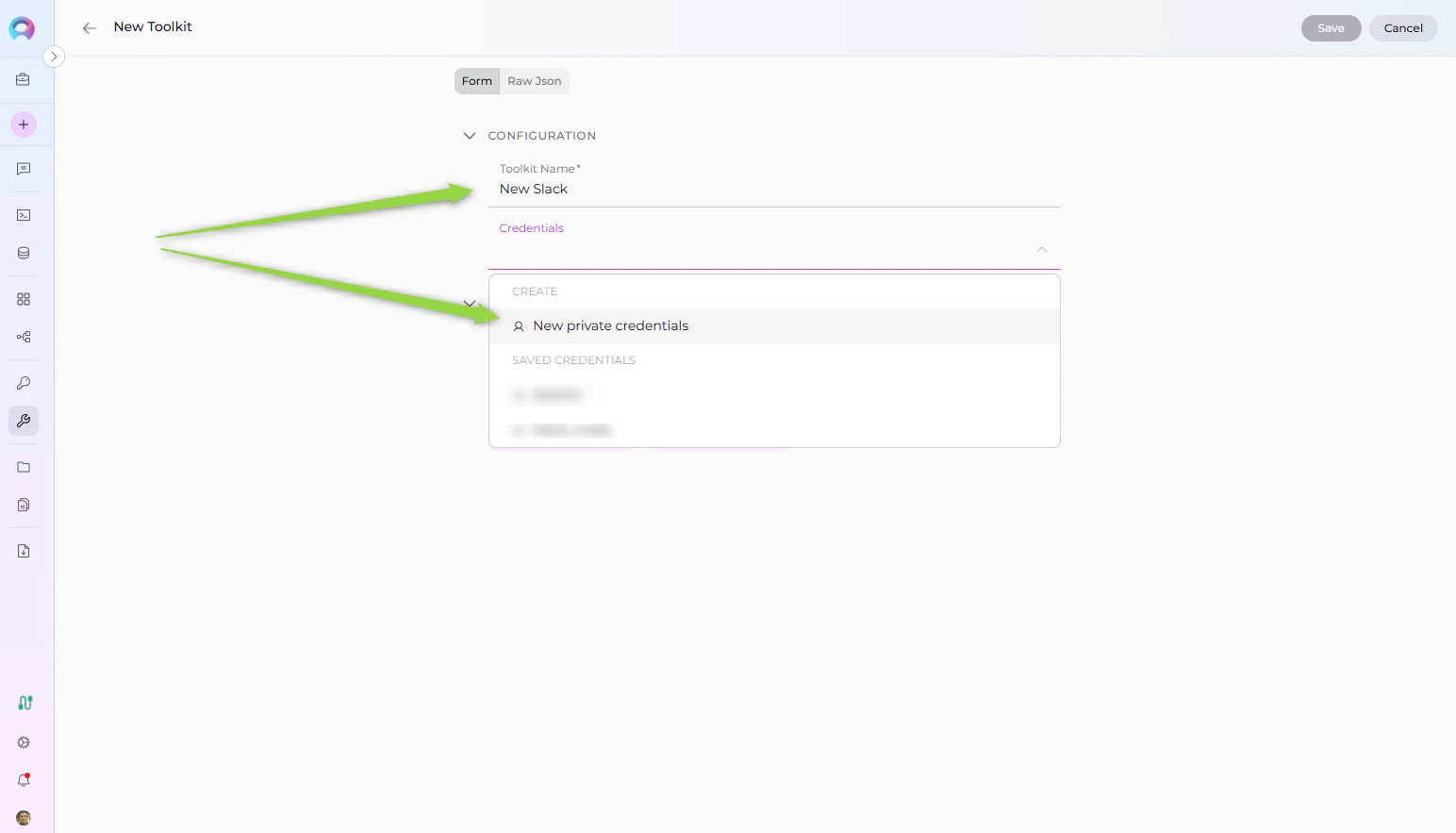
- Set the name of your toolkit.
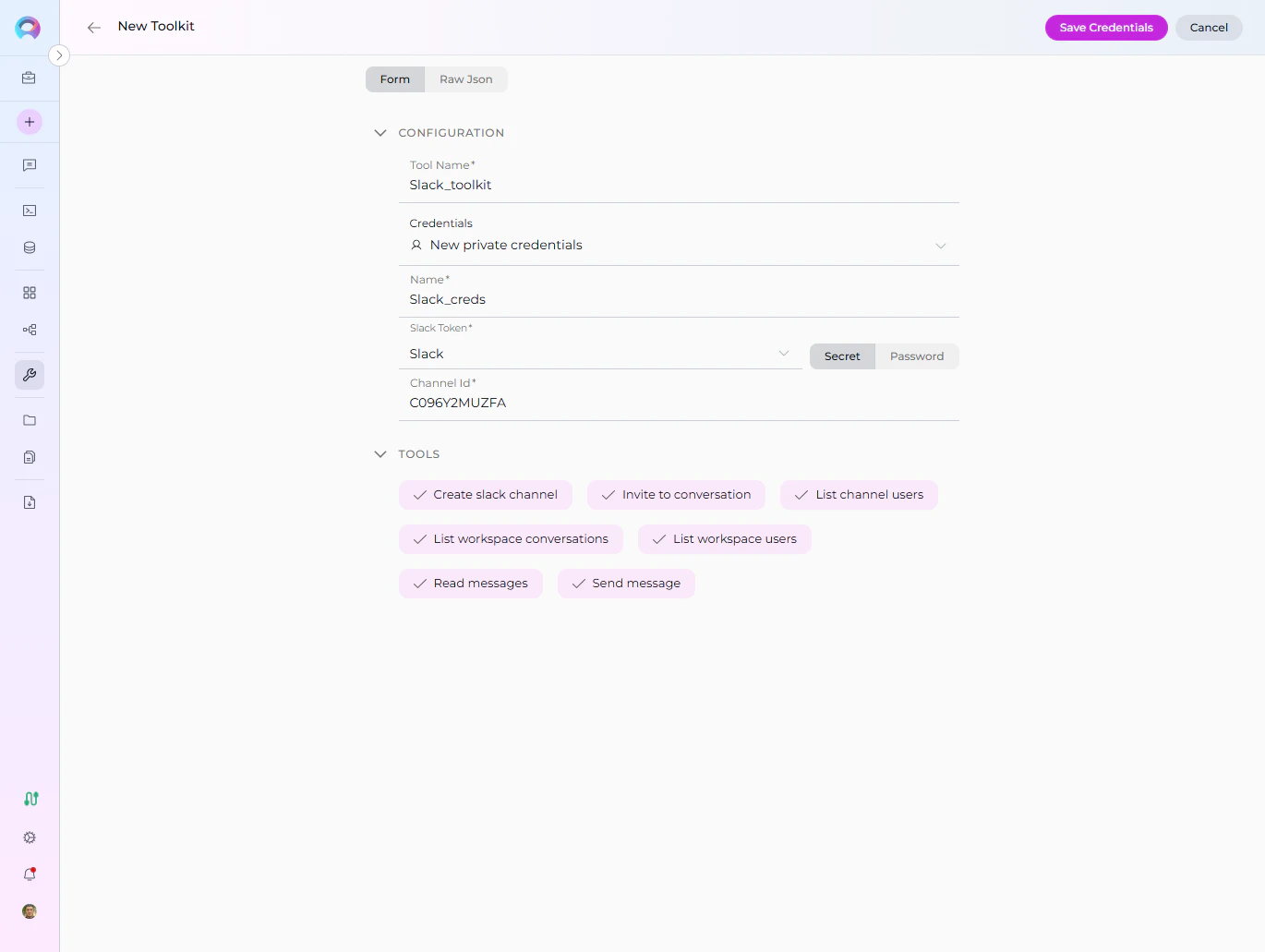
- Open the Credentials dropdown and click “Create new credentials” to add your Slack OAuth token securely.
-
Select “Create new”. You will be redirected to the new toolkit creation page.
-
Configure Toolkit Credentials: Fill in the following fields:
- Name: Set a name for your credential (e.g., “Slack Bot Credentials”).
- Slack Token: Enter your Slack Bot/User OAuth Token. For best security, store your token as a Secret in ELITEA and select it from the dropdown. Alternatively, you can paste the token directly, but using Secrets is recommended.
- Channel ID: The unique identifier of the Slack channel you want the Agent to access or post messages to.
- Save Credentials : Click “Save Credentials” button (at the top right of the toolkit configuration) to save the Slack credentials
-
Enable Tools: In the “Tools” section of the Slack toolkit configuration, select the checkboxes next to the Slack tools you want to enable for your Agent. Enable only the tools your Agent will actually use to adhere to the principle of least privilege and enhance security. Available tools may include:
- Create slack channel: Create a new channel in your workspace.
- Invite to conversation: Invite a user to a channel or conversation.
- List channel users: Retrieve a list of users in a specific channel.
- List workspace users: Retrieve a list of all users in your workspace.
- List workspace conversations: Retrieve a list of all conversations (channels, groups, DMs) in your workspace.
- Read messages: Retrieve messages from a channel.
- Send message: Send a message to a channel or user.
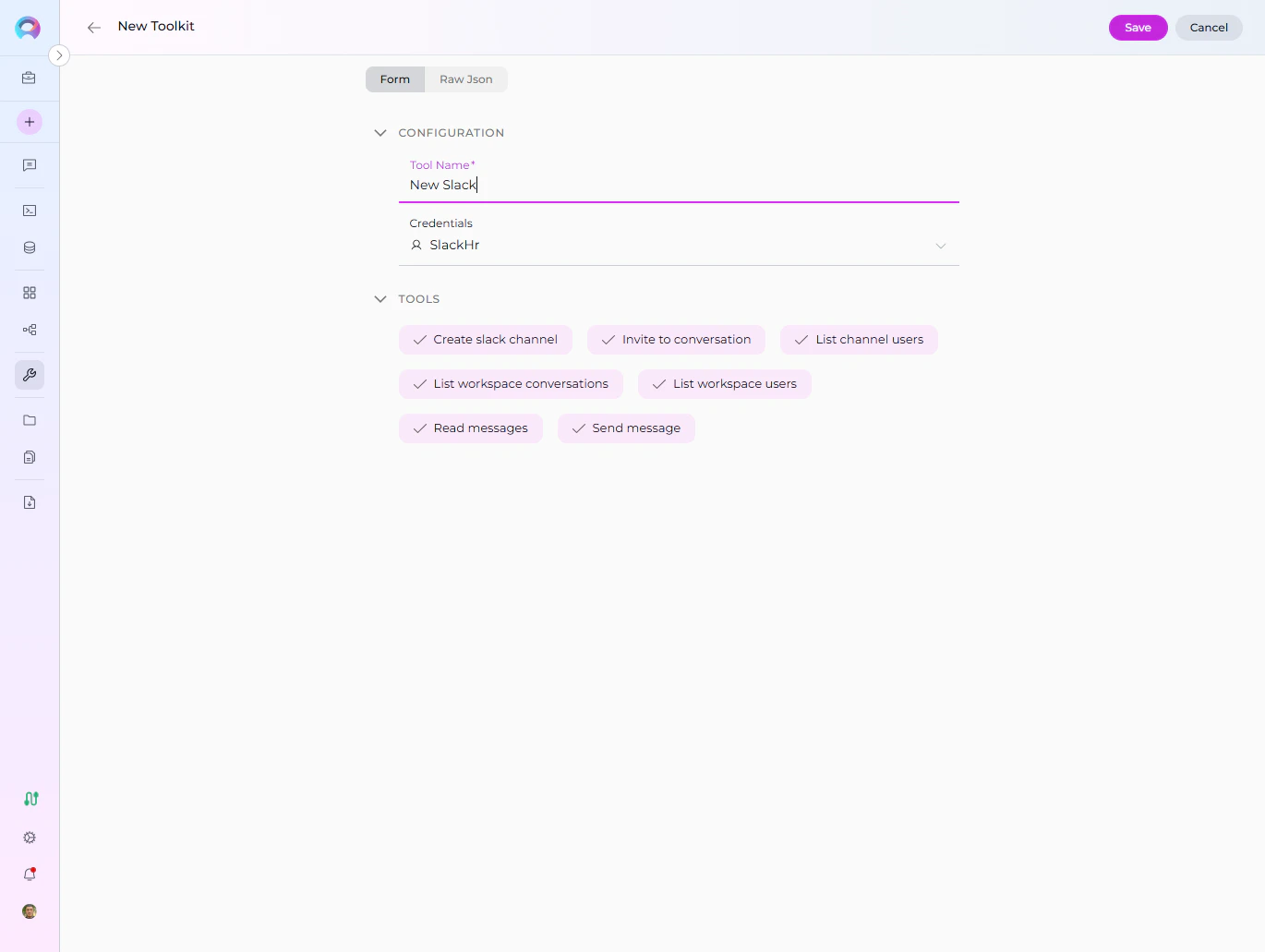
- Complete Toolkit Configuration: Click the Save (at the top right of the toolkit configuration) to save the Slack toolkit setup and return to the main Agent configuration.
-
Click Save to apply configuration and changes to the Agent.
Tool Overview
The Slack toolkit provides the following tools for your ELITEA Agents:- Create slack channel: Create a new channel in your workspace.
- Invite to conversation: Invite a user to a channel or conversation.
- List channel users: Retrieve a list of users in a specific channel.
- List workspace users: Retrieve a list of all users in your workspace.
- List workspace conversations: Retrieve a list of all conversations (channels, groups, DMs) in your workspace.
- Read messages: Retrieve messages from a channel.
- Send message: Send a message to a channel or user.
Instructions and Prompts for Using the Toolkit
To instruct your ELITEA Agent to use the Slack toolkit, you need to provide clear instructions within the Agent’s “Instructions” field. These instructions guide the Agent on when and how to use the available tools.Instruction Creation for OpenAI Agents
When creating instructions for the Slack toolkit for OpenAI-based Agents, focus on clear, action-oriented language. Break down tasks into simple steps and explicitly state the parameters required for each tool. OpenAI Agents respond best to instructions that are:- Direct and Imperative: Use action verbs and clear commands (e.g., “Use the ‘send_message’ tool…”, “Retrieve channel info using ‘get_channel_info’…”).
- Parameter-Focused: Clearly list each parameter and how the Agent should determine its value.
- Context-Aware: Provide enough context so the Agent understands the overall goal and when to use specific tools within a workflow.
- Parameter Name 2: <value or description of value>
- …
- Expected Outcome: [Optionally, describe what should happen after the tool is used].
- Goal: To send a message to channel ID “C87654321”.
- Tool: Use the “Send message” tool.
- Parameters:
- Channel ID: “C87654321”
- Message: “Hello team, the deployment is complete!”
- Outcome: The Agent will post the message in the specified channel.
- Goal: To create a new channel named “project-updates”.
- Tool: Use the “Create slack channel” tool.
- Parameters:
- Channel Name: “project-updates”
- Channel Type: “public” or “private”
- Outcome: The Agent will create the new channel in the workspace.
- Goal: To invite user ID “U12345678” to channel ID “C87654321”.
- Tool: Use the “Invite to conversation” tool.
- Parameters:
- Channel ID: “C87654321”
- User ID: “U12345678”
- Outcome: The Agent will invite the user to the specified channel.
- Goal: To list all users in channel ID “C87654321”.
- Tool: Use the “List channel users” tool.
- Parameters:
- Channel ID: “C87654321”
- Outcome: The Agent will display all users in the specified channel.
- Goal: To list all users in the workspace.
- Tool: Use the “List workspace users” tool.
- Parameters: None
- Outcome: The Agent will display all users in the workspace.
- Goal: To read the last 10 messages from channel ID “C87654321”.
- Tool: Use the “Read messages” tool.
- Parameters:
- Channel ID: “C87654321”
- Limit: 10
- Outcome: The Agent will display the last 10 messages from the specified channel.