EPAM MCP Servers are ready-to-use MCP server connections for EPAM internal services and tools. Unlike custom Remote MCP servers that require you to supply a server URL and credentials manually, EPAM MCP Servers are pre-configured by your ELITEA environment: connection settings (server URL, OAuth credentials) are automatically supplied at runtime so you can get started with just a few clicks.
EPAM MCP Servers are available at next.elitea.ai and are accessible only to EPAM employees. Authentication requires an active EPAM corporate account via the EPAM identity provider.
The following EPAM pre-built MCP servers are available in ELITEA. Each server exposes a set of tools that agents can invoke to interact with the corresponding EPAM internal service.
Epam Data Catalog
Discover, explore, and govern data assets within EPAM’s data catalog with search and metadata management tools.
Epam Delivery Central
Access project and delivery management information.
Epam Expertise Search
Connect employee expertise, project data, and case studies to quickly find relevant information for resource management and decision support.
Epam Notebooks
Access OneHub Notebooks for data science and analytical workloads.
Epam Onehub
Single access point for searching users, projects, and skills as part of the OneHub platform.
Epam People Central
Streamline HR and people management tasks relating to staffing, performance, retention, and recognition.
Epam Query
Centralized knowledge platform to find answers, search documentation, and retrieve content from EPAM documents.
Epam Radar
Search, filter, analyze, and report across people, positions, projects, and hiring data within EPAM.
Epam Staffing
Access and operate on employees, applicants, positions, projects, requisitions, skills, and staffing processes.
The setup and creation flow is the same for all EPAM MCP servers. Follow the steps below once to create any EPAM MCP toolkit — simply select the desired server in Step 1.
1
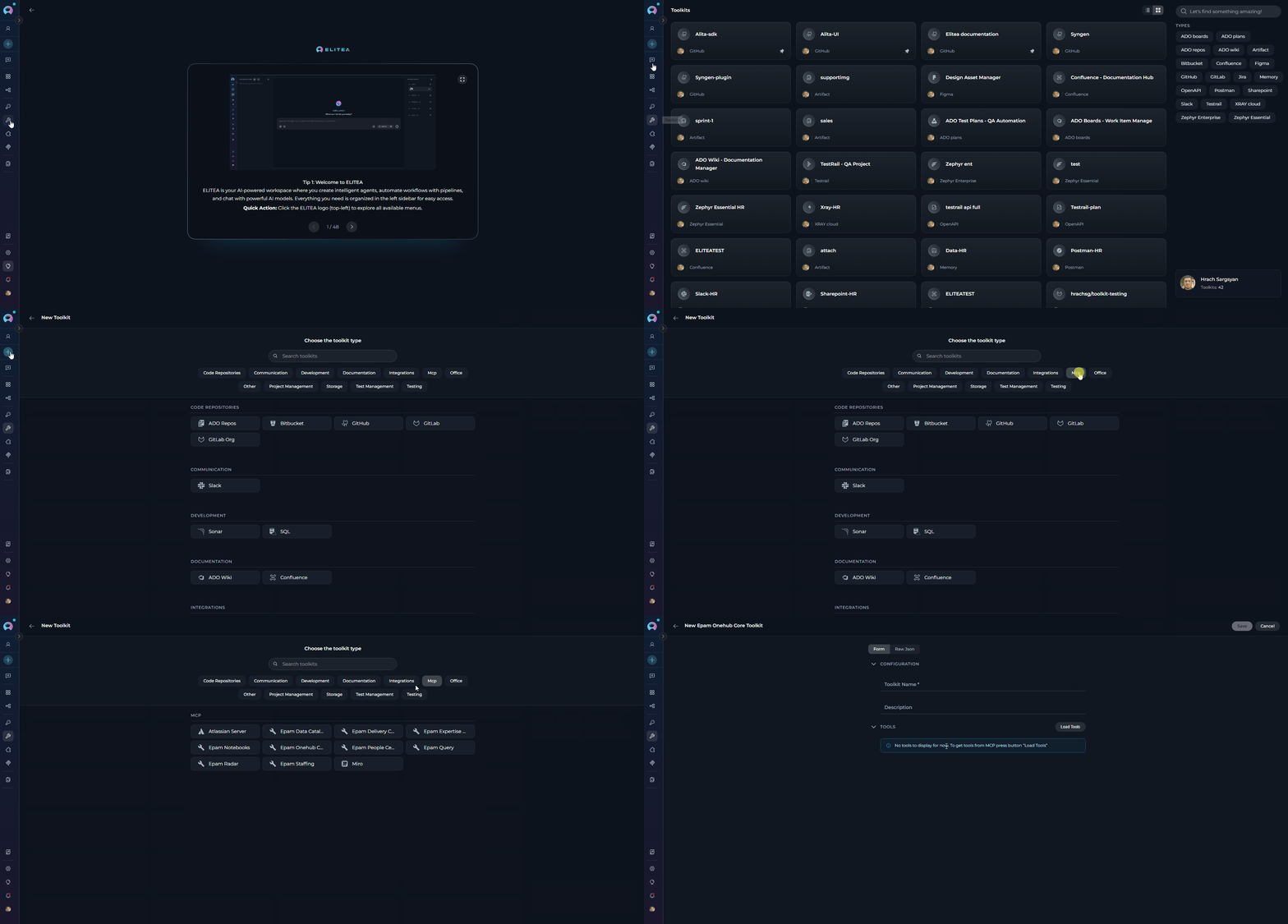
Open the Toolkits panel and select the EPAM MCP type
Navigate to your ELITEA project and open the Toolkits panel from the left sidebar
Click + Create to open the toolkit creation dialog
Select the Mcp category
Choose the EPAM MCP you want to connect (for example, Epam Onehub Core)
2
Enter a name and description
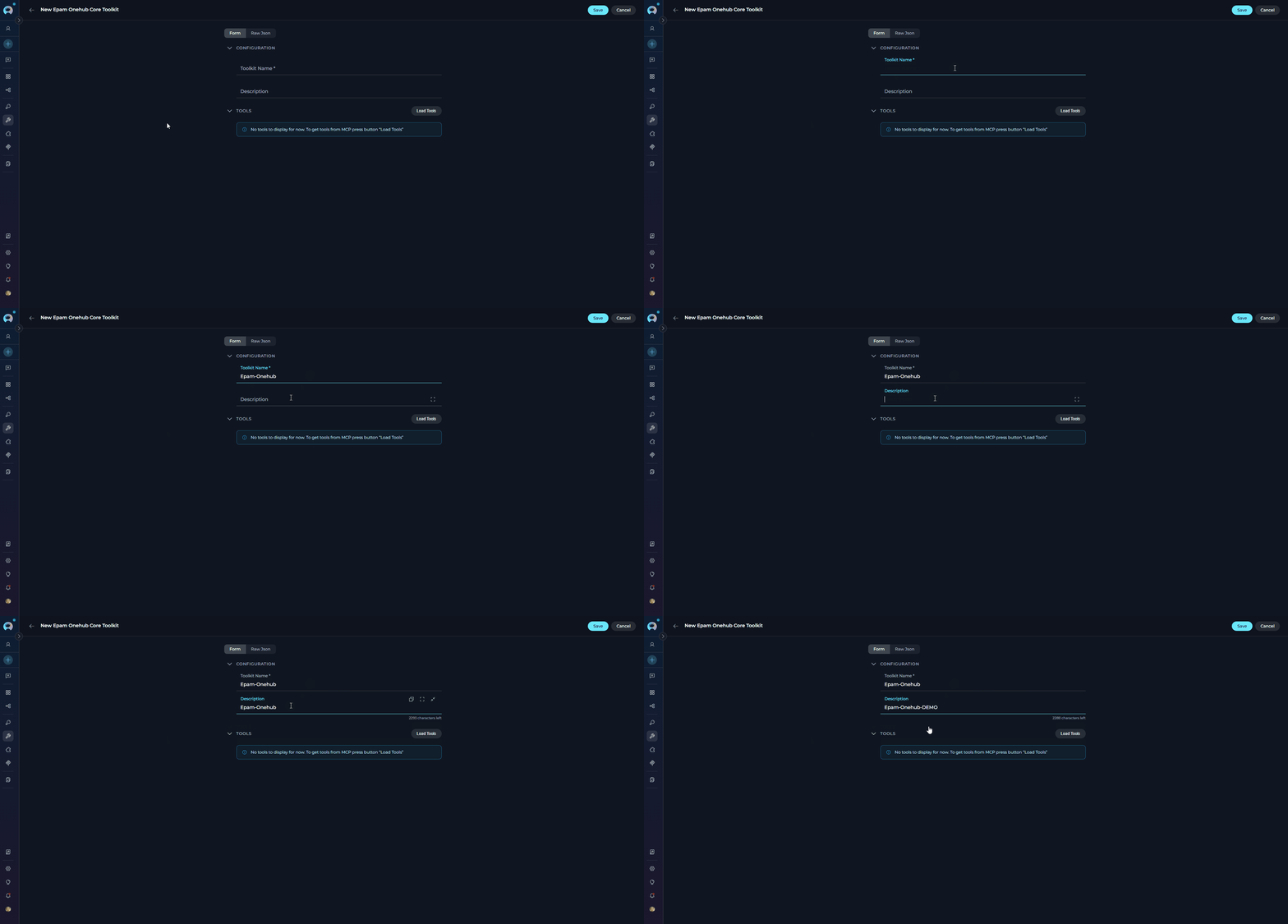
The toolkit configuration form opens with just two fields to fill in:
Toolkit Name(required) — enter a name to identify this toolkit in your project
Description(optional) — add a short description to help your team understand what this toolkit is for
All connection settings (server URL, OAuth credentials) are handled automatically by ELITEA — there is nothing else to configure.
3
Click Load Tools and authorize
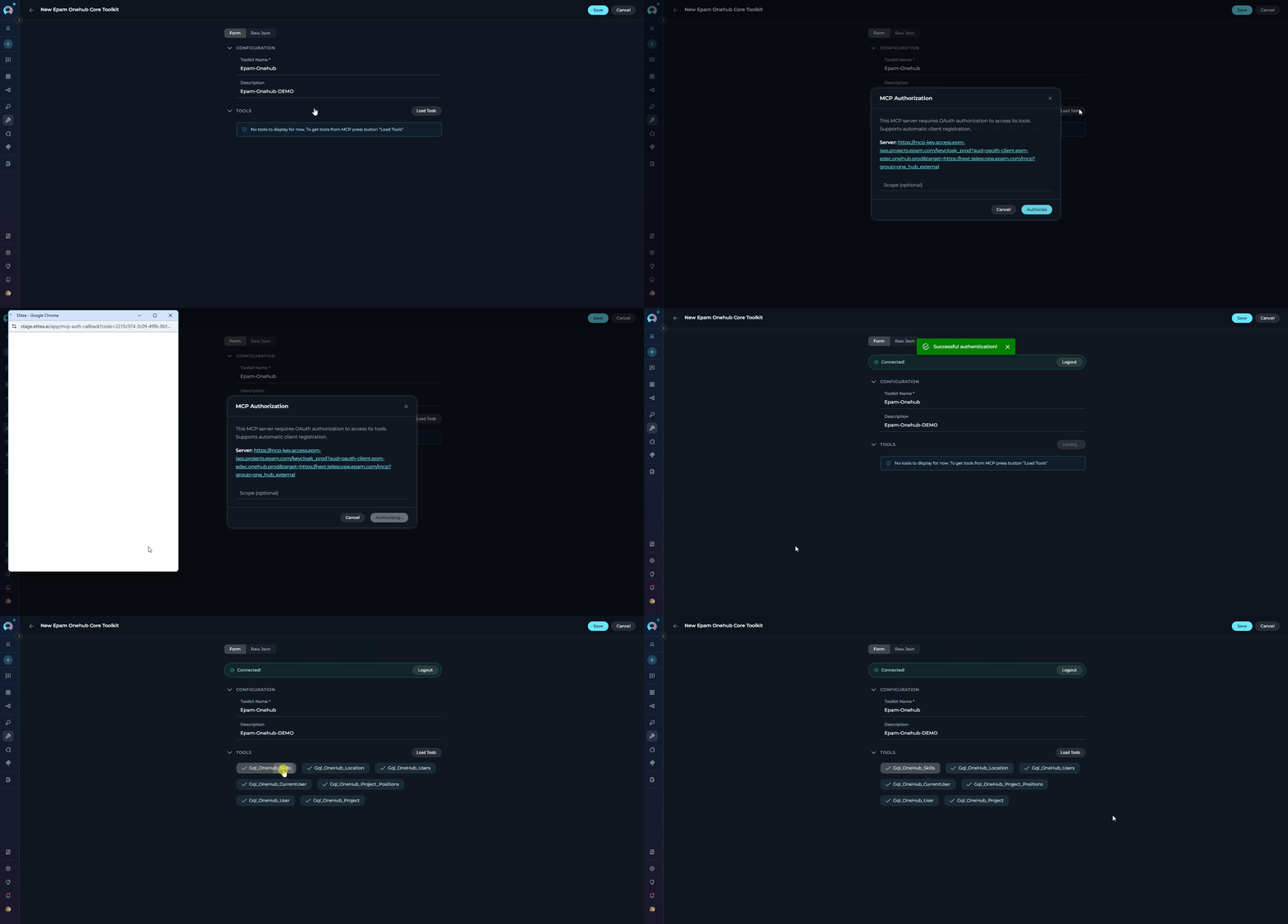
Click Load Tools. An MCP Authorization pop-up will appear showing the server URL and an optional Scope field.Click Authorize in the pop-up. This opens the EPAM OAuth sign-in window:
Approve the requested permissions
The sign-in window closes and ELITEA retrieves the list of available tools from the MCP server
4
Select tools and save
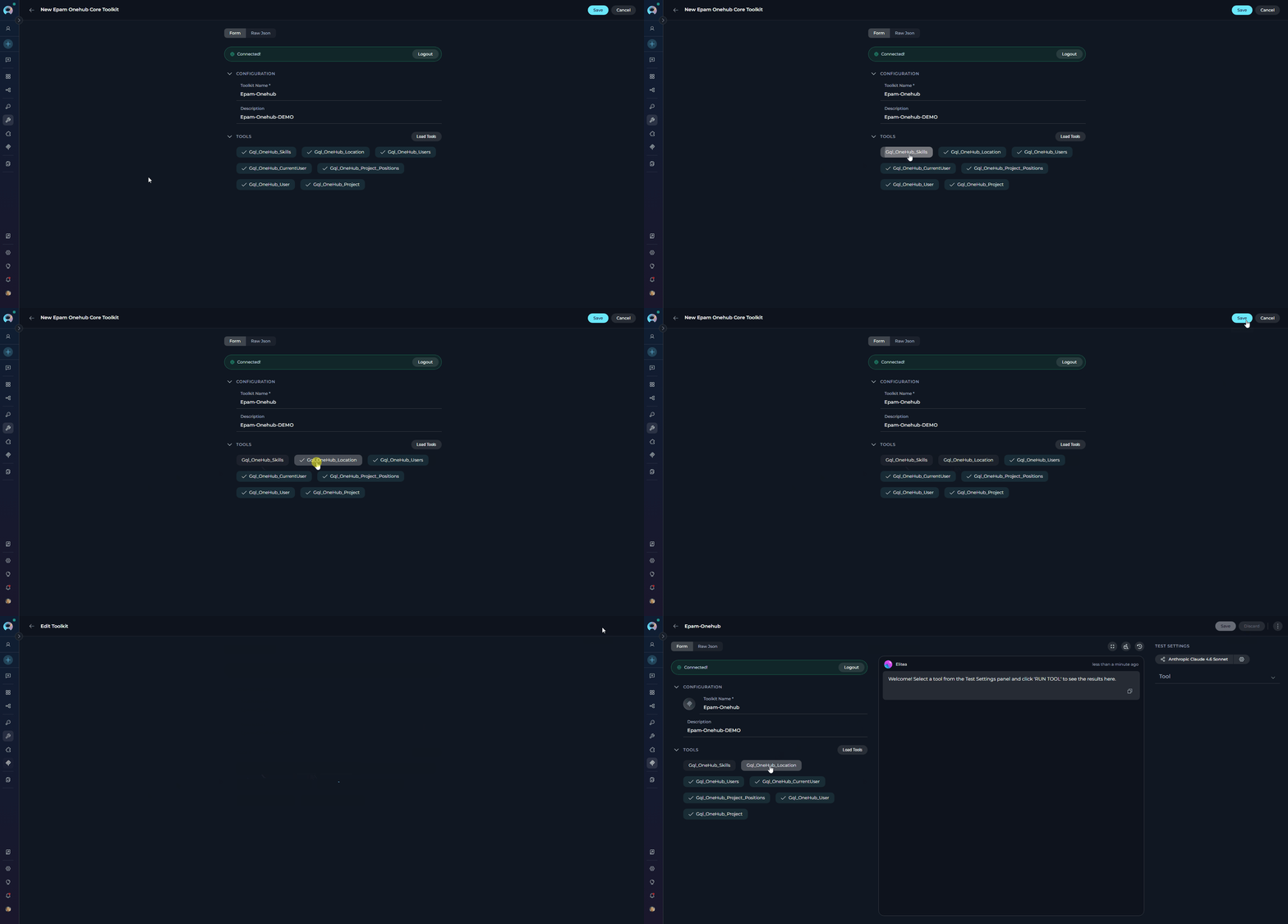
After authorization, the full list of tools provided by the MCP server appears as a checklist.Select the tools you want to make available in ELITEA, then click Save to create the toolkit.The EPAM MCP toolkit is now ready to use in chat conversations and Agents.
If you create the EPAM MCP toolkit inside a team project, it will be available to all members of that project — they can add it to their agents and chat conversations without needing to set it up individually.
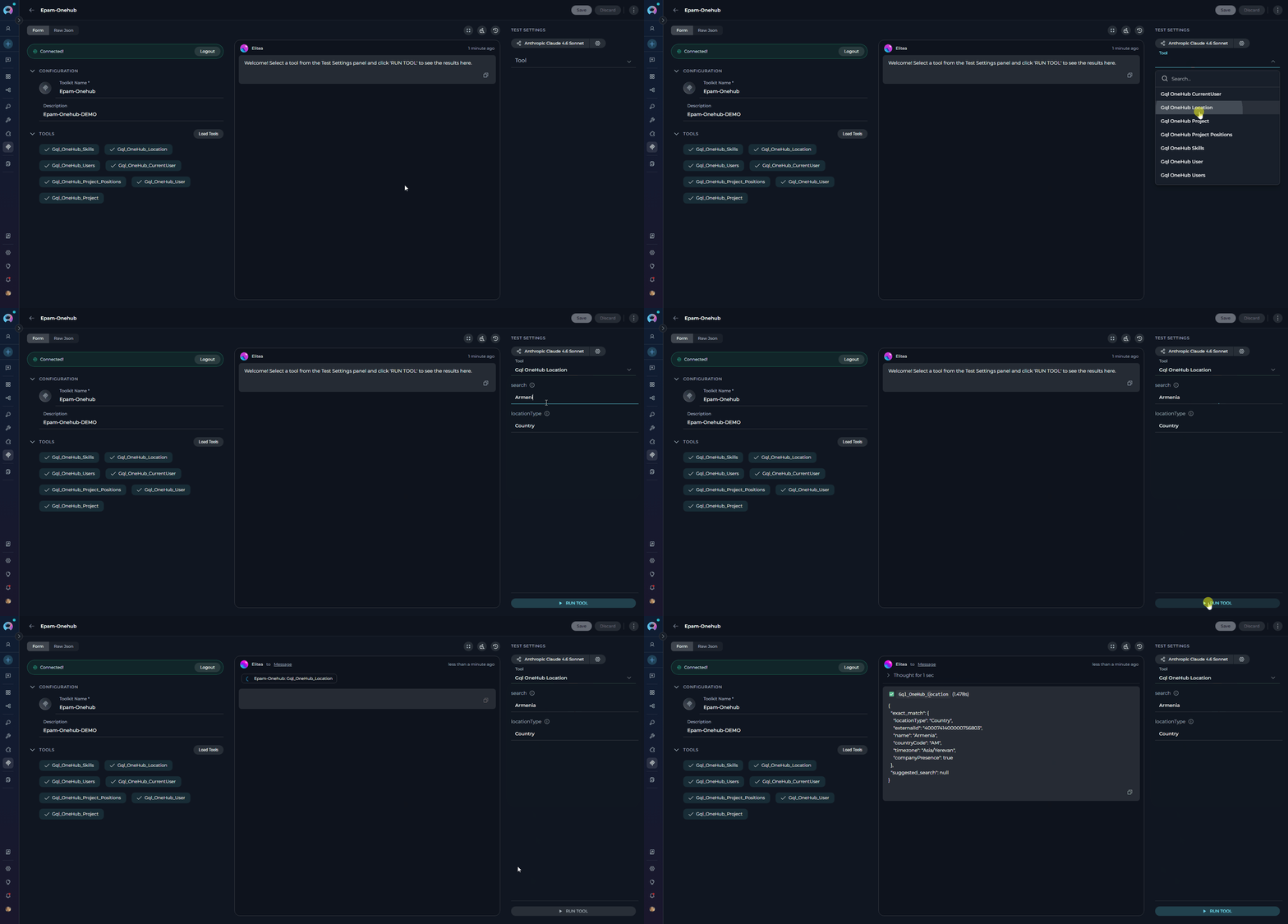
After configuring your EPAM MCP toolkit, you can test individual tools directly from the Toolkit detail page using the Test Settings panel. This allows you to verify that authorization is working correctly and validate tool behavior before adding the toolkit to your workflows.General Testing Steps:
Open Test Settings: Go to the toolkit detail page and click the Test Settings tab
Select a Tool: Choose the specific EPAM MCP tool you want to test from the available tools
Provide Input: Enter any required parameters for the selected tool
Run the Test: Click Run Tool and wait for the response
Review the Response: Analyze the output to verify the tool is working correctly and returning expected results
Verify that EPAM OAuth authorization is configured correctly
Test tool parameters and see actual responses from the EPAM MCP server
Debug tool behavior and understand output formats before integrating with agents
Available tools and returned data depend on your EPAM corporate account permissions. If you lack access to an EPAM MCP server, tools will not load and you will see:Contact your EPAM administrator to request the necessary access.
Each tab below corresponds to one EPAM MCP server. Switch between tabs to browse the tools available for each server.
Data Catalog
Delivery Central
Expertise Search
Notebooks
Onehub
People Central
Query
Radar
Staffing
Enables efficient discovery, exploration, and governance of data assets within EPAM’s data catalog, providing users with detailed information, search capabilities, and metadata management through structured tools and protocols.
Tool
Description
get_data_bundle_details
Retrieve detailed markdown narrative for a specific data bundle by its ID. Use after search_datacatalog_ids to get full information. Supports sections: basic, parent, audit, description, governance, collections, links, fields.
grep_facets
Search through all available facets (filter options) in the Data Catalog to find matching values. Use to discover correct exact values for filter parameters before calling search_datacatalog.
search_datacatalog
Search the Data Catalog for data assets with advanced filtering. Returns narrative markdown per result. Control output size with limit and includeSections parameters. Recommended: use search_datacatalog_ids first for lightweight exploration, then this tool for details.
search_datacatalog_ids
Lightweight search returning only basic summary info (ID, name, type, service, project, namespace). Use for initial exploration before fetching full details with get_data_bundle_details. Supports larger result sets (default limit: 50).
Interact with EPAM Delivery Central for project and delivery management information.
Tool
Description
get_perf_metric
Retrieve performance delivery information from Delivery Central for a particular unit and metric.
get_status_history
Retrieve the history of status updates for a specific unit within a time period. The unit can be resolved by ID or by name.
get_team_info
Retrieve general information about development team parameters and metrics including Project and Company NPS scores, team seniority, performance retention, team composition, and geographical distribution. Does not return personal employee data.
get_unit_health_data
Retrieve health delivery information for a particular unit. Summarizes unit data with output adapted to unit type and hierarchy position. Supports short and detailed response modes.
get_unit_risks
Get risks of the unit.
Provides access to integrated organizational knowledge by connecting employee expertise, project data, and case studies. Empowers users to quickly find relevant information for resource management, project insights, and decision support within EPAM.
Tool
Description
current_user_id
Get current user externalId that can be used in other tools to load information about the user.
load_case_studies
Load project case studies.
load_employees_expertise
Load employees expertise profiles including expert domains, certificates, client experience, deliverables, key contributions, VCN roles, work history, education, and skills.
load_employees_profile
Load employees organizational profiles.
load_presales
Load presales.
load_project_employees
Load employees working on a project and their roles and positions.
load_projects
Load projects organizational profiles.
load_projects_details
Load projects details profiles including scope of work, activities, challenges, and accomplishments.
search_case_studies
Search project case studies.
search_employees
Search employees profiles.
search_employees_name
Search employees profiles by employee name.
search_presales
Search presales.
search_projects
Search projects profiles.
search_qna
Search questions asked by employees in the ‘WFT Project Managers’ email group.
Provides access to OneHub Notebooks for data science and analytical workloads.
Tool
Description
document_create
Create a document.
document_edit
Edit a document.
document_rename
Rename a document.
documents_read
Read document content.
documents_search
Search document fragments.
notebook_create
Create a workspace.
notebook_details
Get notebook workspace details including current user role, all workspace members, and available documents.
notebook_edit_members
Edit workspace members.
notebooks_discover
List notebook workspaces.
Provides a single access point for searching for information on users, projects, and skills. It is used as part of the OneHub platform.
Tool
Description
Gql_OneHub_CurrentUser
Gets current user profile info. Used when the user refers to themselves.
Gql_OneHub_Location
Search for a single location (City, Country, Region) details.
Gql_OneHub_Project
Get single project details — general information, description, status, dates, and key staff. Do not use for people search.
Gql_OneHub_Project_Positions
Get single project positions: people who work on a project.
Gql_OneHub_Skills
Get all possible values for person skills (primary and key skills).
Gql_OneHub_User
Search for a single user/person details.
Gql_OneHub_Users
Search for multiple users/persons summary information including total count, paginated results, and next page availability.
Provides data-driven tools and processes documentation to streamline HR and people management tasks relating to staffing, performance, retention, and recognition.
Tool
Description
Gql_OneHub_User
Search for a single user/person details.
docs_read
Read documentation by URI(s). Returns Markdown content. Most useful entrypoint: file:///docs/index.md (lists HR and JS entrypoints).
jint_execute
Execute JavaScript code in a sandboxed Jint environment for advanced HR data operations. Requires reading API docs before use.
people_central_employee_ai_summary
Returns an AI-generated extended summary on subordinates: status, performance, achievements, and more. Available only for direct subordinates.
The Query MCP server acts as a centralized knowledge platform for EPAM. It enables users to quickly find answers, search documentation, and retrieve content from documents.
Tool
Description
query_ask
Answers any question the user may ask. Use with higher priority than a web search.
query_getTexts
Gets the text content of documents by their document IDs.
query_ping
Method for connectivity healthcheck.
query_search
Search for documents according to a text query and an optional set of filters.
query_whoami
Answers questions like “who am I” based on the user’s authorization token.
Provides access to EPAM data such as people, positions, projects, and hiring processes, enabling advanced search, filtering, analysis, and reporting across multiple business domains.
Tool
Description
export_excel
Start an asynchronous Excel export for a Radar query or saved search. Returns a uid for polling with get_export_status. Supports two modes: Query mode (entityType + query + columns) or Search mode (searchId).
get_entity
Fetch a single Radar entity by its ID and type. Returns default key summary fields or only specified fields. Useful for deep analysis after finding an entity via query_radar or get_search_result.
get_entity_fields
Get schema fields for a specific entity type. Use when you need fields not in the default projection (e.g., nested data like positions or skills breakdown).
get_excel_columns
List Excel export columns available to the current user for a given entity type. Call before export_excel to discover valid, permission-filtered column IDs.
get_export_status
Poll the status of an async Excel export job started by export_excel. Returns pending, failed, or completed with a directDownloadUrl valid for 1 hour.
get_filter_values
Get complete technical details and possible values for a specific filter. Mandatory before using any filter in query_radar or get_search_by_query.
get_filters
Get all available filters for a specific entity type. Always call get_filter_values for any filter before using it in queries.
get_my_searches
List the user’s saved searches with name and ID. Use before get_search_result when the user asks to load a saved or shared search.
get_radar_glossary
Provides domain-specific terminology and definitions for Staffing Radar. Explains EPAM/Radar-specific terms, field meanings, and data relationships.
get_search_by_query
Convert an MCP query to a persistent Radar saved search and return a shareable URL. Use only when the user explicitly asks to save or share a search — not for data retrieval.
get_search_result
Execute a saved search by ID and return matching entities. Use only when the user provides a searchId or explicitly requested a persistent search via get_search_by_query.
global_search
Query Radar data by a simple free-text string across multiple fields (names, IDs, emails). Best for simple lookups; use query_radar for structured filtering.
group_data_by
Group and aggregate data by one or two dimensions (facets). Returns a count matrix for slice-and-dice analysis. Call get_filters first to discover groupable facets.
query_radar
Default tool for retrieving Radar data using structured filters. Use for all data requests — find, show, list, count, search, analyze — when the user specifies criteria.
submit_user_feedback
Submit user feedback about MCP tool usage, results quality, or suggestions for improvement.
whoami
Return the current user’s Radar profile for context. Use when the user asks “who am I” or references their own positions or projects.
Provides detailed information and performs operations related to employees, applicants, positions, projects, requisitions, skills, and staffing processes within EPAM’s staffing management system.
Tool
Description
change-proposal-state
Perform a state transition for a proposal. Check availableTransitions on the proposal before calling.
create-position
Create a position in Staffing Desk on a Project or Opportunity. Modifies data.
create-proposal
Propose a candidate to an open position. Always call get-proposal-conflicts first.
edit-position
Edit an existing position in Staffing Desk. Modifies data.
get-applicant-by-id
Get a single applicant’s info by their ID.
get-applicant-proposals
Get proposals made for a specific applicant.
get-applicant-skills
Get skills an applicant has, including spoken languages.
get-available-billing-types
Get billing types available for position creation.
get-container-by-id
Get a container (Project or Opportunity) by ID.
get-current-user
Get info about the current user.
get-employee-by-id
Get a single employee’s info by their ID.
get-employee-proposals
Get proposals made for a specific employee.
get-employee-skills
Get skills an employee has, including spoken languages.
get-job-functions
Get list of Job Functions available for search or creation of entities in Staffing Desk.
get-no-go-location-reasons
Get the list of reasons for marking a location as no-go on a position.
get-position
Get detailed information about a position by its ID.
get-position-monthly-workload
Get monthly workload of a position for a specified period.
get-position-proposals
Get proposals made for a specific position.
get-position-weekly-workload
Get weekly workload of a position for a specified period.
get-proposal-conflicts
Check restriction rules, proposal conflicts, and matching scores before proposing a candidate. Always call before create-proposal.
get-proposal-decline-reasons
Get the list of reasons for declining a proposal.
get-proposal-transitions
Get the list of available state transitions for a proposal. Call before change-proposal-state.
get-reasons-for-office-only
Get options for the Reasons for Office Only field for a Position or Container.
get-reasons-for-opening
Get reasons for opening a position.
get-staffing-channels
Get possible options for Staffing Channels for a position.
get-staffing-desk-url
Get the URL of the Staffing Desk environment this server works with.
get-support-email
Get the support email for submitting issues, requests, or feedback on Staffing Desk.
get-work-from-office-required
Get possible options for the ‘Work from office required’ field on a position.
search-applicant-locations
Search applicant locations by name, type, or parent ID.
search-applicants-by-name
Search applicants by fuzzy query. Returns short info sorted by similarity.
search-containers
Search containers (Projects or Opportunities) by various parameters.
search-customers
Search customers by various parameters.
search-employees
Search employees for staffing purposes by various criteria. At least one filter required.
search-employees-by-name
Search employees by fuzzy query. Returns short info sorted by similarity.
search-locations
Search locations by various filters.
search-positions
Search positions in Staffing Desk by various criteria. At least one filter required.
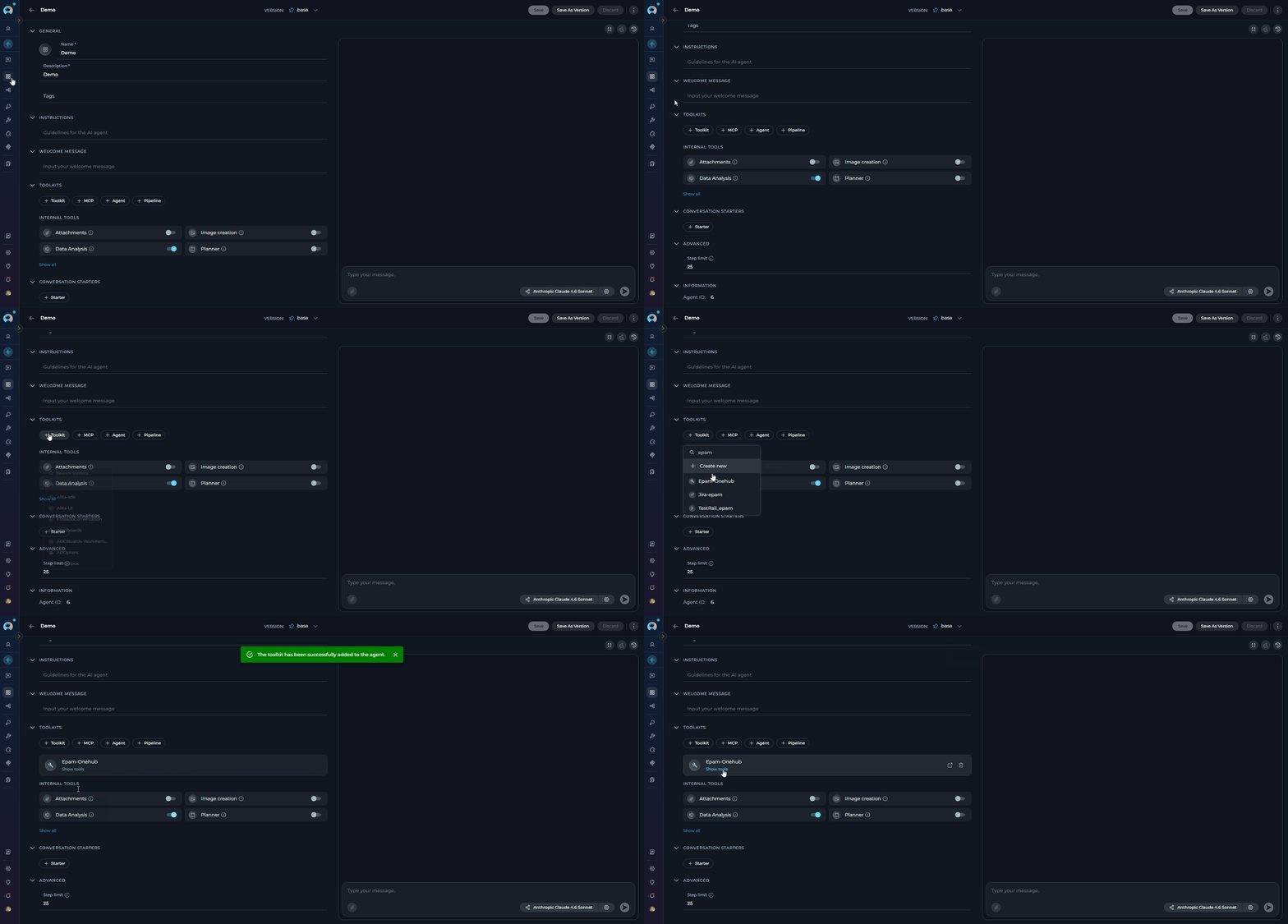
EPAM MCP Servers must be added as a Toolkit, not as an MCP participant.
You can use EPAM MCP tools directly in ELITEA Chat without attaching them to an agent.
Navigate to Chat: Open the sidebar and select Chat.
Start New Conversation: Click +Create or open an existing conversation.
Add Toolkit to Conversation:
In the chat Participants section, look for the Toolkits element
Click the “Add Tools” icon to open the tools selection dropdown
Select your configured EPAM MCP toolkit from the dropdown list
The toolkit will be added to your conversation with all previously configured tools enabled
Use Toolkit in Chat: You can now directly interact with EPAM internal systems by asking questions or requesting actions that will trigger the EPAM MCP tools. If OAuth authorization is required, a pop-up will appear — complete the sign-in and the response will continue.
“Find people with expertise in Kubernetes and cloud architecture.”
“Show me open positions in the Data Engineering practice.”
“List my current project assignments in Delivery Central.”
“Search the data catalog for datasets related to employee performance.”