

Introduction
The ability to manage authentication credentials centrally within ELITEA offers significant benefits:Enhanced Security
Store sensitive authentication information like API keys, tokens, and passwords securely using ELITEA’s credential management system.
Centralized Management
Manage authentication details for various external services from a single location within ELITEA, simplifying administration and improving visibility.
Reusability
Create reusable credentials that can be easily applied to multiple Agent toolkits, saving time and effort.
Flexibility
Configure credentials at different levels (personal or project-specific) to meet various security and access requirements.
Private Workspace
Your personal area within ELITEA. You have exclusive access to all content you create here — Chats, Agents, Prompts, Datasources, Collections, Artifacts, and Credentials.
Team Project
A collaborative space shared with team members. All members can access the project’s shared content, including Chats, Agents, Prompts, Datasources, Collections, Artifacts, and Credentials.
Credentials Overview
The Credentials menu is where you store authentication details for external services — API keys, tokens, usernames, passwords — so your toolkits can connect to those services without requiring sensitive information to be entered repeatedly. Credentials are scoped to the workspace or project where they are created and can be reused across any compatible toolkit within that scope. Key capabilities:- Centralized Authentication Management: The Credentials menu provides a single point of control for managing authentication details for various external services.
- Reusable Configurations: Once a credential is configured, it can be reused across multiple toolkits within the same project or your Private workspace.
- Private and Project Level Credentials: You can create credentials within your Private workspace for personal use or within Team projects for shared access among project members.
- Secure Storage: ELITEA securely stores sensitive information such as API keys, tokens, and passwords, with the option to use Secrets for enhanced security.
Supported Platforms
ELITEA supports credentials for 27 external services. Select a platform to jump to its setup instructions.ADO (Azure DevOps)
Microsoft Azure DevOps
Bitbucket
Git repository hosting
Carrier
Communication services, messaging
Confluence
Atlassian knowledge management
Figma
Design collaboration platform
GitHub
Git repository hosting
GitLab
Git repository and DevOps platform
Google Places
Location services and mapping APIs
Jira
Atlassian project management
Langfuse
LLM observability and tracing
OpenAPI
Custom REST API integrations
Postman
API development platform
QTest
Test management platform
Rally
Agile project management
Report Portal
Test reporting and analytics
Salesforce
CRM platform
ServiceNow
IT service management
SharePoint
Document management and collaboration
Slack
Team communication platform
Sonar
Code quality and security analysis
SQL
Database connections
TestIO
Crowdsourced testing platform
TestRail
Test case management
Xray
Test management for Jira (Cloud)
Zephyr Enterprise
Enterprise test management
Zephyr Essential
Essential test management
Zephyr Scale
Test management for Jira
Accessing the Credentials Menu
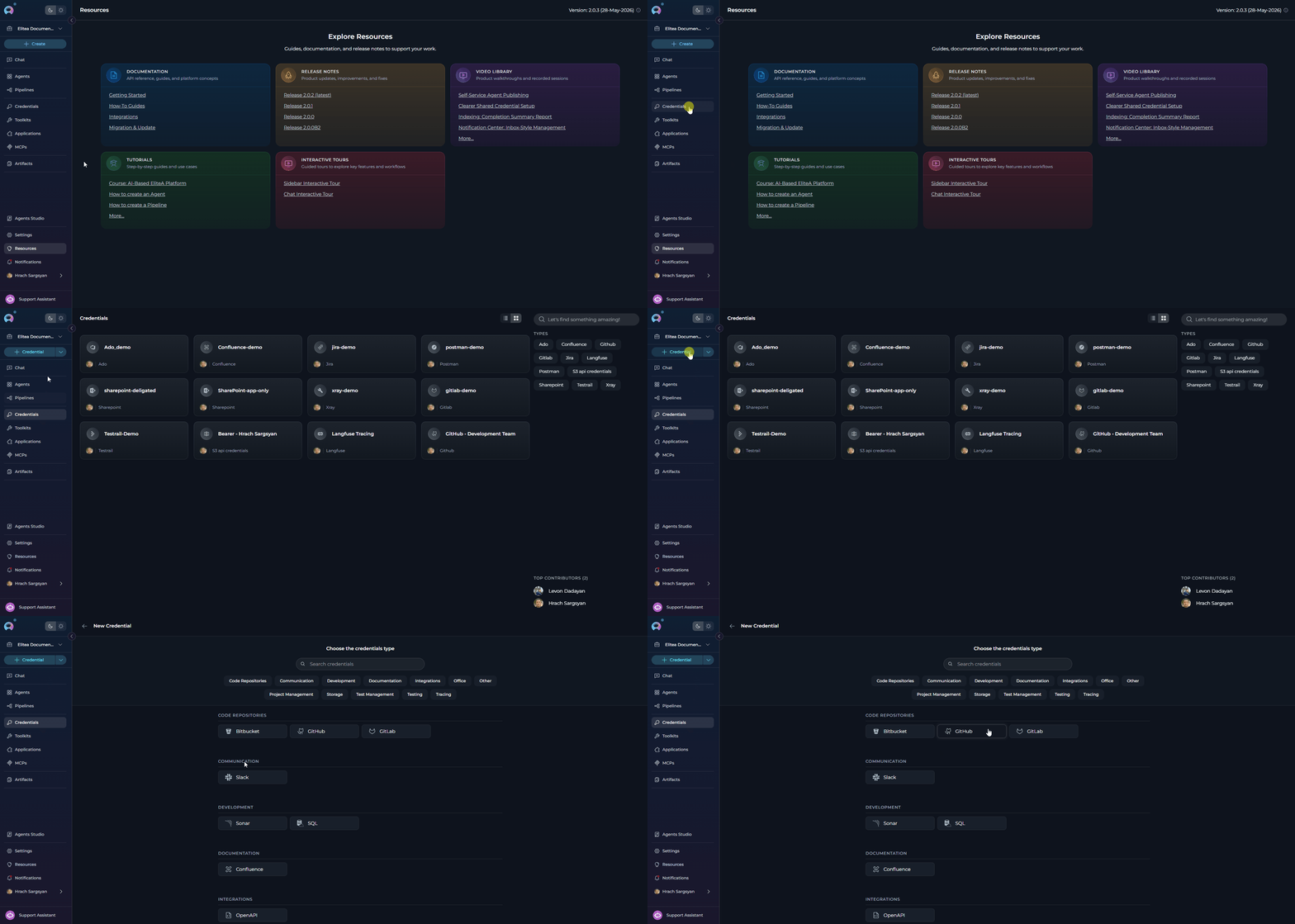
- Log in to ELITEA.
- Navigate to either your Private workspace or the specific Team project where you want to configure credentials.
- Click on Credentials in the main navigation menu.
- Click the + Create button.
- A dialog will appear prompting you to Select Credential Type. Choose the service you want to create credentials for (e.g., Confluence, GitHub, Jira, Slack).
-
You will be presented with a configuration form specific to the selected credential type. Follow the detailed steps below for each service.
Scope and Security
- Private Credentials: Created in your Private workspace — accessible only to you.
- Project Credentials: Created within a Team project — accessible to all project members.
- Accuracy matters: Incorrect credentials will cause toolkit connections to fail. Verify that your tokens, keys, or passwords are valid and have the permissions required for the intended operations.
- Use Secrets (recommended): For any sensitive field (API key, token, password), reference a pre-configured secret from the Secrets section instead of entering the value directly. This keeps sensitive data out of configuration forms and makes rotation easier.
- Manual entry: Acceptable for temporary setups or testing when Secrets are not yet available.
Using Secrets in Credentials
Instead of typing sensitive values (API keys, tokens, passwords) directly into credential fields, ELITEA lets you reference a pre-stored Secret — keeping sensitive data out of configuration forms and making credential rotation easier.Prerequisites
Before referencing a secret in a credential, create the secret in the Settings → Secrets section:- Click the Settings icon in the main navigation sidebar.
- Select Secrets from the left navigation drawer.
- Click the + button to add a new secret.
- Enter a unique Name (letters, numbers, and underscores only — e.g.,
github_pat_token) and the Value (the actual sensitive string). - Click the ✓ checkmark to save.
Secrets are scoped to the project where they are created. Make sure you create the secret in the same project (or Private workspace) where the credential will be used.
Referencing a Secret in a Credential Field
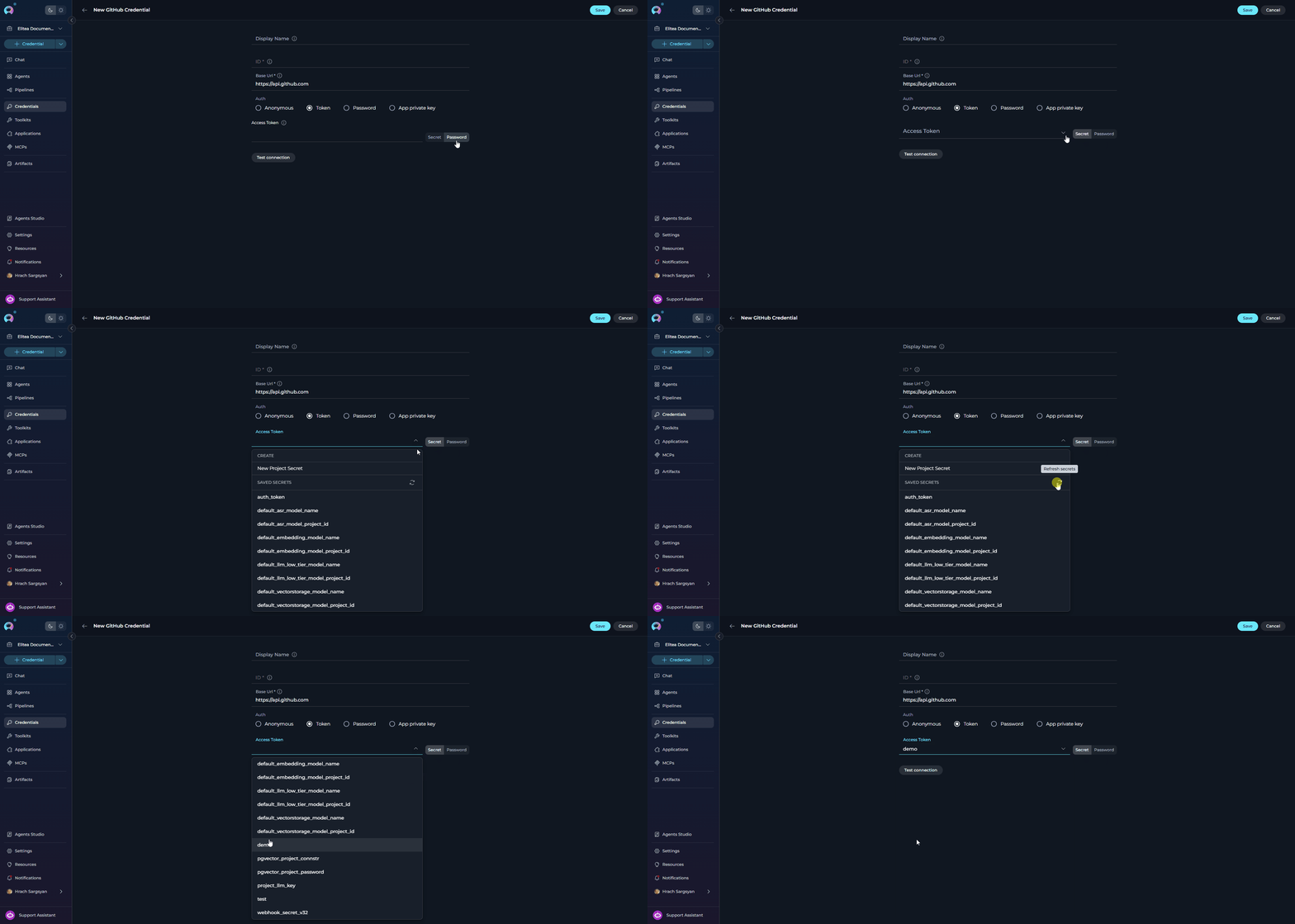
When filling in any sensitive field in a credential form (such as Token, API Key, Password, Client Secret), you can select a secret instead of entering the value manually:- Click on the sensitive field — a dropdown will appear listing available secrets from the current project or workspace.
-
To use an existing secret, select it from the list. The field will display the secret name (e.g.,
github_pat_token) instead of the actual value. - To create a new secret, click + New Secret at the top of the dropdown — you will be redirected to the Settings → Secrets page. Create the secret there, then navigate back to the credential form. Click the Refresh icon to reload the secrets list, then select your newly created secret from the dropdown.
-
Complete the remaining credential fields and click Save.
Supported Credential Types and Setup Guides
Below are the supported credential types in ELITEA, with step-by-step instructions for each:ADO (Azure DevOps) Credential Setup
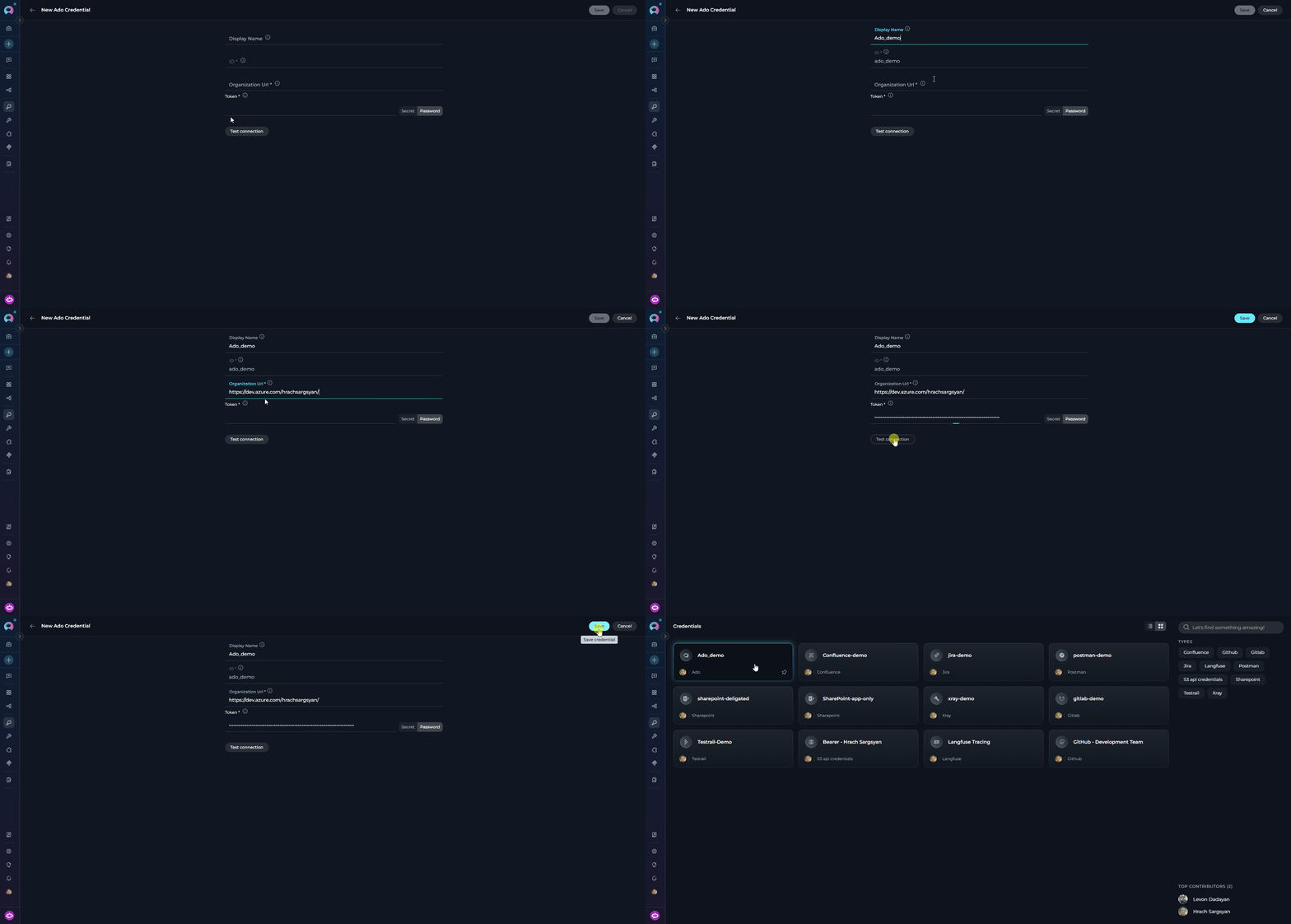
To create an ADO (Azure DevOps) credential: Step-by-step Instructions:- Click + Create in the Credentials menu.
- Select ADO as the credential type.
-
Configure Credential Details:
Field Description Example Display Name Enter a descriptive name for this credential ADO - Project ManagementID Unique identifier for the credential Auto-populated from the Display Name Organization URL Your Azure DevOps organization URL https://dev.azure.com/yourorgToken Your ADO Personal Access Token (PAT), or select a secret pat_abc123... - Test Connection: Click Test Connection to verify that ELITEA can connect to Azure DevOps using the provided credentials.
-
Save Credential: Click Save to create the credential.
Bitbucket Credential Setup
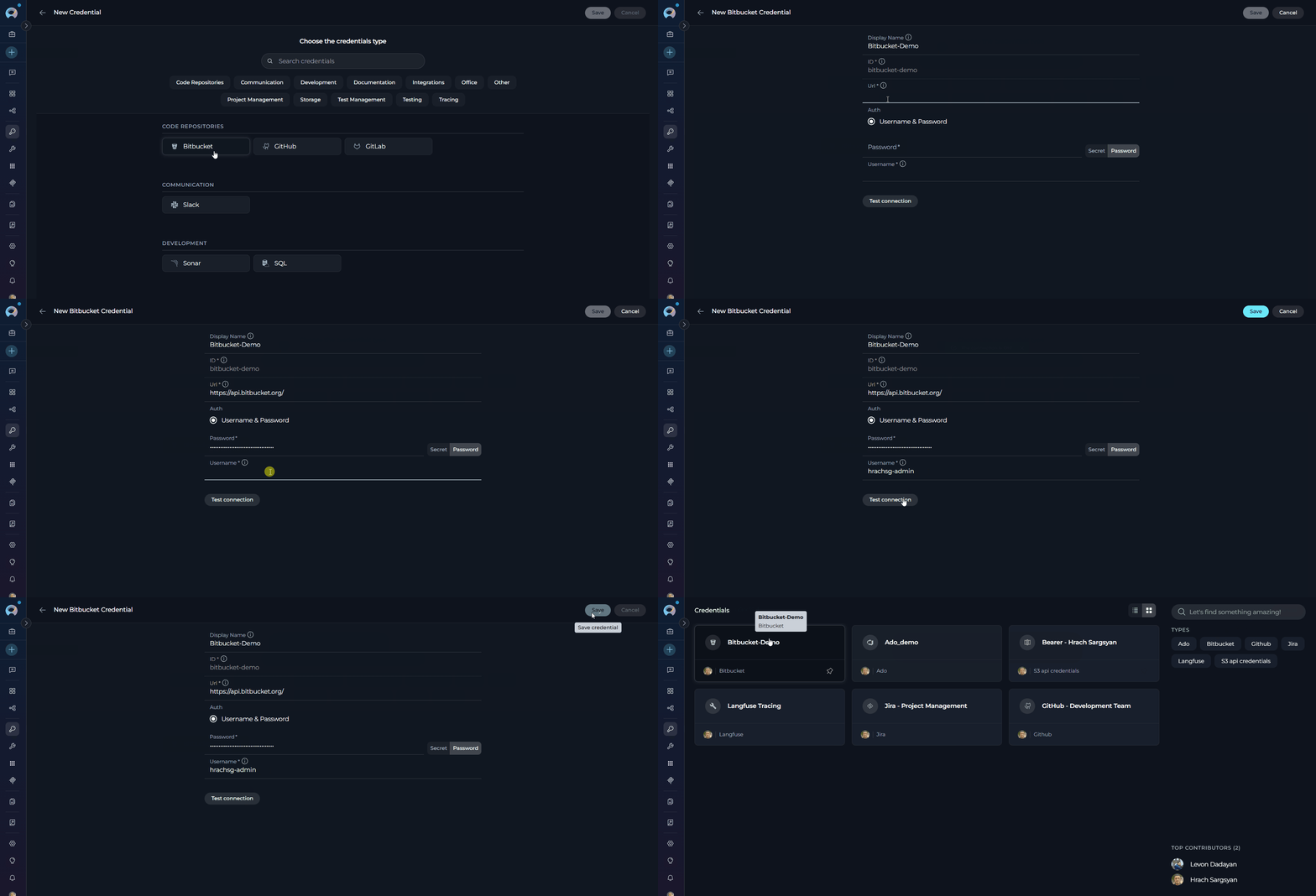
To create a Bitbucket credential: Step-by-step Instructions:- Click + Create in the Credentials menu.
- Select Bitbucket as the credential type.
-
Configure Credential Details:
Field Description Example Display Name Enter a descriptive name for this credential Bitbucket - Repository AccessID Unique identifier for the credential Auto-populated from the Display Name URL Your Bitbucket instance URL https://bitbucket.orgUsername Your Bitbucket username john.doePassword Your Bitbucket password or app password •••••••• - Test Connection: Click Test Connection to verify that ELITEA can connect to Bitbucket using the provided credentials.
-
Save Credential: Click Save to create the credential.
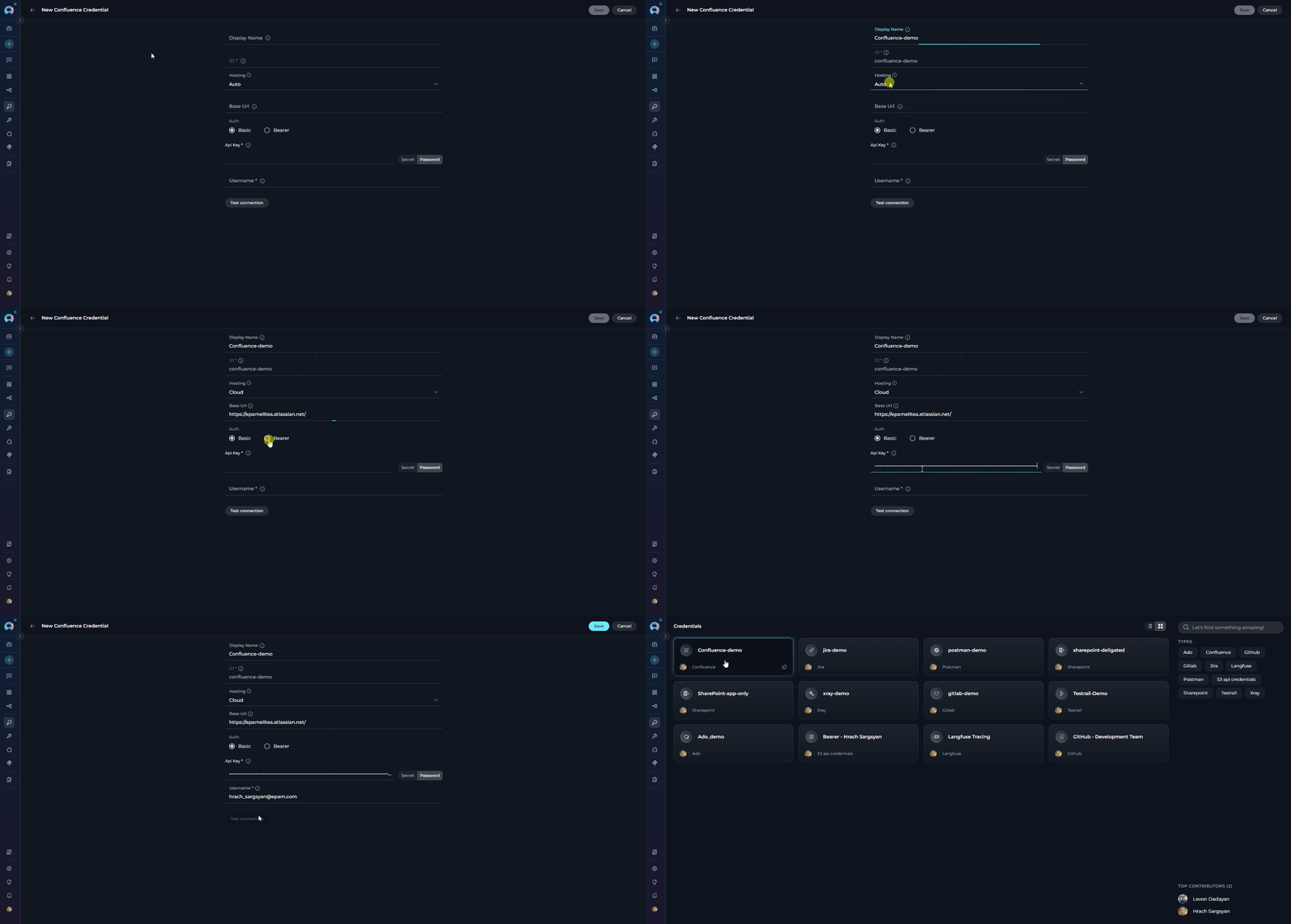
Confluence Credential Setup
To create a Confluence credential:- Click + Create in the Credentials menu.
- Select Confluence as the credential type.
- Configure the common fields and choose your authentication method:
| Field | Description | Example |
|---|---|---|
| Display Name | Enter a descriptive name for this credential | Confluence - Knowledge Base |
| ID | Unique identifier for the credential | Auto-populated from the Display Name |
| Hosting | Hosting type — Auto (default), Cloud, or Server | Auto |
| Base URL | URL of your Confluence instance | https://yourcompany.atlassian.net/wiki |
- Basic
- Bearer
Used for: Cloud (API token) or Server/Data Center (Personal Access Token) with username.
| Field | Description | Example |
|---|---|---|
| Username | Your username or email | user@example.com |
| API Key / Token | API token (Cloud) or PAT (Server/DC) | ATATT3x... |
- Test Connection: Click Test Connection to verify the connection.
- Save Credential: Click Save to create the credential.
Figma Credential Setup
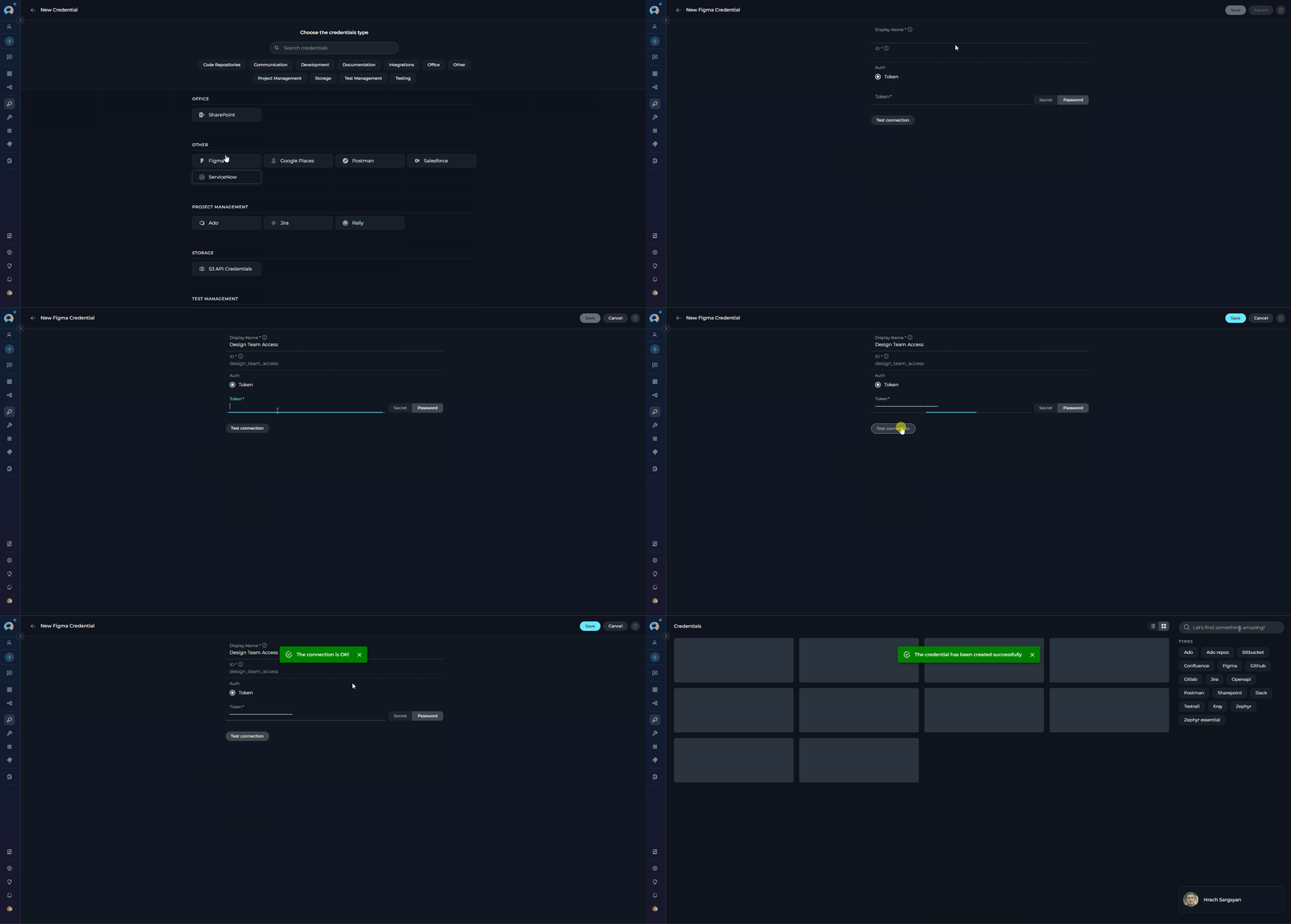
To create a Figma credential: Step-by-step Instructions:- Click + Create in the Credentials menu.
- Select Figma as the credential type.
-
Configure Credential Details:
Field Description Example Display Name Enter a descriptive name for this credential Figma - Design AssetsID Unique identifier for the credential Auto-populated from the Display Name Token Your Figma Personal Access Token (generate at Figma → Settings → Security → Personal access tokens) figd_abc123... - Test Connection: Click Test Connection to verify that ELITEA can connect to Figma using the provided credentials.
-
Save Credential: Click Save to create the credential.
GitHub Credential Setup
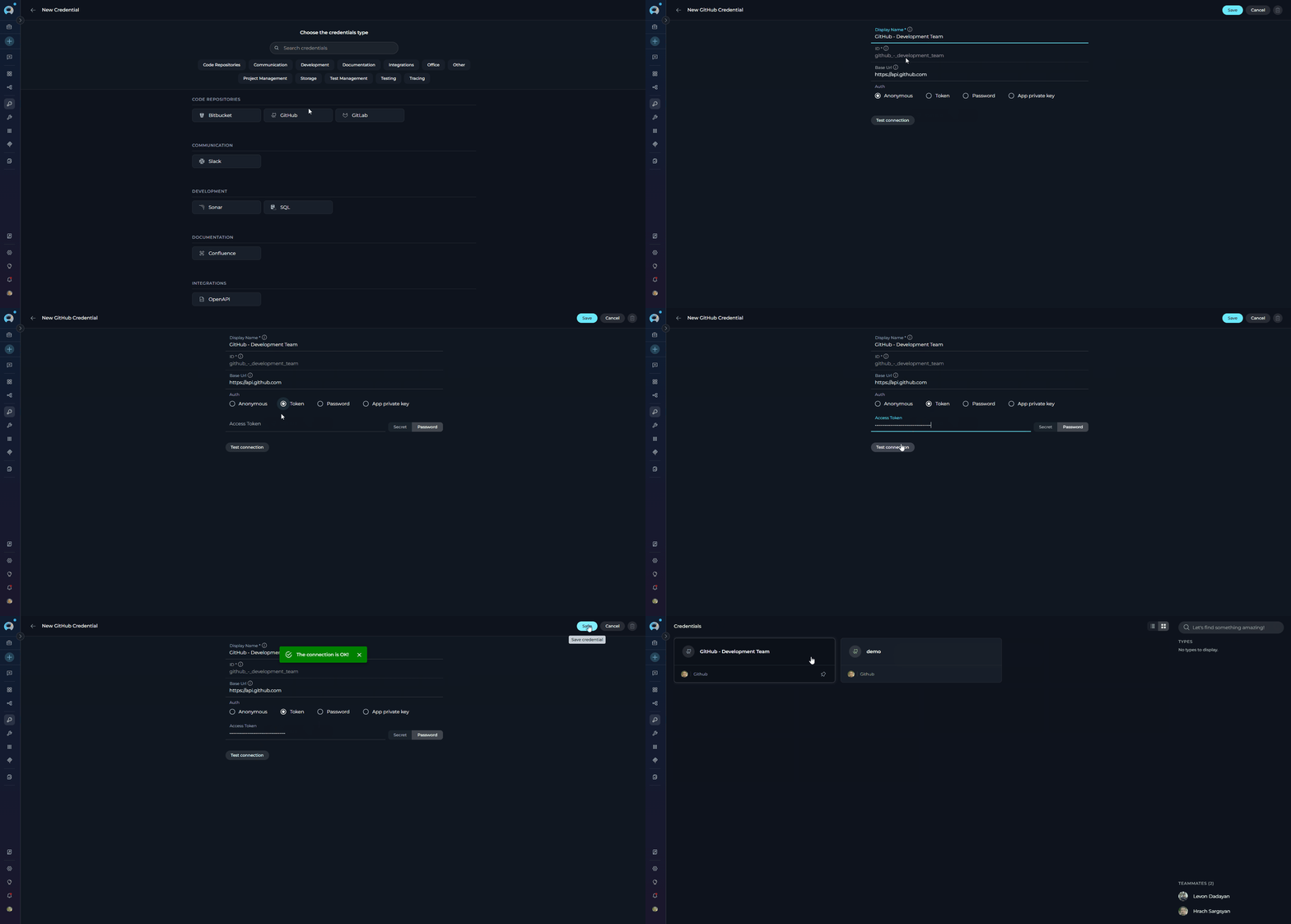
To create a GitHub credential:- Click + Create in the Credentials menu.
- Select GitHub as the credential type.
- Configure the common fields and choose your authentication method:
| Field | Description | Example |
|---|---|---|
| Display Name | Enter a descriptive name for this credential | GitHub - Project Repository |
| ID | Unique identifier for the credential | Auto-populated from the Display Name |
| Base URL | GitHub API base URL. Leave blank for GitHub.com; set for GitHub Enterprise Server | https://ghe.company.com/api/v3 |
- Token
- Password
- App Private Key
- Anonymous
Used for: Personal Access Token (PAT) authentication — the most common method for GitHub.com and GitHub Enterprise.
| Field | Description | Example |
|---|---|---|
| Access Token | GitHub Personal Access Token | ghp_abc123... |
- Test Connection: Click Test Connection to verify the connection.
- Save Credential: Click Save to create the credential.
When configuring GitHub credentials, the Base URL depends on whether you use GitHub.com or a self‑hosted GitHub Enterprise Server (GHES).
| API | Enterprise | GitHub.com |
|---|---|---|
| v3 (REST) | https://[YOUR_HOST]/api/v3 | https://api.github.com |
| v4 (GraphQL) | https://[YOUR_HOST]/api/graphql | https://api.github.com/graphql |
- For GitHub.com: Leave the Base URL blank to use the default
https://api.github.com. - For GitHub Enterprise Server: Set the Base URL to your REST v3 endpoint (example:
https://ghe.company.com/api/v3). GraphQL requests usehttps://ghe.company.com/api/graphql. - Ensure your token scopes match your use case (e.g.,
repo,workflow,read:org) and that your GHES certificate is trusted by your environment.
GitLab Credential Setup
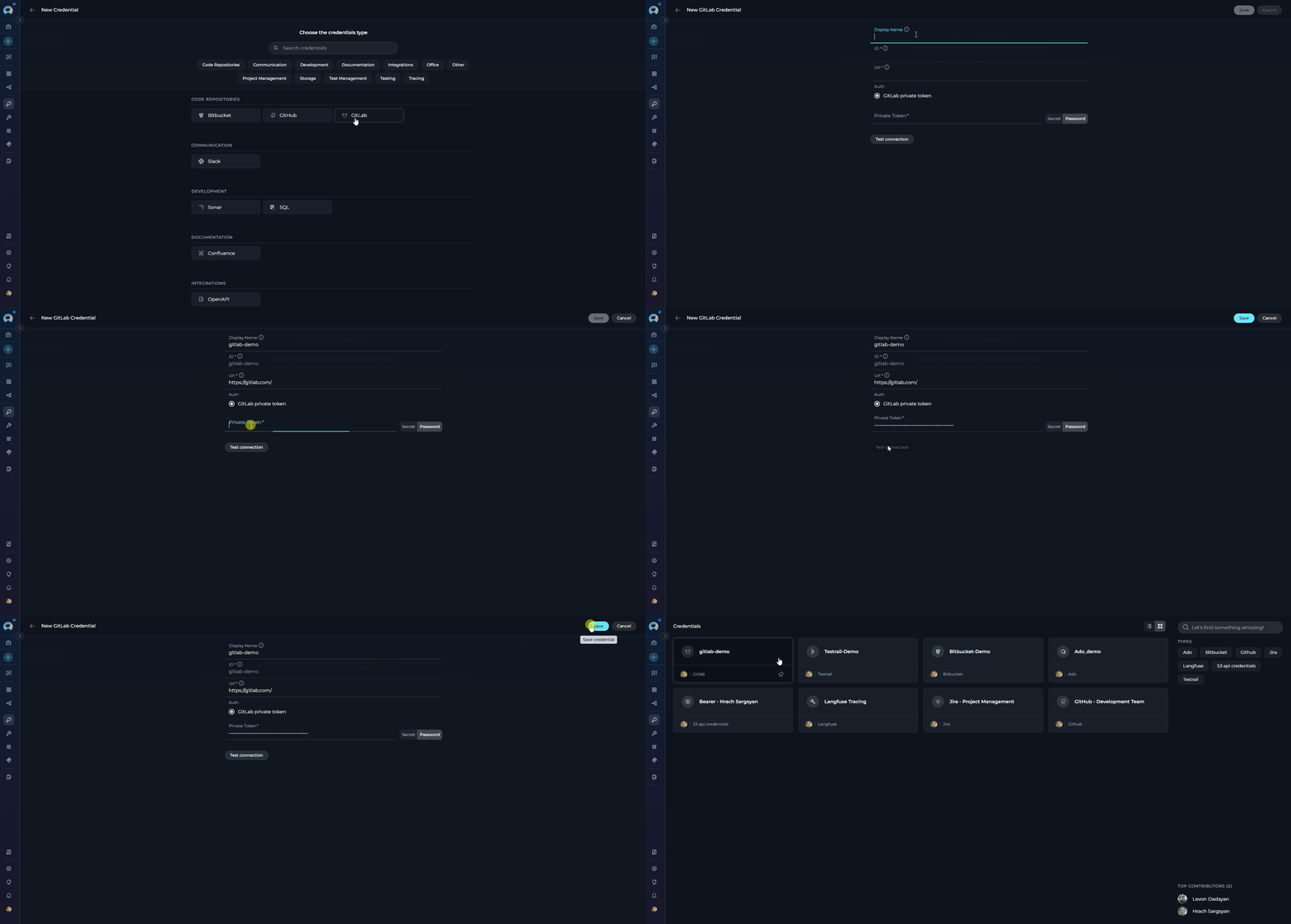
To create a GitLab credential: Step-by-step Instructions:- Click + Create in the Credentials menu.
- Select GitLab as the credential type.
-
Configure Credential Details:
Field Description Example Display Name Enter a descriptive name for this credential GitLab - DevelopmentID Unique identifier for the credential Auto-populated from the Display Name URL URL of your GitLab instance https://gitlab.comPrivate Token Your GitLab Personal Access Token glpat-abc123... - Test Connection: Click Test Connection to verify that ELITEA can connect to GitLab using the provided credentials.
-
Save Credential: Click Save to create the credential.
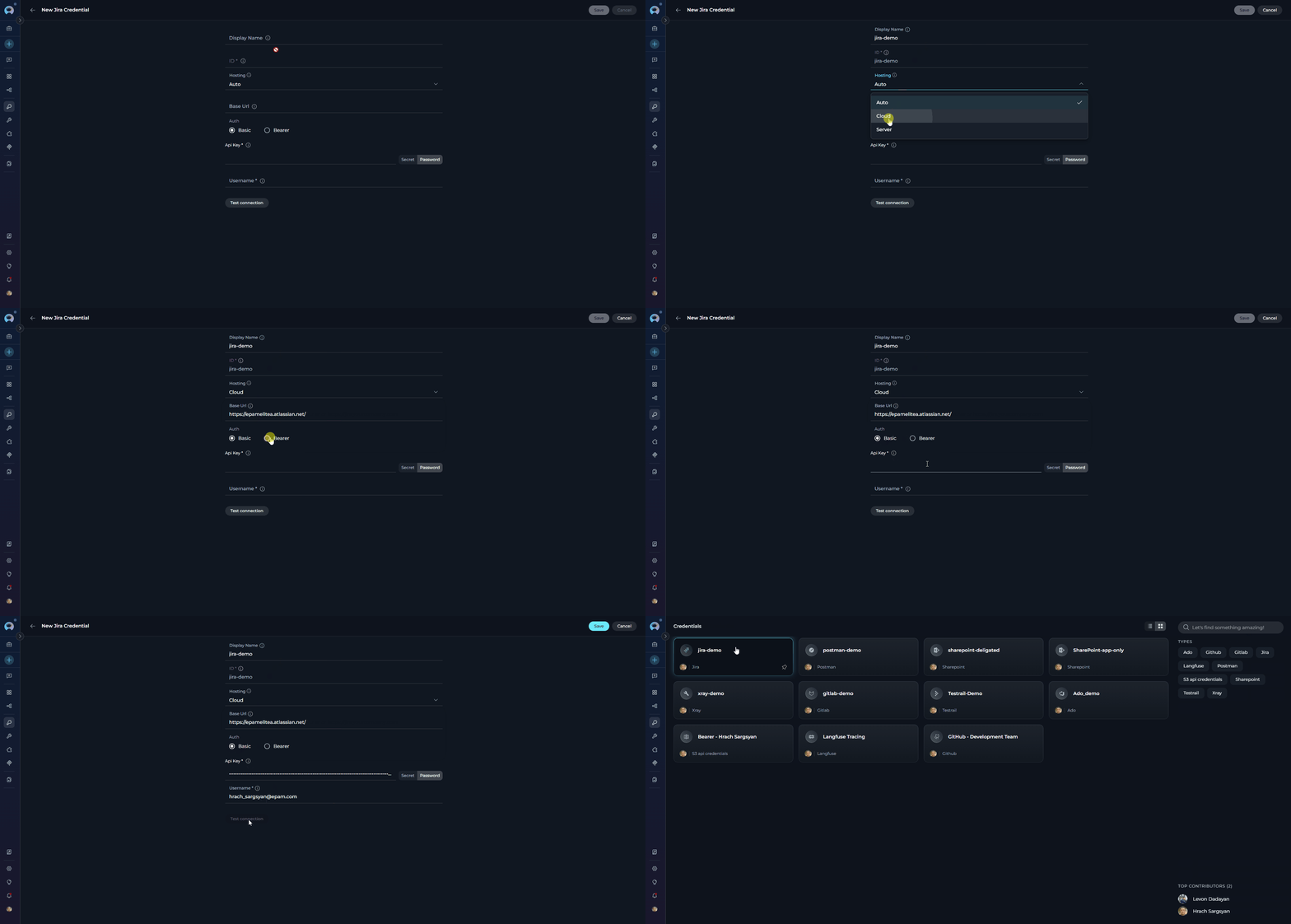
Jira Credential Setup
To create a Jira credential:- Click + Create in the Credentials menu.
- Select Jira as the credential type.
- Configure the common fields and choose your authentication method:
| Field | Description | Example |
|---|---|---|
| Display Name | Enter a descriptive name for this credential | Jira - Project Management |
| ID | Unique identifier for the credential | Auto-populated from the Display Name |
| Hosting | Hosting type — Auto (default), Cloud, or Server | Auto |
| Base URL | URL of your Jira instance | https://yourcompany.atlassian.net |
- Basic
- Bearer
Used for: Cloud (API token) or Server/Data Center (Personal Access Token) with username.
| Field | Description | Example |
|---|---|---|
| Username | Your username or email | user@example.com |
| API Key / Token | API token (Cloud) or PAT (Server/DC) | ATATT3x... |
- Test Connection: Click Test Connection to verify the connection.
- Save Credential: Click Save to create the credential.
Postman Credential Setup
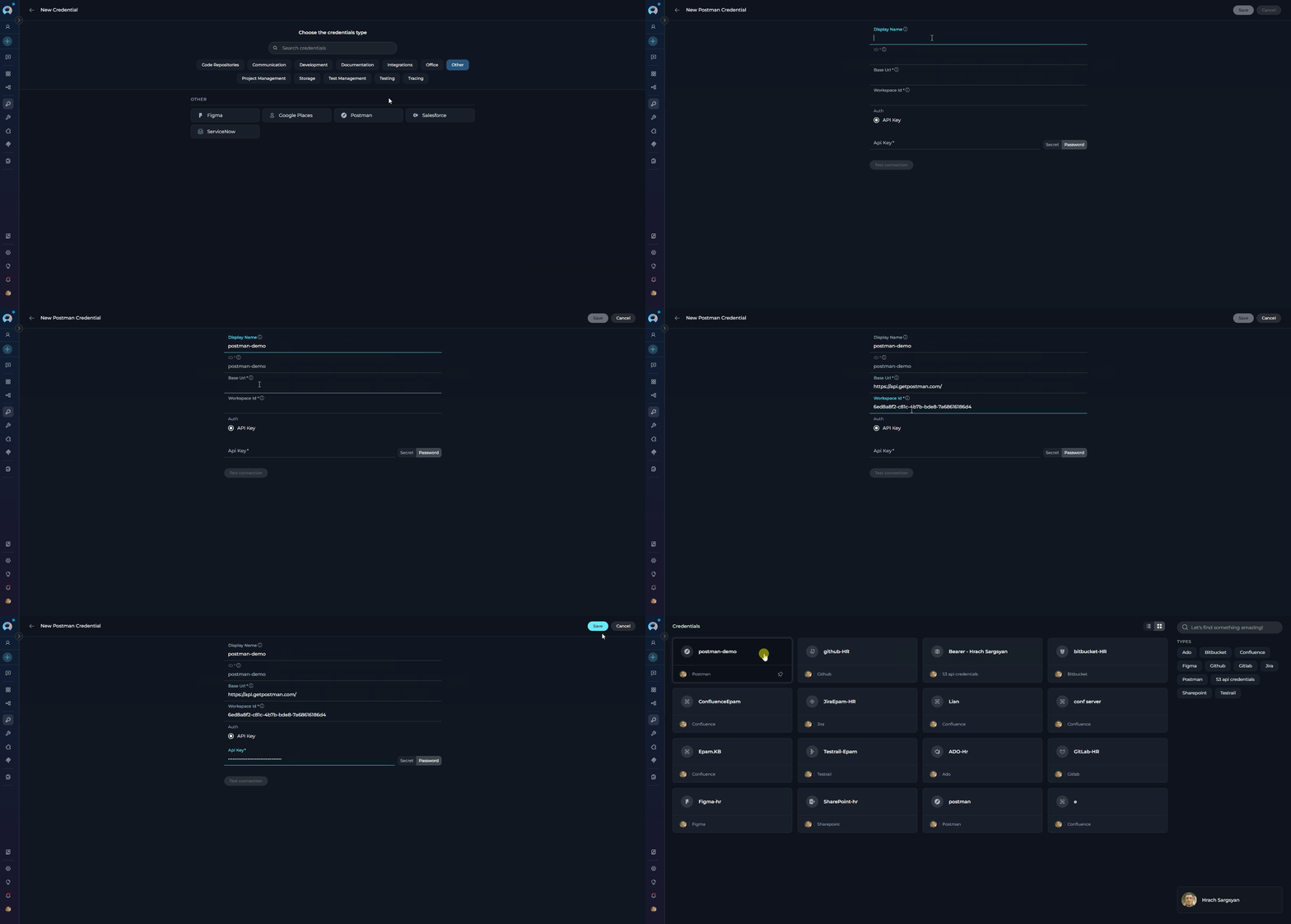
To create a Postman credential: Step-by-step Instructions:- Click + Create in the Credentials menu.
- Select Postman as the credential type.
-
Configure Credential Details:
Field Description Example Display Name Enter a descriptive name for this credential Postman - API CollectionsID Unique identifier for the credential Auto-populated from the Display Name Base URL Postman API base URL https://api.getpostman.comWorkspace ID Your default Postman workspace ID abc12345-xxxx-xxxx-xxxx-xxxxxxxxxxxxAPI Key Your Postman API key PMAK-abc123... - Test Connection: Click Test Connection to verify that ELITEA can connect to Postman using the provided credentials.
-
Save Credential: Click Save to create the credential.
QTest Credential Setup
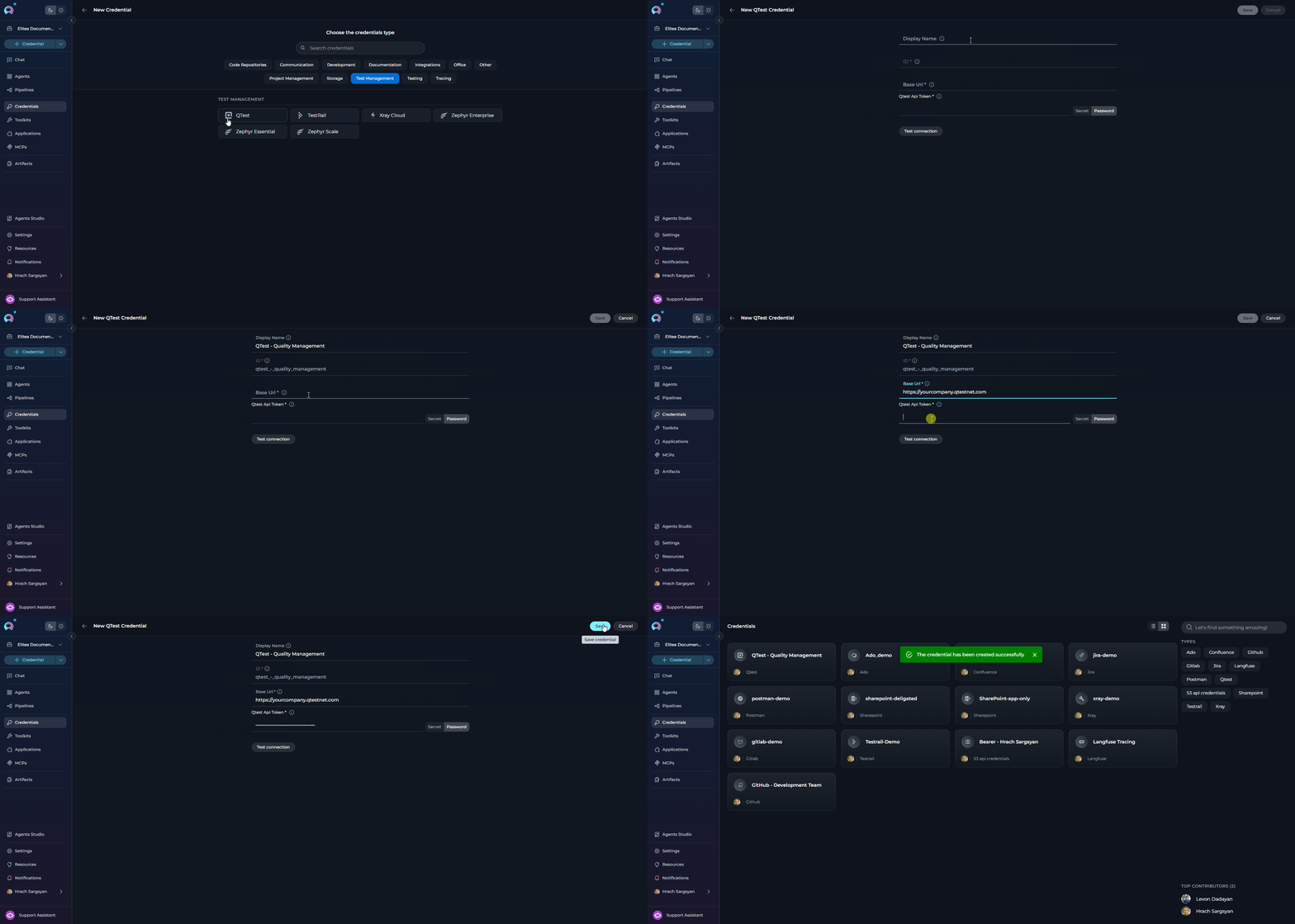
To create a QTest credential: Step-by-step Instructions:- Click + Create in the Credentials menu.
- Select QTest as the credential type.
-
Configure Credential Details:
Field Description Example Display Name Enter a descriptive name for this credential QTest - Quality ManagementID Unique identifier for the credential Auto-populated from the Display Name Base URL URL of your QTest instance https://yourcompany.qtestnet.comAPI Token Your QTest API token eyJhbGci... - Test Connection: Click Test Connection to verify that ELITEA can connect to QTest using the provided credentials.
-
Save Credential: Click Save to create the credential.
Rally Credential Setup
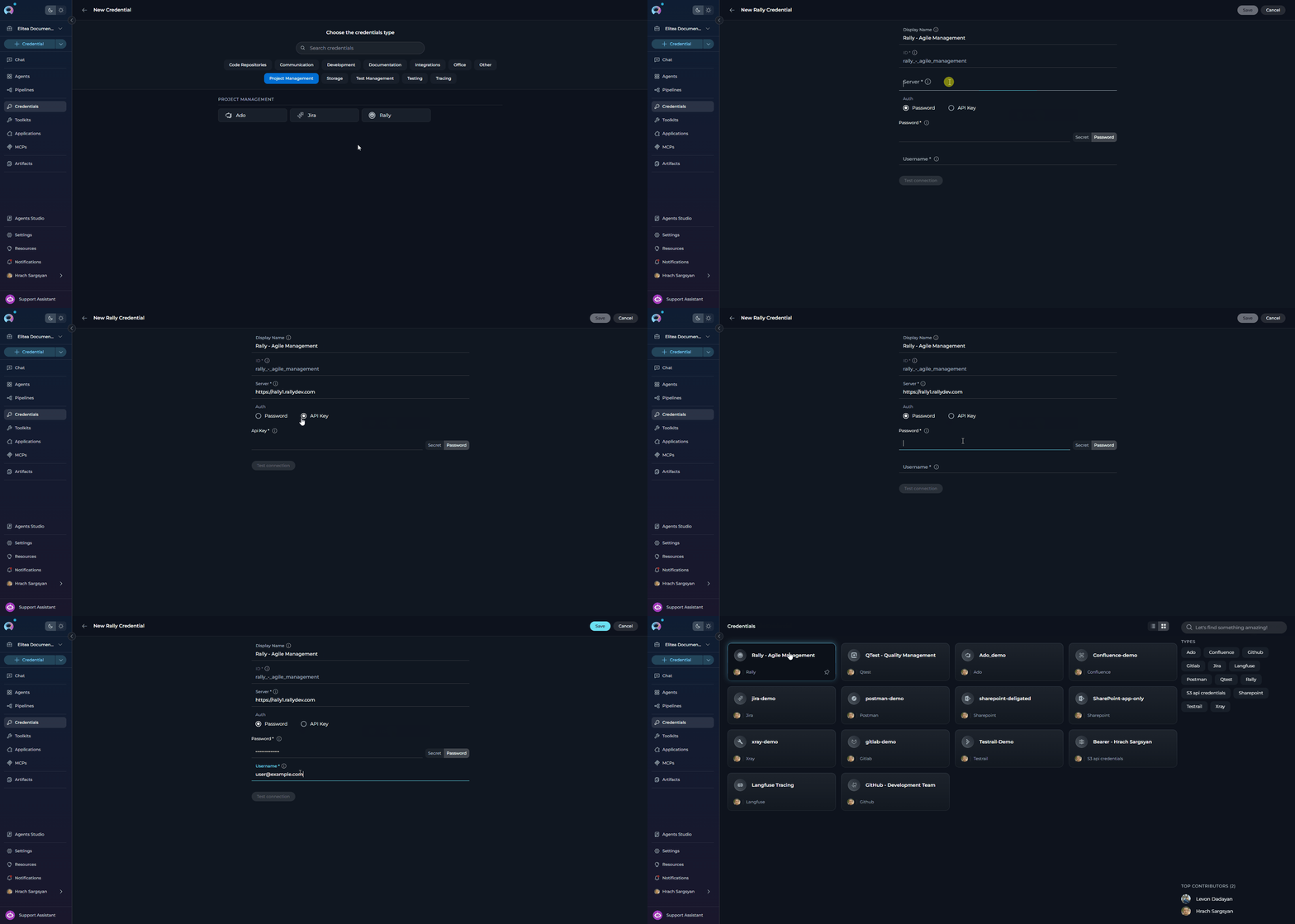
To create a Rally credential: Step-by-step Instructions:- Click + Create in the Credentials menu.
- Select Rally as the credential type.
-
Configure Credential Details:
Field Description Example Display Name Enter a descriptive name for this credential Rally - Agile ManagementID Unique identifier for the credential Auto-populated from the Display Name Server Your Rally server URL https://rally1.rallydev.comUsername Your Rally username (Password auth) user@example.comPassword Your Rally password (Password auth) ••••••••API Key Your Rally API key (API Key auth) _abc123... -
Save Credential: Click Save to create the credential.
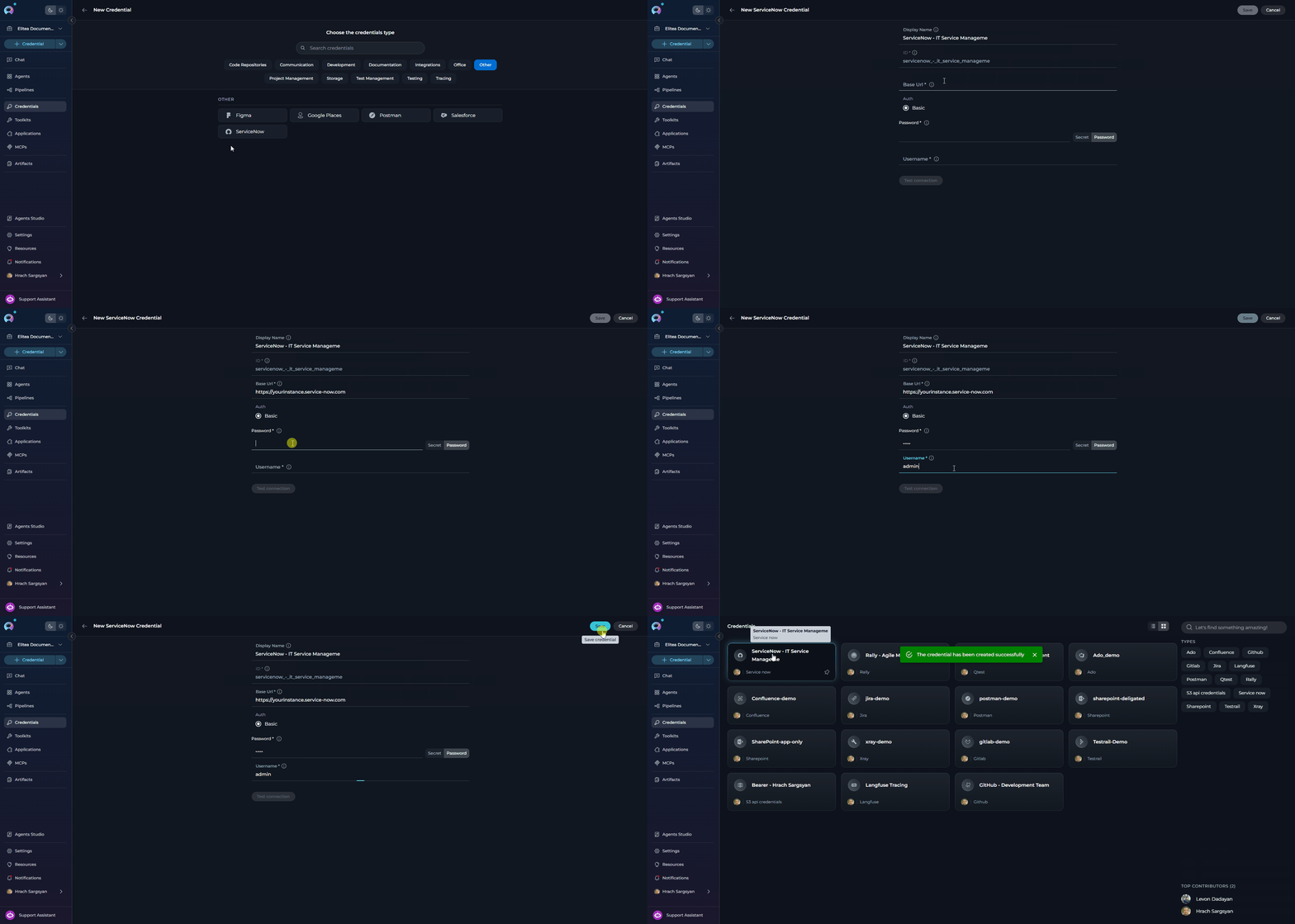
ServiceNow Credential Setup
To create a ServiceNow credential: Step-by-step Instructions:- Click + Create in the Credentials menu.
- Select ServiceNow as the credential type.
-
Configure Credential Details:
Field Description Example Display Name Enter a descriptive name for this credential ServiceNow - IT Service ManagementID Unique identifier for the credential Auto-populated from the Display Name Base URL URL of your ServiceNow instance https://yourinstance.service-now.comUsername Your ServiceNow username adminPassword Your ServiceNow password •••••••• -
Save Credential: Click Save to create the credential.
Slack Credential Setup
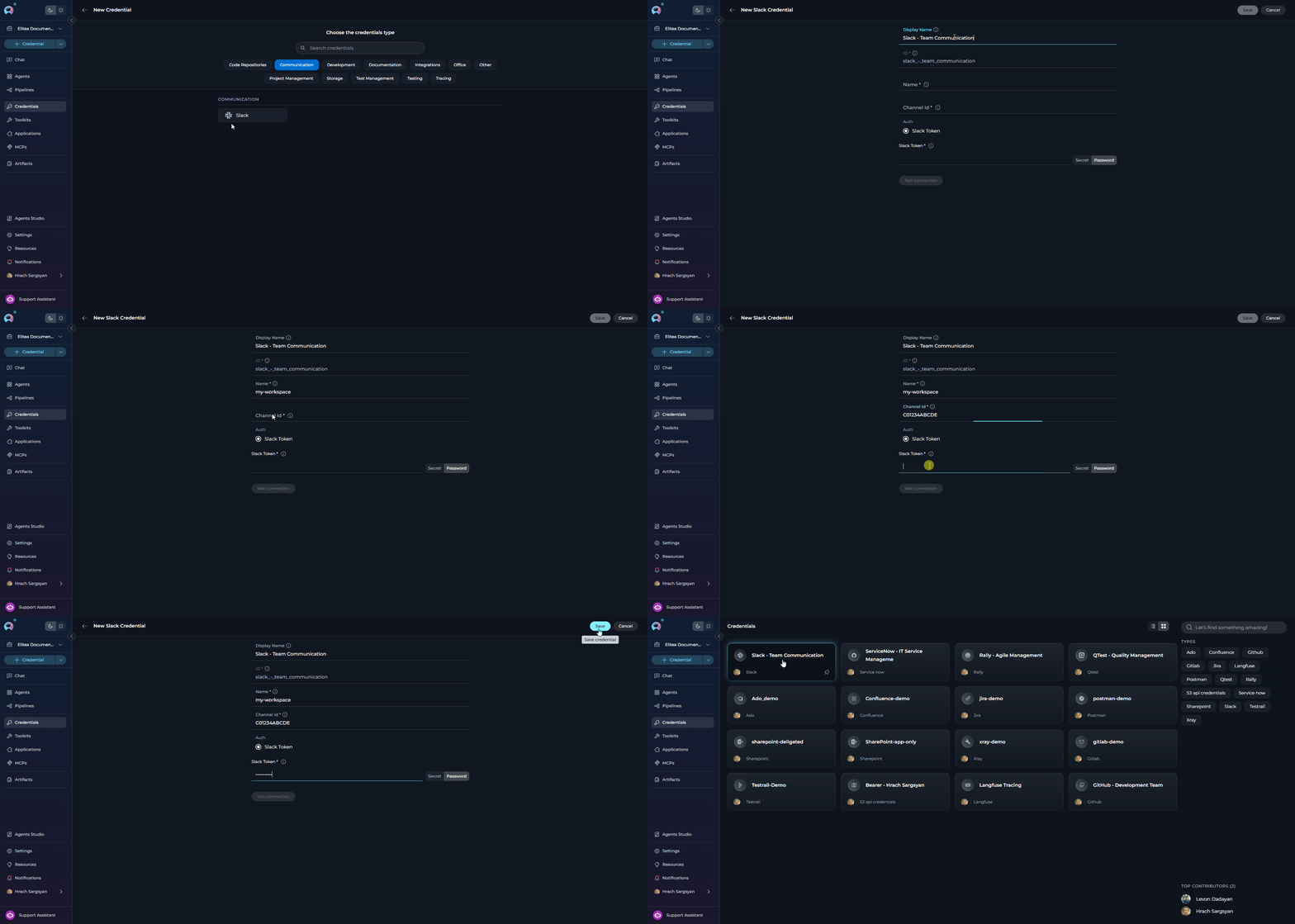
To create a Slack credential: Step-by-step Instructions:- Click + Create in the Credentials menu.
- Select Slack as the credential type.
-
Configure Credential Details:
Field Description Example Display Name Enter a descriptive name for this credential Slack - Team CommunicationID Unique identifier for the credential Auto-populated from the Display Name Slack Token Your Slack Bot Token or User Token (starts with xoxb-orxoxp-)xoxb-123456...Name Slack workspace name (optional) my-workspaceChannel ID Default channel ID (optional) C01234ABCDE -
Save Credential: Click Save to create the credential.
TestRail Credential Setup
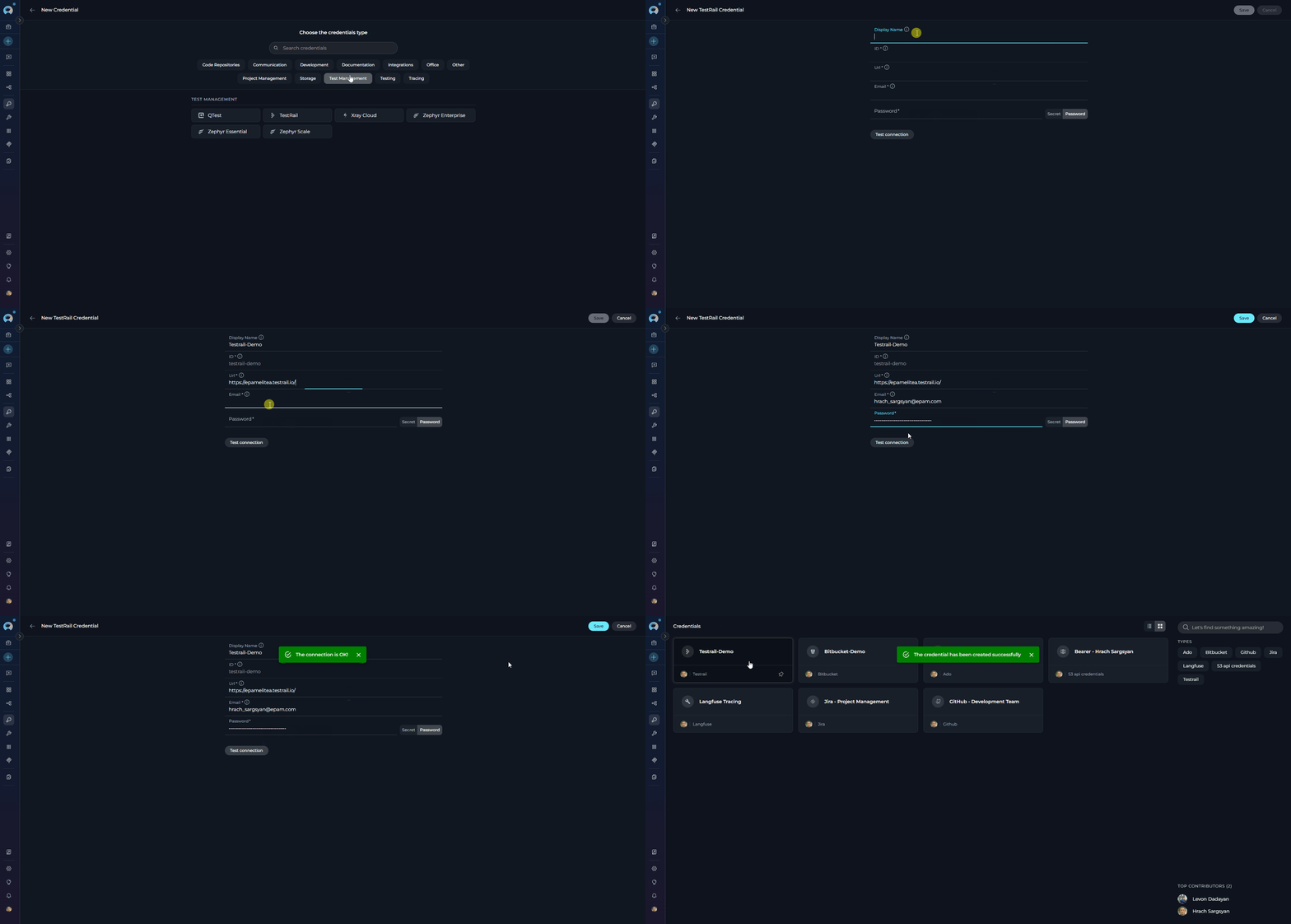
To create a TestRail credential: Step-by-step Instructions:- Click + Create in the Credentials menu.
- Select TestRail as the credential type.
-
Configure Credential Details:
Field Description Example Display Name Enter a descriptive name for this credential TestRail - Test ManagementID Unique identifier for the credential Auto-populated from the Display Name URL URL of your TestRail instance https://yourcompany.testrail.netEmail Your TestRail account email user@example.comPassword Your TestRail account password •••••••• - Test Connection: Click Test Connection to verify that ELITEA can connect to TestRail using the provided credentials.
-
Save Credential: Click Save to create the credential.
Xray Credential Setup
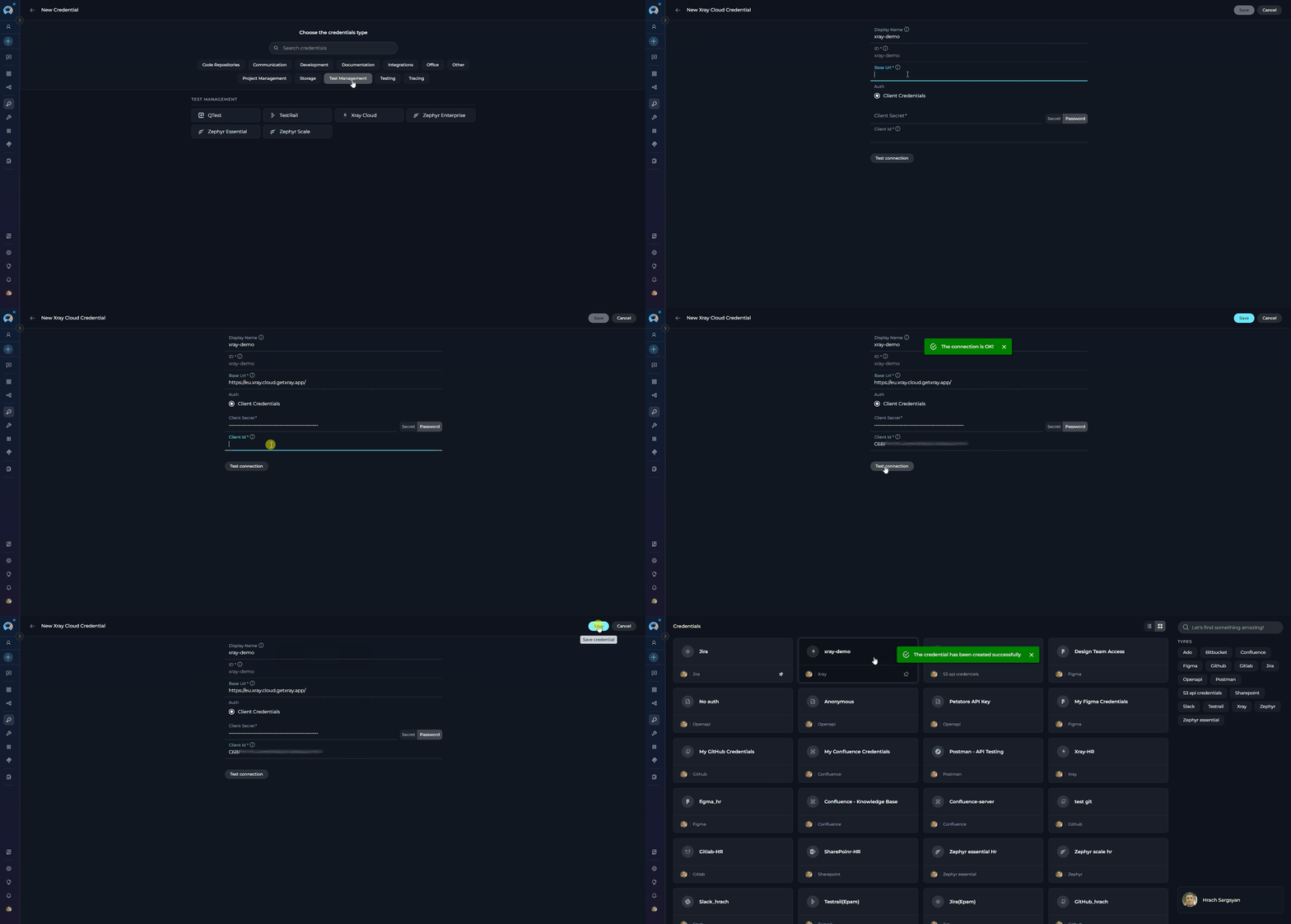
To create an Xray credential: Step-by-step Instructions:- Click + Create in the Credentials menu.
- Select Xray as the credential type.
-
Configure Credential Details:
Field Description Example Display Name Enter a descriptive name for this credential Xray - Test AutomationID Unique identifier for the credential Auto-populated from the Display Name Base URL URL of your Xray Cloud instance https://xray.cloud.getxray.appClient ID Your Xray Cloud Client ID abc123...Client Secret Your Xray Cloud Client Secret •••••••• - Test Connection: Click Test Connection to verify that ELITEA can connect to Xray using the provided credentials.
-
Save Credential: Click Save to create the credential.
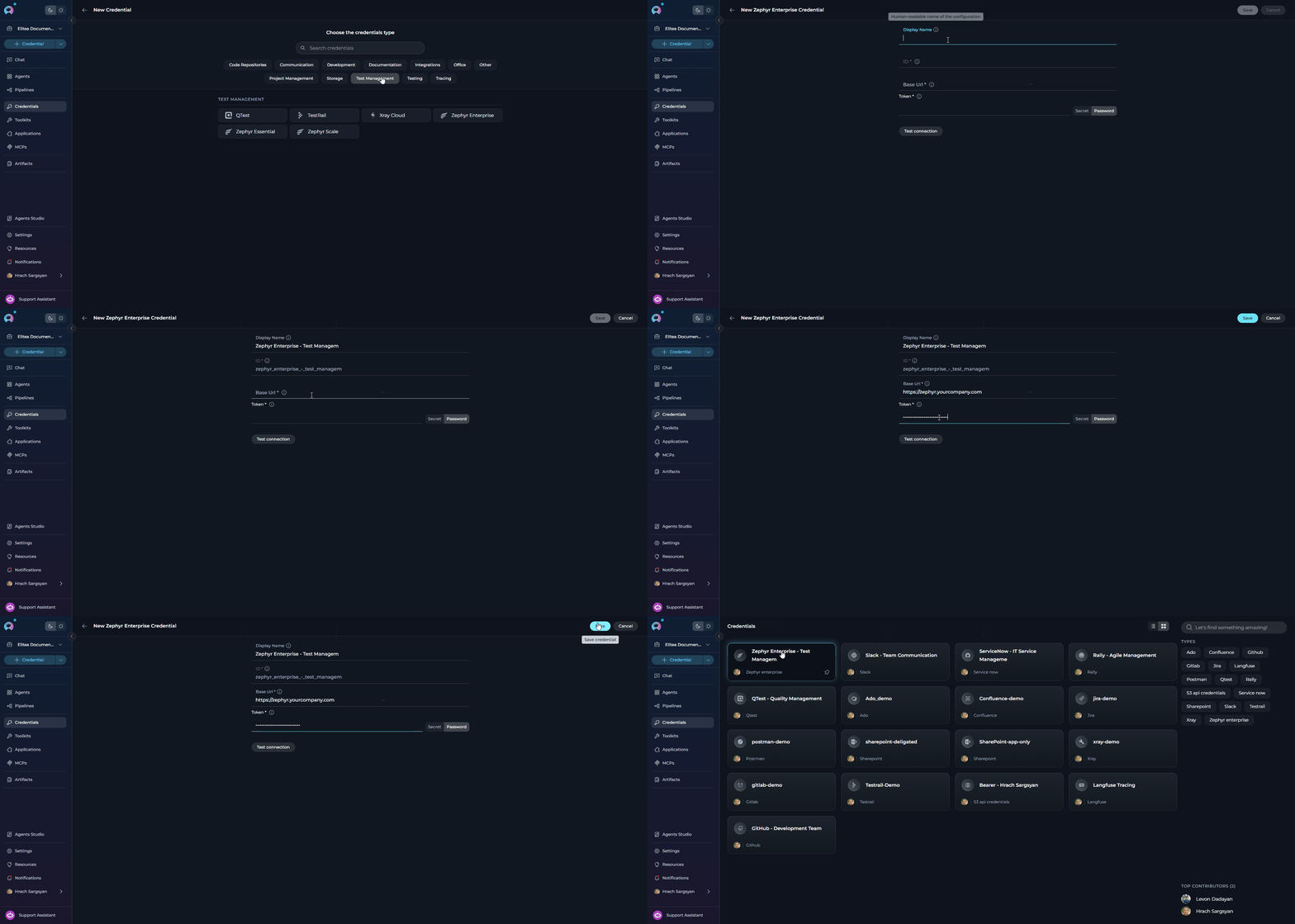
Zephyr Enterprise Credential Setup
To create a Zephyr Enterprise credential: Step-by-step Instructions:- Click + Create in the Credentials menu.
- Select Zephyr Enterprise as the credential type.
-
Configure Credential Details:
Field Description Example Display Name Enter a descriptive name for this credential Zephyr Enterprise - Test ManagementID Unique identifier for the credential Auto-populated from the Display Name Base URL URL of your Zephyr Enterprise instance https://zephyr.yourcompany.comToken Your Zephyr Enterprise API token eyJhbGci... - Test Connection: Click Test Connection to verify that ELITEA can connect to Zephyr Enterprise using the provided credentials.
-
Save Credential: Click Save to create the credential.
Zephyr Scale Credential Setup
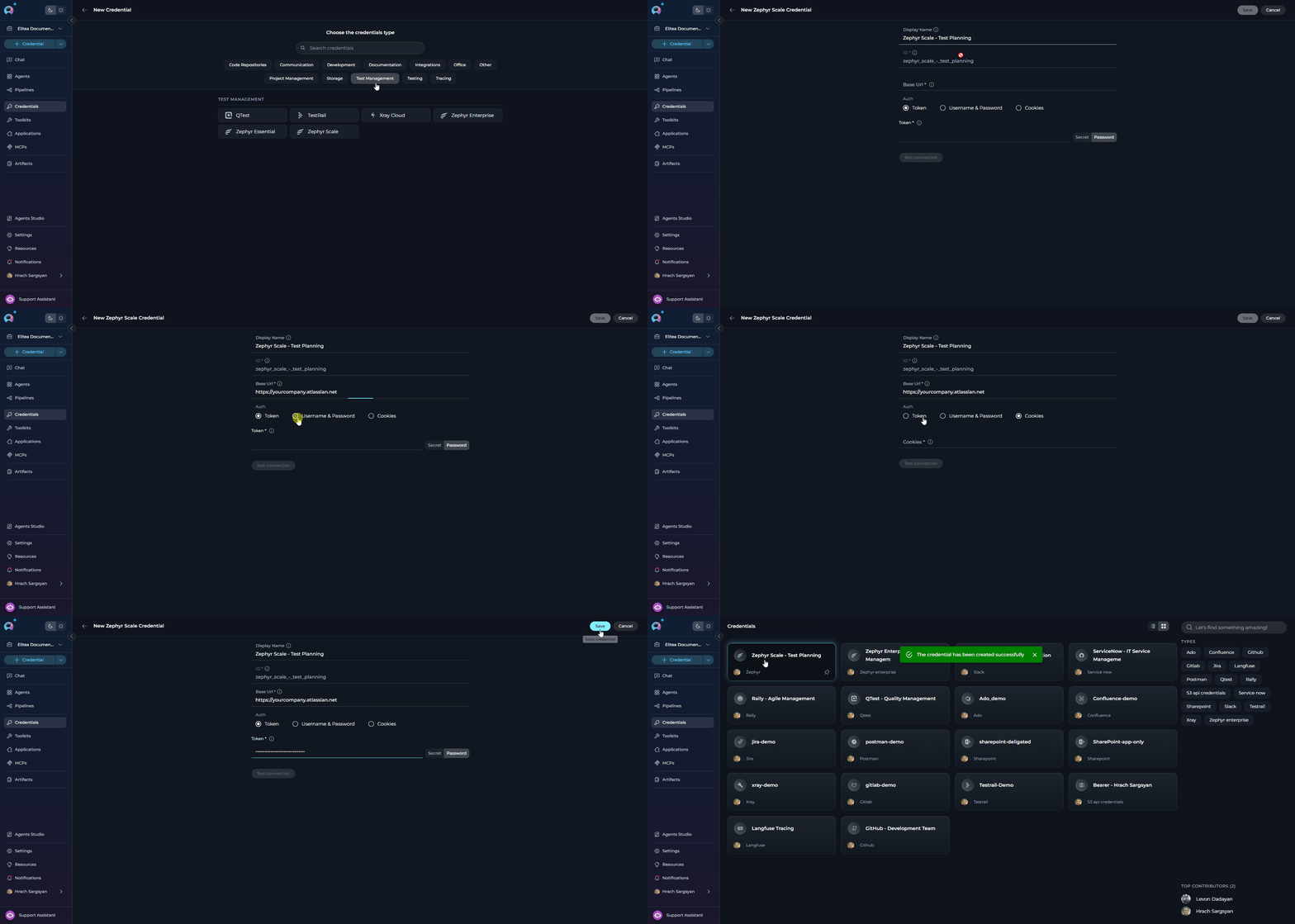
To create a Zephyr Scale credential: Step-by-step Instructions:- Click + Create in the Credentials menu.
- Select Zephyr Scale as the credential type.
-
Configure Credential Details:
Field Description Example Display Name Enter a descriptive name for this credential Zephyr Scale - Test PlanningID Unique identifier for the credential Auto-populated from the Display Name Base URL URL of your Zephyr Scale instance https://yourcompany.atlassian.netToken Your Zephyr Scale API token (Token auth) eyJhbGci...Username Your username (Username/Password auth) user@example.comPassword Your password (Username/Password auth) ••••••••Cookies Authentication cookies (Cookies auth) session=abc123... -
Save Credential: Click Save to create the credential.
Carrier Credential Setup
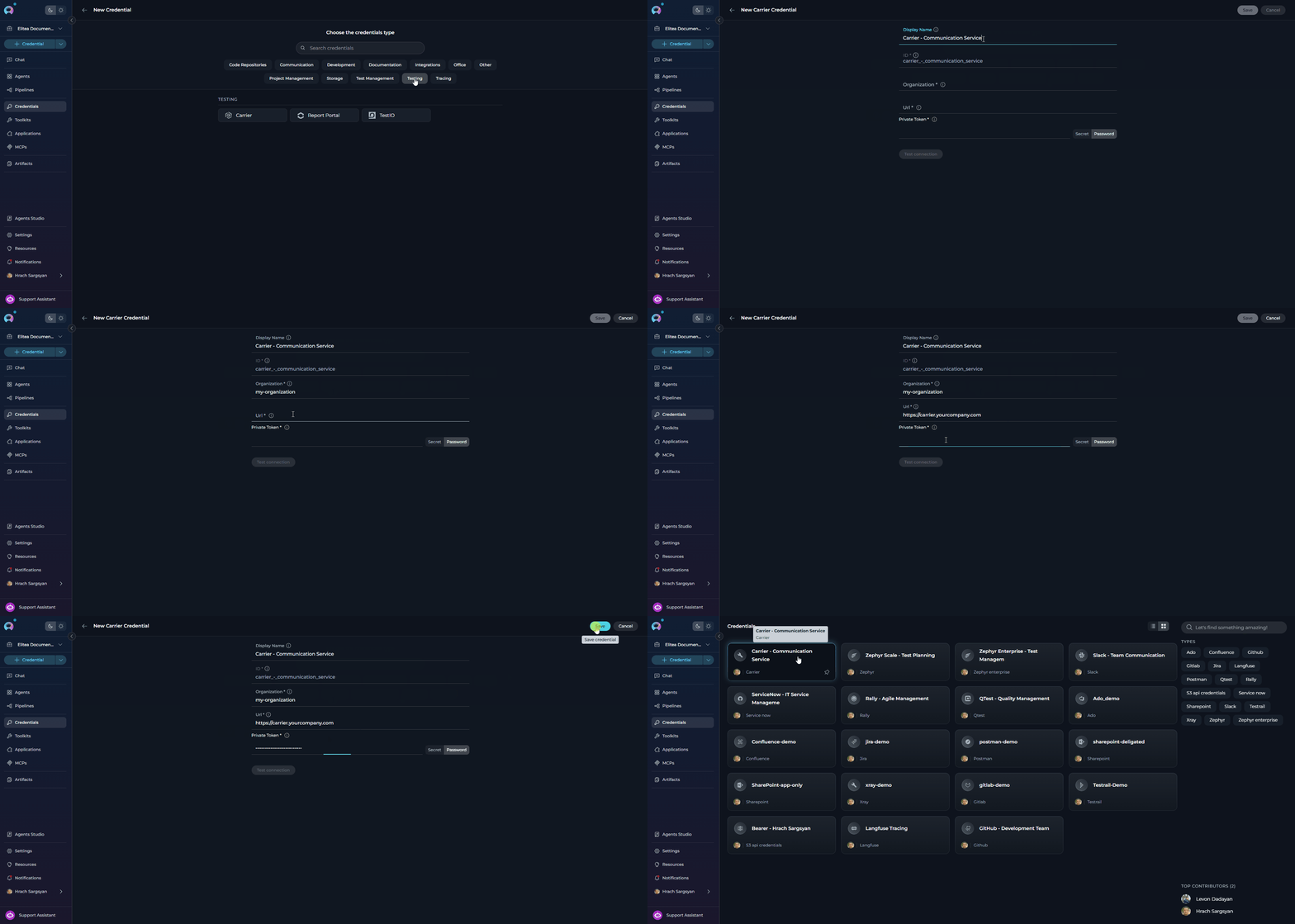
To create a Carrier credential: Step-by-step Instructions:- Click + Create in the Credentials menu.
- Select Carrier as the credential type.
-
Configure Credential Details:
Field Description Example Display Name Enter a descriptive name for this credential Carrier - Communication ServiceID Unique identifier for the credential Auto-populated from the Display Name Organization Your Carrier organization name my-organizationURL Carrier service endpoint URL https://carrier.yourcompany.comPrivate Token Your Carrier platform private token abc123... -
Save Credential: Click Save to create the credential.
Google Places Credential Setup
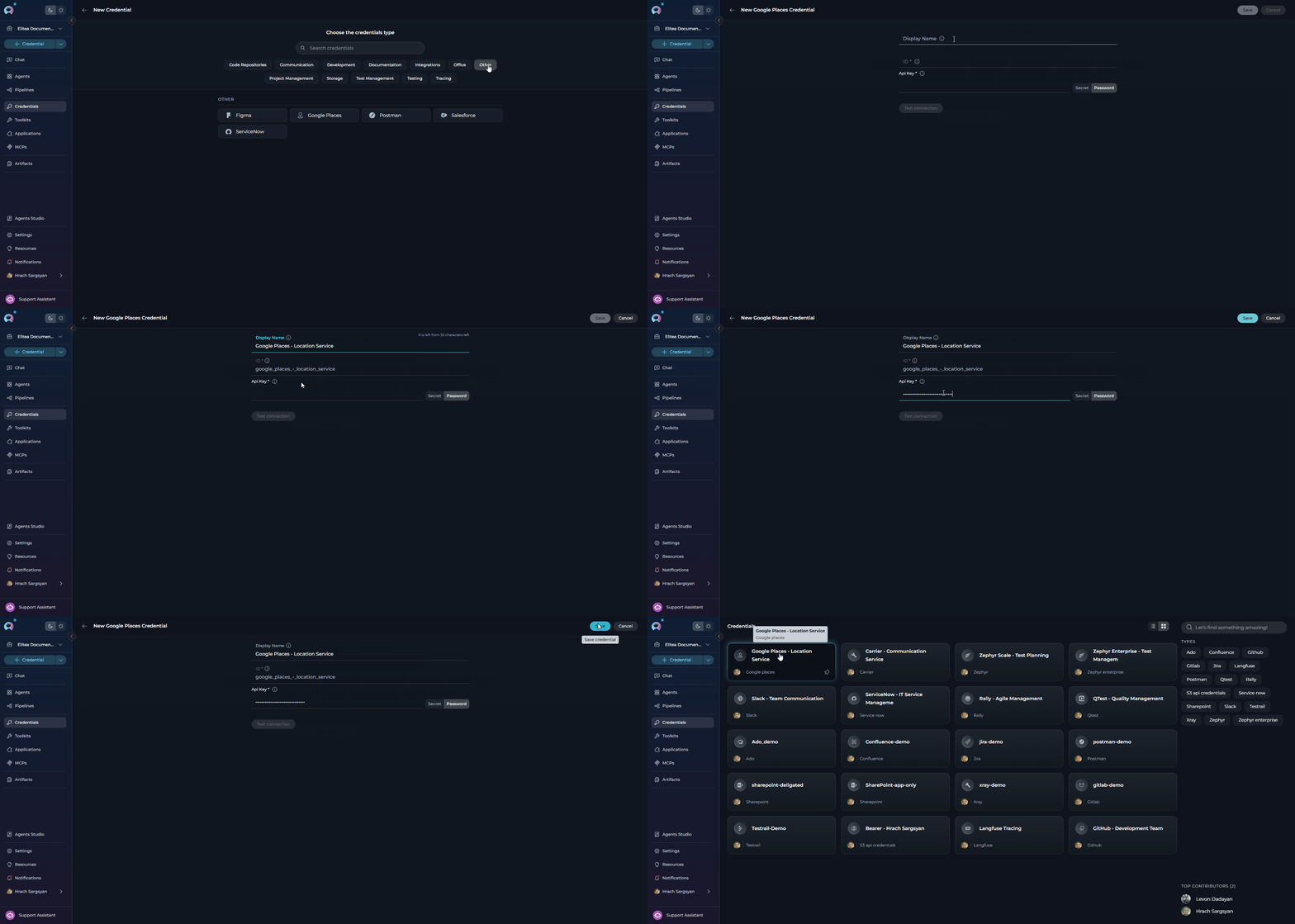
To create a Google Places credential: Step-by-step Instructions:- Click + Create in the Credentials menu.
- Select Google Places as the credential type.
-
Configure Credential Details:
Field Description Example Display Name Enter a descriptive name for this credential Google Places - Location ServicesID Unique identifier for the credential Auto-populated from the Display Name API Key Your Google Places API key AIzaSy... -
Save Credential: Click Save to create the credential.
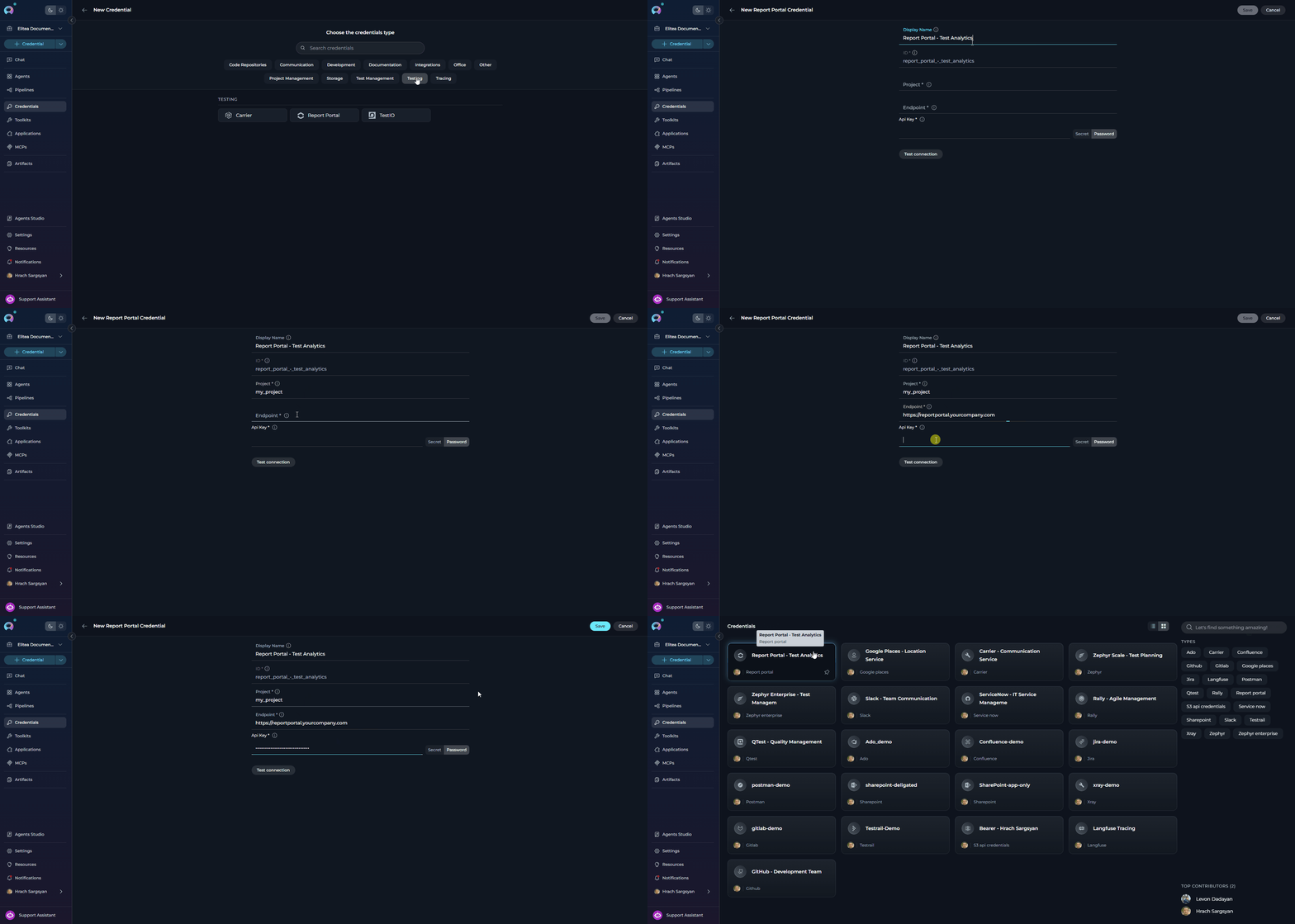
Report Portal Credential Setup
To create a Report Portal credential: Step-by-step Instructions:- Click + Create in the Credentials menu.
- Select Report Portal as the credential type.
-
Configure Credential Details:
Field Description Example Display Name Enter a descriptive name for this credential Report Portal - Test AnalyticsID Unique identifier for the credential Auto-populated from the Display Name Project Name Your Report Portal project name my_projectEndpoint URL URL of your Report Portal instance https://reportportal.yourcompany.comAPI Key Your Report Portal API key abc123... - Test Connection: Click Test Connection to verify that ELITEA can connect to Report Portal using the provided credentials.
-
Save Credential: Click Save to create the credential.
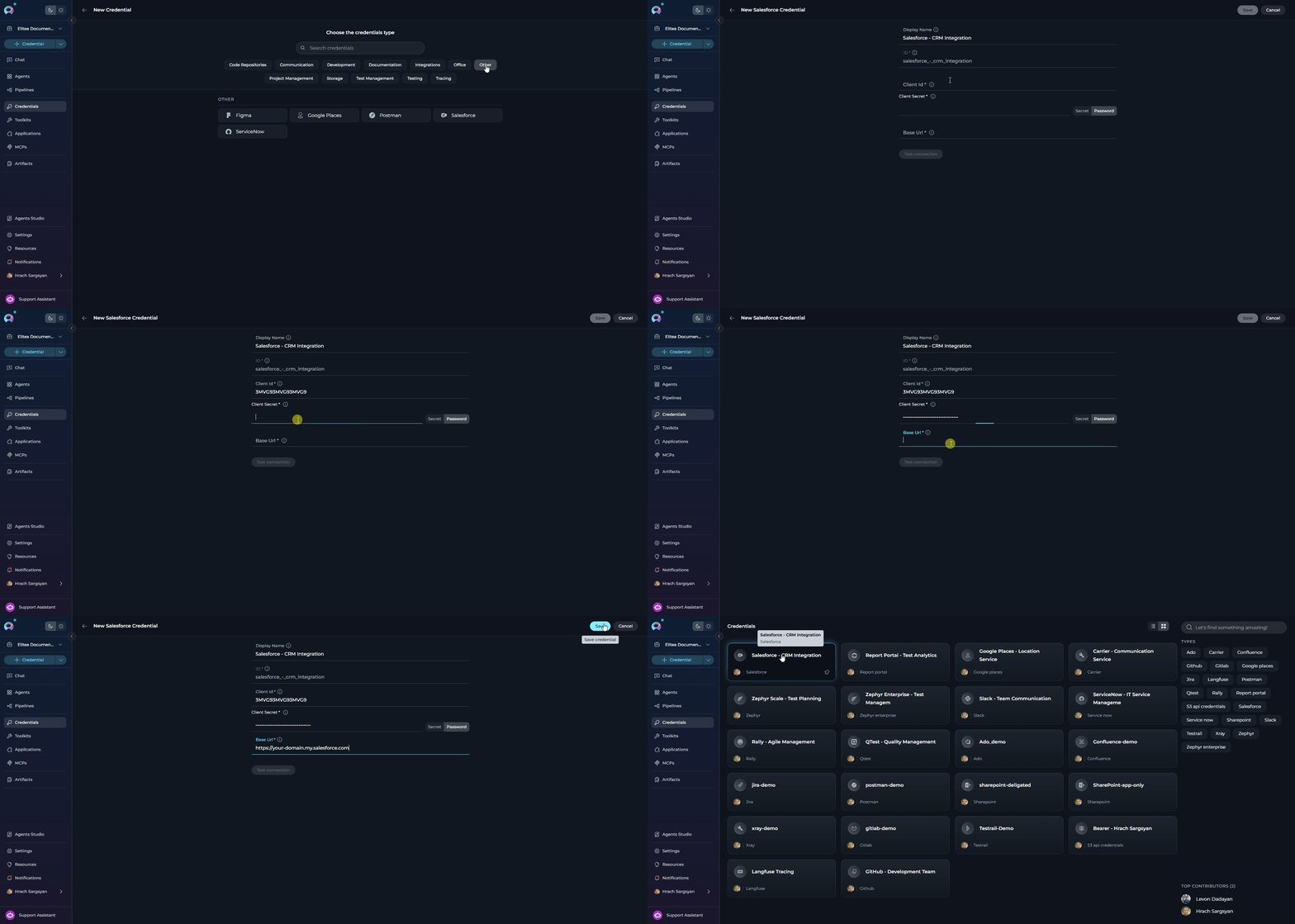
Salesforce Credential Setup
To create a Salesforce credential: Step-by-step Instructions:- Click + Create in the Credentials menu.
- Select Salesforce as the credential type.
-
Configure Credential Details:
Field Description Example Display Name Enter a descriptive name for this credential Salesforce - CRM IntegrationID Unique identifier for the credential Auto-populated from the Display Name Base URL Your Salesforce instance URL https://your-domain.my.salesforce.comClient ID Consumer Key from your Connected App 3MVG9...Client Secret Consumer Secret from your Connected App •••••••• -
Save Credential: Click Save to create the credential.
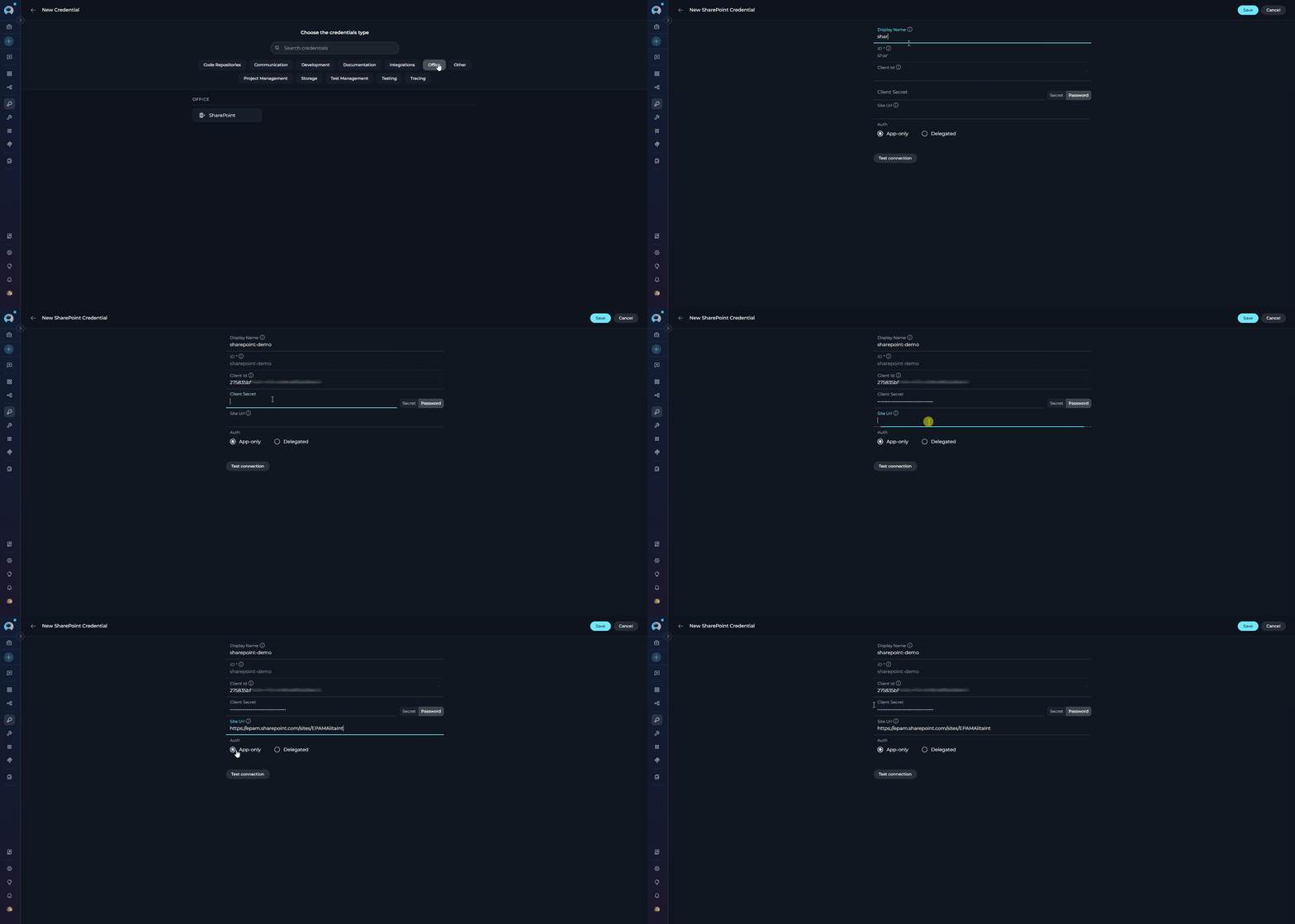
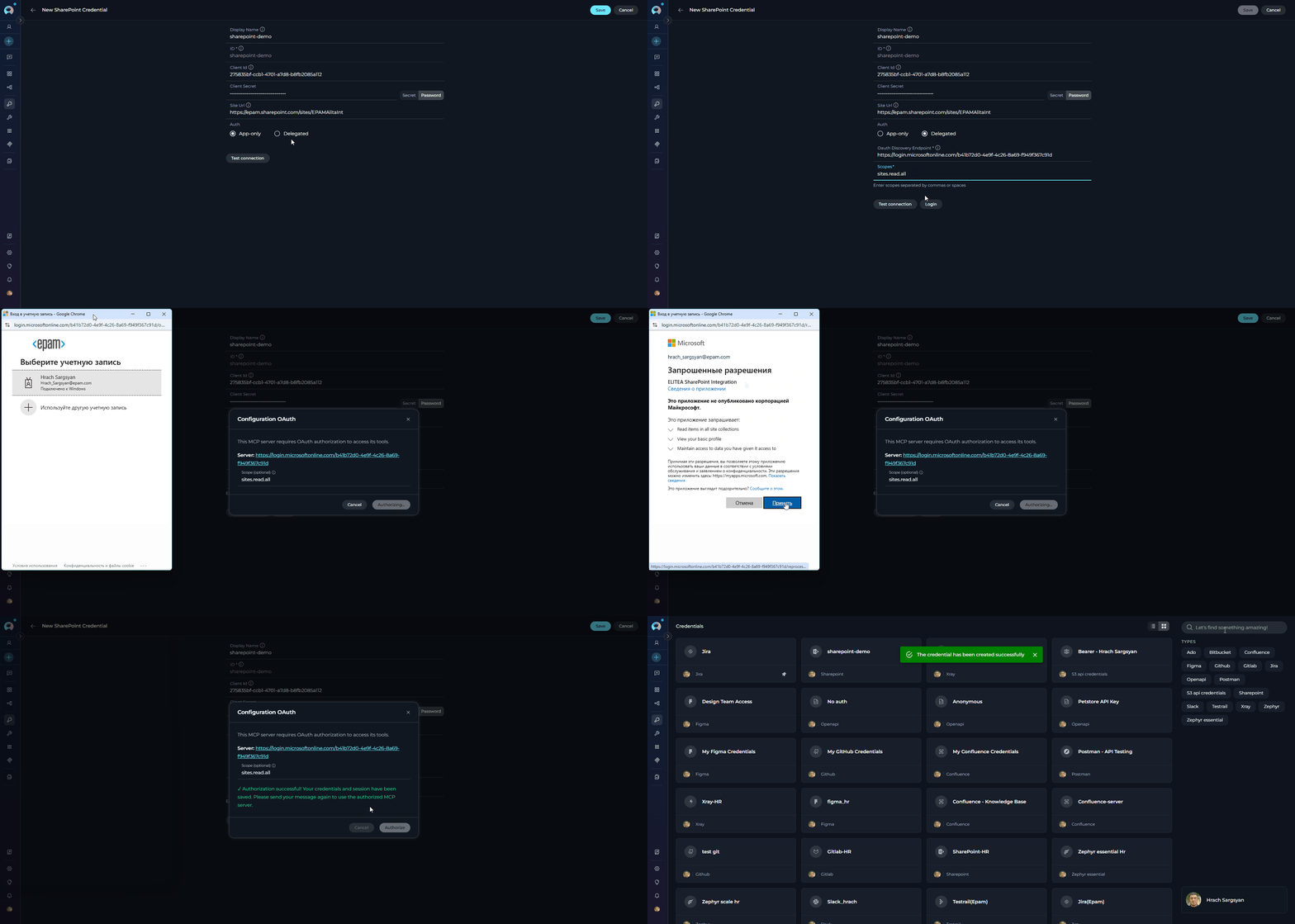
SharePoint Credential Setup
To create a SharePoint credential:- Click + Create in the Credentials menu.
- Select SharePoint as the credential type.
- Choose your authentication flow and configure the fields accordingly:
- App Only
- Delegated
Step-by-step Instructions:Configure the following fields for application-level access using a client secret (no user context):
| Field | Description | Example |
|---|---|---|
| Display Name | Enter a descriptive name for this credential | SharePoint - App Only |
| ID | Unique identifier for the credential | Auto-populated from the Display Name |
| Site URL | Your SharePoint site URL | https://yourcompany.sharepoint.com/sites/mysite |
| Client ID | Application (Client) ID from Azure AD app registration | xxxxxxxx-xxxx-xxxx-xxxx-xxxxxxxxxxxx |
| Client Secret | Client secret value from Azure AD app registration | •••••••• |
- Test Connection: Click Test Connection to verify that ELITEA can connect to SharePoint using the provided credentials.
-
Save Credential: Click Save to create the credential.
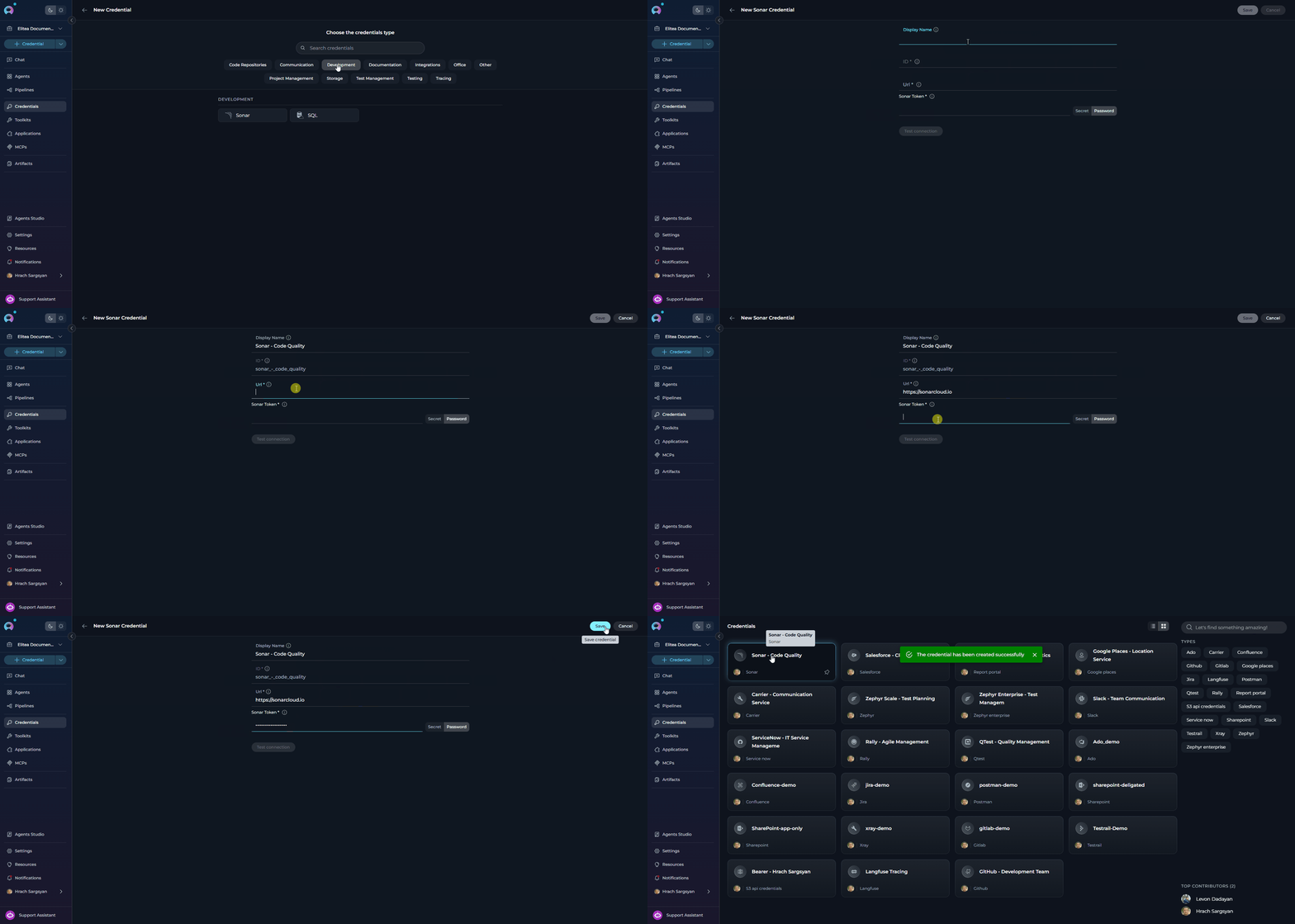
Sonar Credential Setup
To create a Sonar credential: Step-by-step Instructions:- Click + Create in the Credentials menu.
- Select Sonar as the credential type.
-
Configure Credential Details:
Field Description Example Display Name Enter a descriptive name for this credential Sonar - Code QualityID Unique identifier for the credential Auto-populated from the Display Name URL URL of your SonarQube or SonarCloud instance https://sonarcloud.ioToken Your SonarQube/SonarCloud API token squ_abc123... -
Save Credential: Click Save to create the credential.
SQL Credential Setup
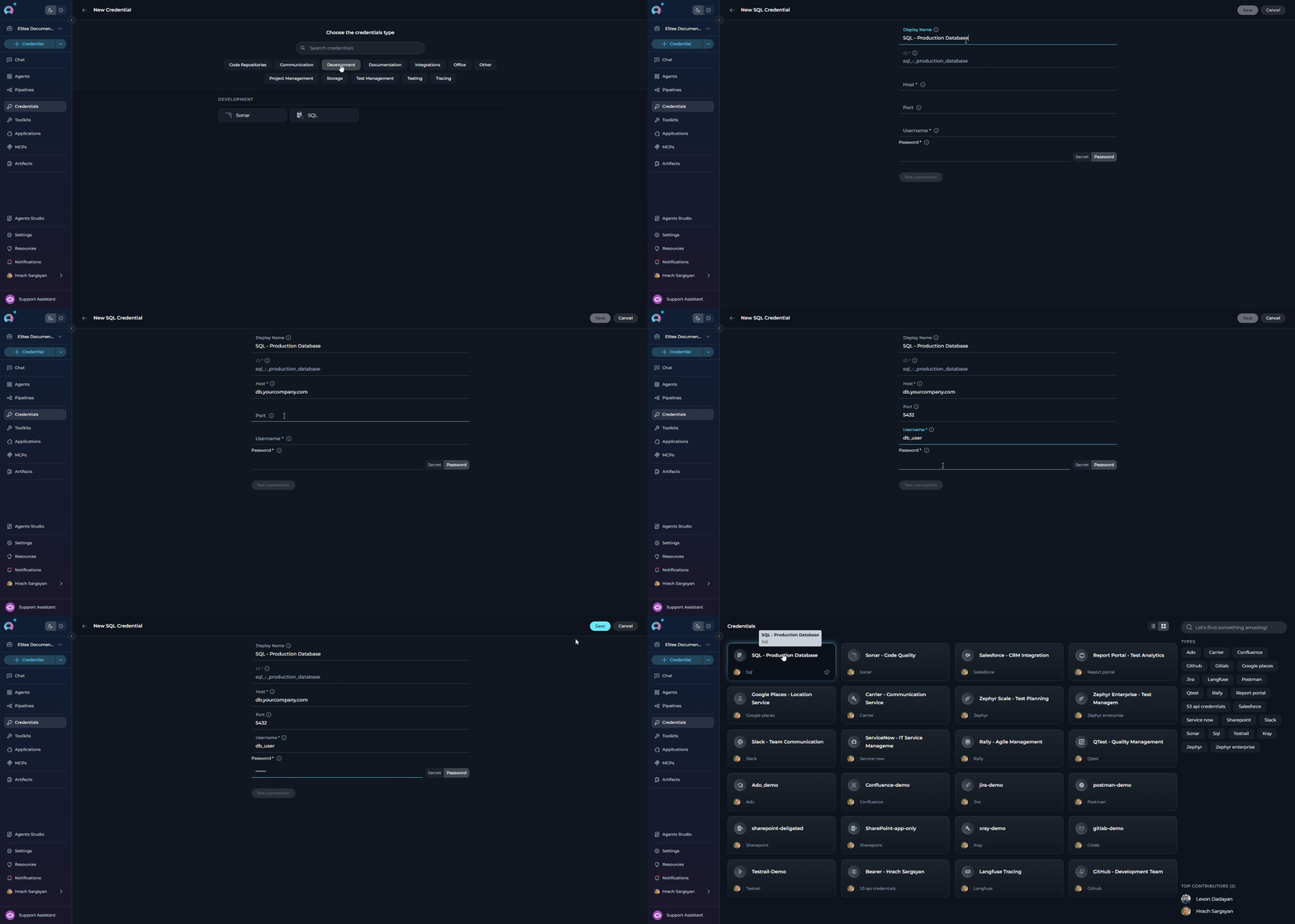
To create a SQL credential: Step-by-step Instructions:- Click + Create in the Credentials menu.
- Select SQL as the credential type.
-
Configure Credential Details:
Field Description Example Display Name Enter a descriptive name for this credential SQL - Production DatabaseID Unique identifier for the credential Auto-populated from the Display Name Host Database server hostname or IP address db.yourcompany.comPort Database port number 5432Username Database username db_userPassword Database password •••••••• -
Save Credential: Click Save to create the credential.
TestIO Credential Setup
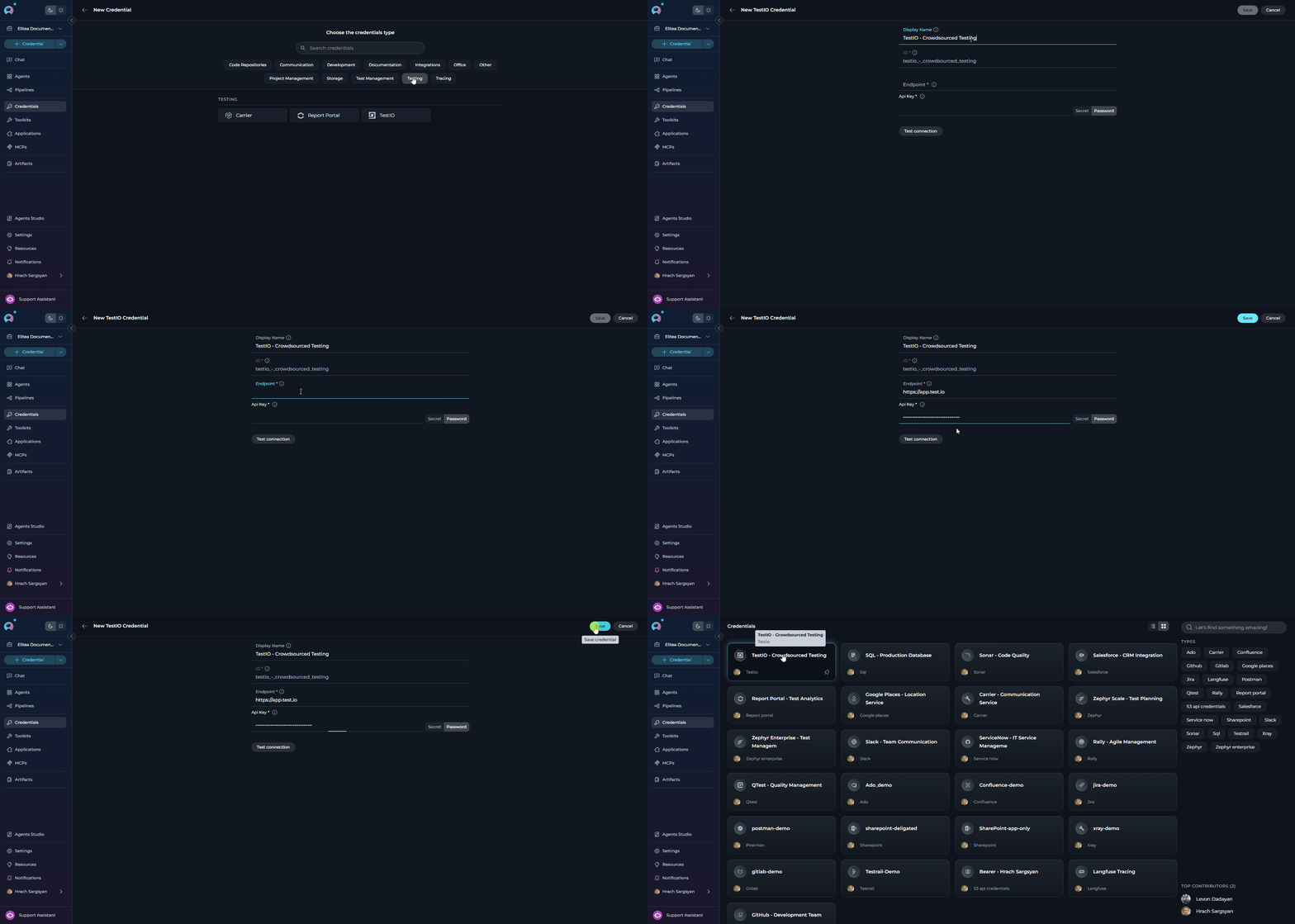
To create a TestIO credential: Step-by-step Instructions:- Click + Create in the Credentials menu.
- Select TestIO as the credential type.
-
Configure Credential Details:
Field Description Example Display Name Enter a descriptive name for this credential TestIO - Crowdsourced TestingID Unique identifier for the credential Auto-populated from the Display Name Endpoint TestIO API endpoint URL https://app.test.ioAPI Key Your TestIO platform API key abc123... - Test Connection: Click Test Connection to verify that ELITEA can connect to TestIO using the provided credentials.
-
Save Credential: Click Save to create the credential.
Zephyr Essential Credential Setup
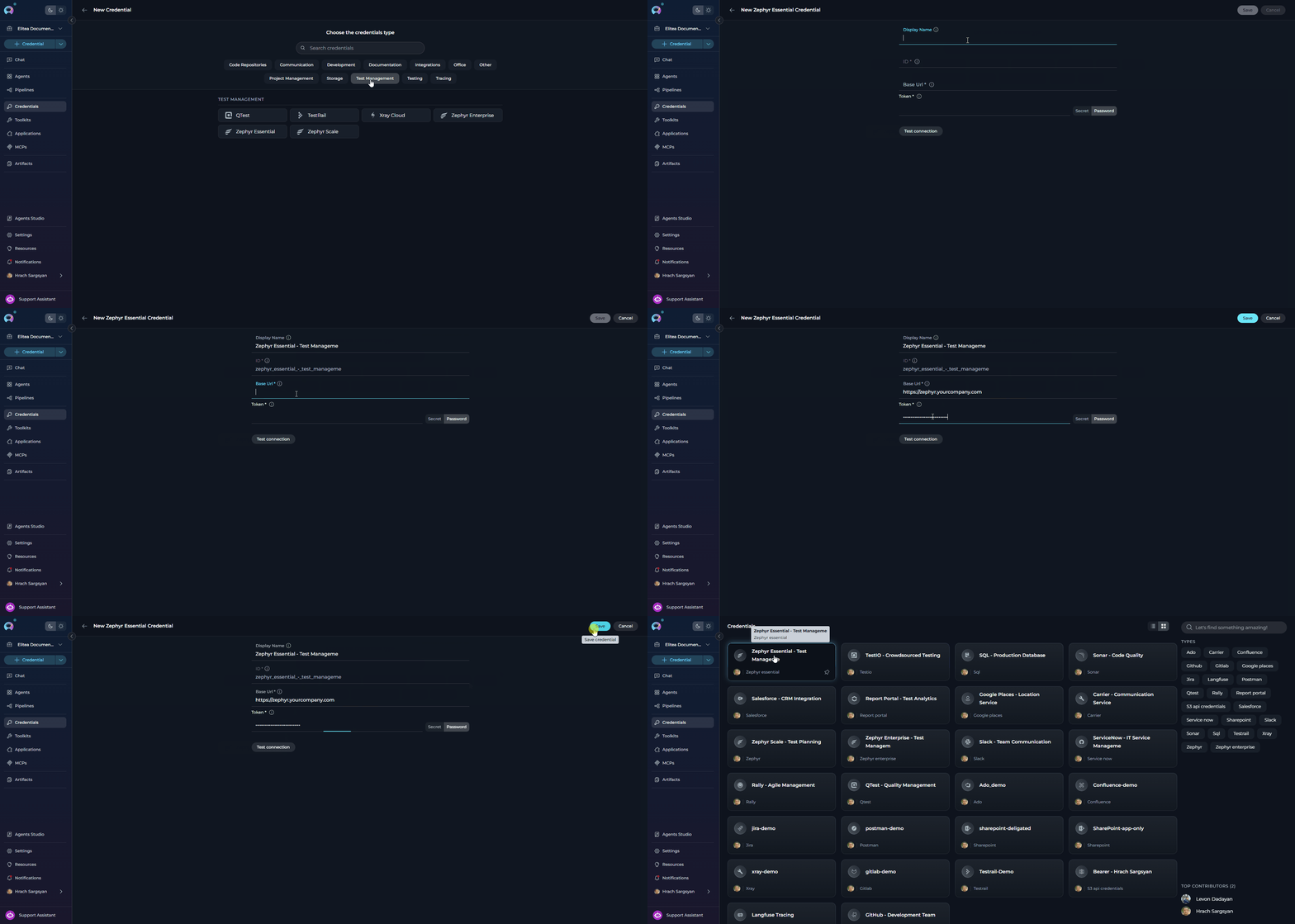
To create a Zephyr Essential credential: Step-by-step Instructions:- Click + Create in the Credentials menu.
- Select Zephyr Essential as the credential type.
-
Configure Credential Details:
Field Description Example Display Name Enter a descriptive name for this credential Zephyr Essential - Test ManagementID Unique identifier for the credential Auto-populated from the Display Name Base URL URL of your Zephyr Essential instance https://zephyr.yourcompany.comToken Your Zephyr Essential API token eyJhbGci... - Test Connection: Click Test Connection to verify that ELITEA can connect to Zephyr Essential using the provided credentials.
-
Save Credential: Click Save to create the credential.
OpenAPI Credential Setup
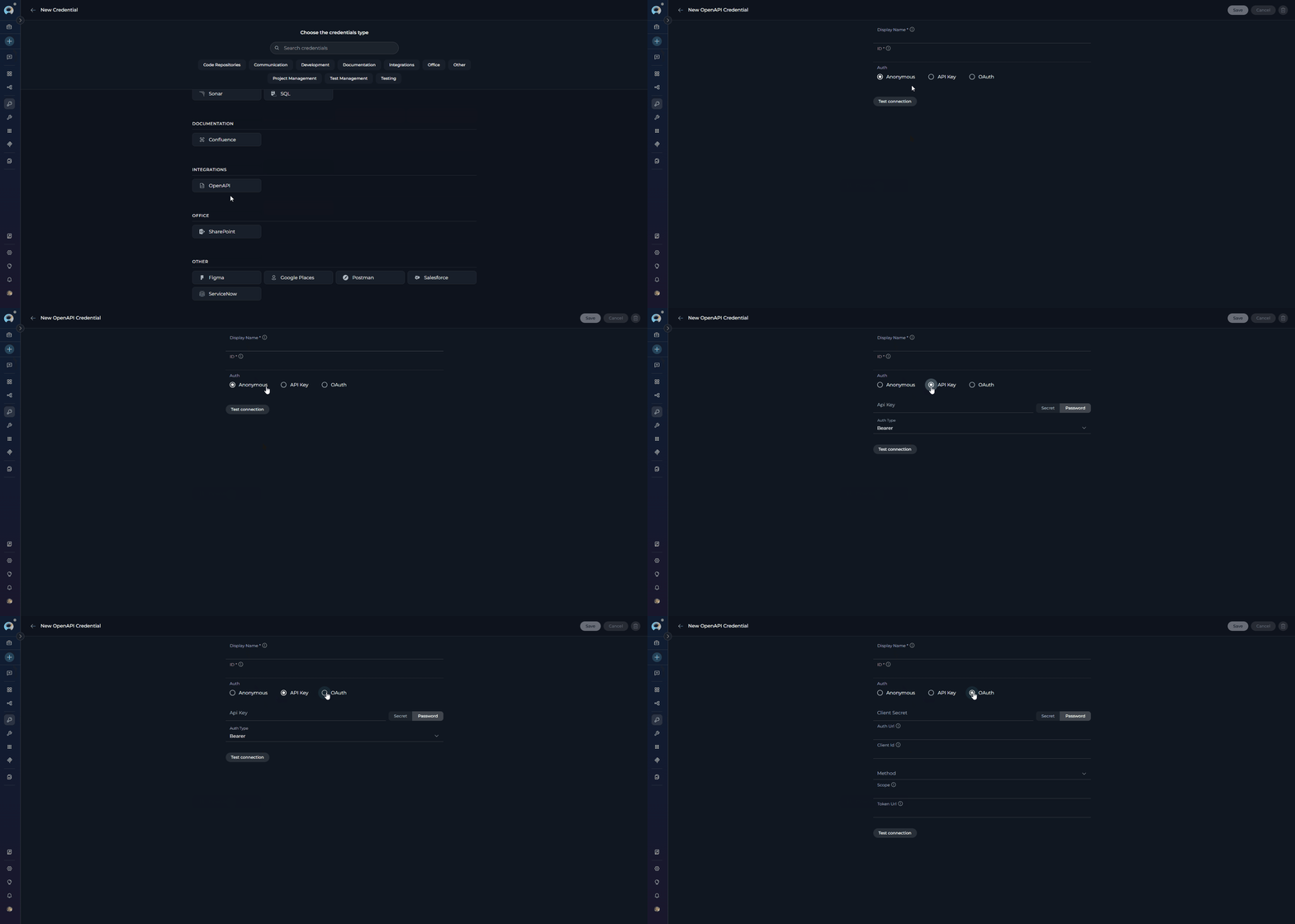
To create an OpenAPI Configuration credential (for connecting to any custom REST API described by an OpenAPI/Swagger spec):- Click + Create in the Credentials menu.
- Select OpenAPI Configuration as the credential type.
- Enter a Display Name for this credential (e.g.,
GitHub API - Production). - Choose your authentication method and configure the fields accordingly:
- Anonymous
- API Key
- OAuth 2.0
Used for: Public APIs that do not require authentication.No additional fields are required. Leave all authentication fields empty — no authentication headers will be added to requests.
- Save Credential: Click Save to create the credential.
Langfuse Credential Setup
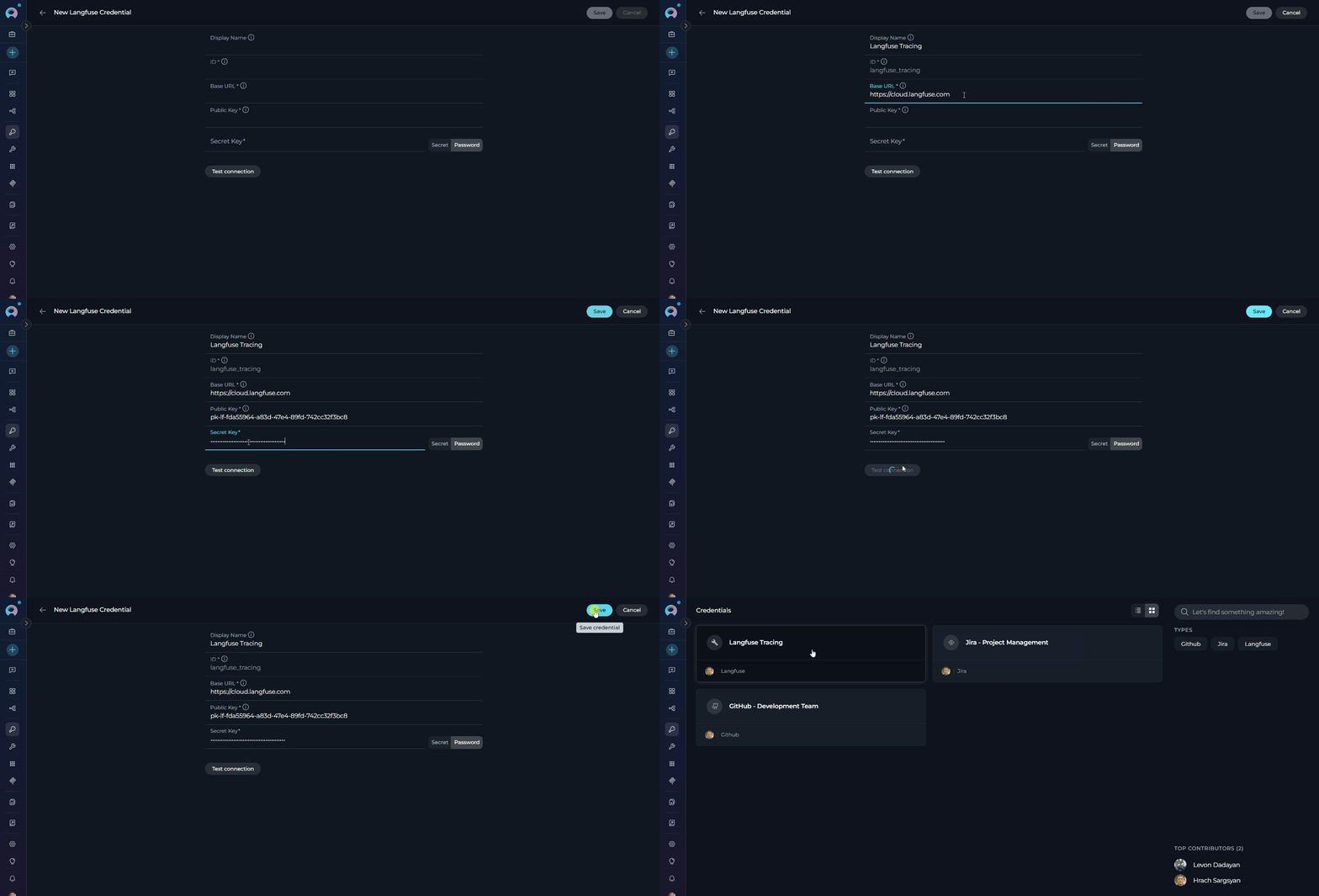
To create a Langfuse credential (for LLM observability and tracing): Step-by-step Instructions:- Click + Create in the Credentials menu.
- Select Langfuse as the credential type.
-
Configure Credential Details:
Field Description Example Display Name Enter a descriptive name for this credential Langfuse - LLM TracingID Unique identifier for the credential Auto-populated from the Display Name Base URL Langfuse instance URL https://cloud.langfuse.comPublic Key Your Langfuse public API key (found in Langfuse project settings) pk-lf-abc123...Secret Key Your Langfuse secret API key sk-lf-abc123... - Test Connection: Click Test Connection to verify that ELITEA can connect to Langfuse using the provided credentials.
-
Save Credential: Click Save to create the credential.
Using Credentials in Toolkits
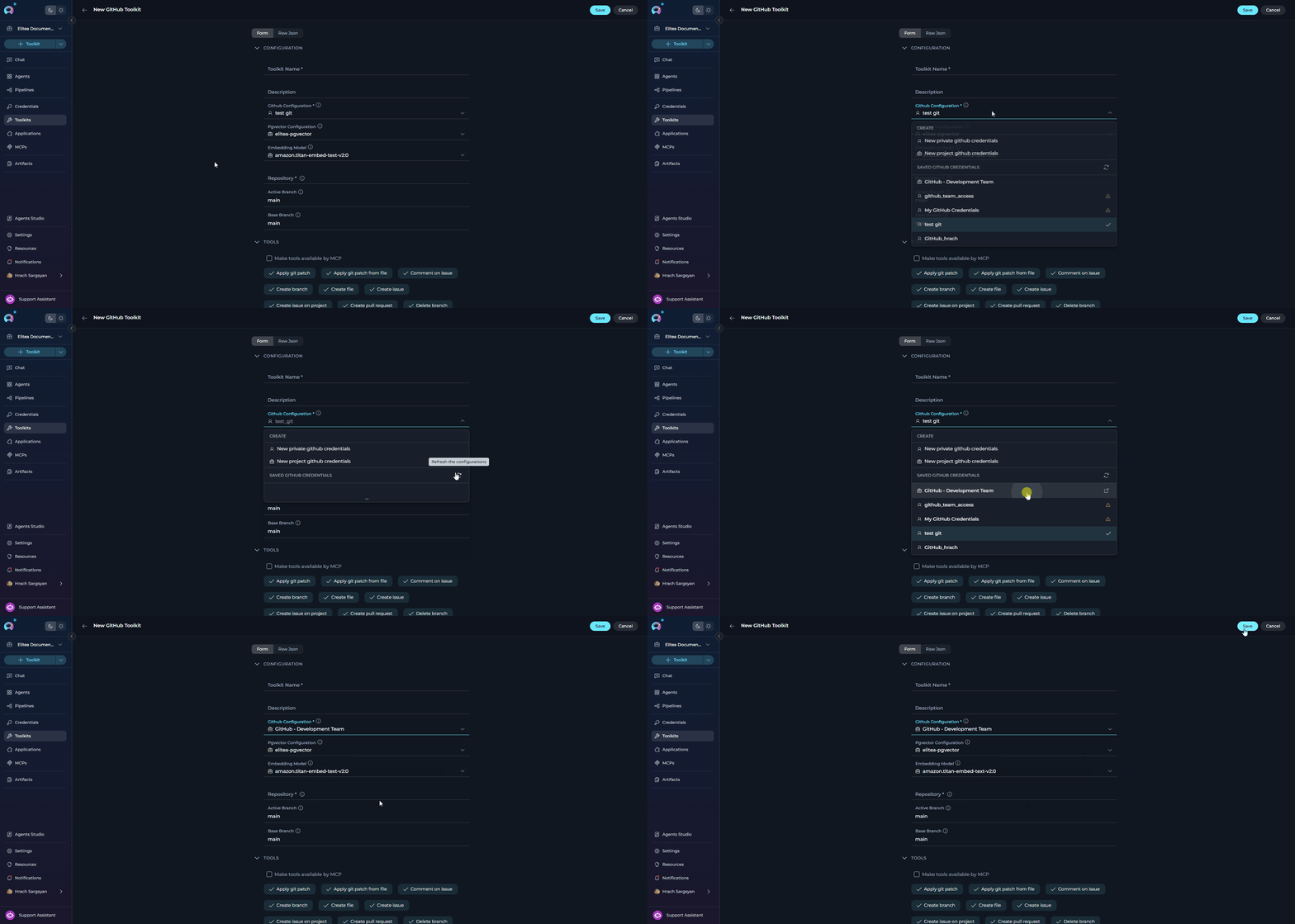
Once you have created credentials, you can assign them to toolkits to enable secure access to external services. How to Assign a Credential:- When creating or editing a toolkit, locate the configuration dropdown.
- Choose an existing credential from the list, or create a new one if needed.
- Save your changes to apply the credential to your toolkit.
For more detailed information, refer to:
- Credentials Menu - Comprehensive guide to the Credentials interface and management
- Toolkits Menu - Learn how to integrate credentials with toolkits
- Secrets - Enhanced security through the Secrets management system
- Glossary - Definitions of key terms and concepts used in ELITEA