
The Data Analysis internal tool provides powerful Pandas-based data analysis capabilities directly within ELITEA conversations. This tool enables seamless data processing and analysis without requiring separate toolkit configuration, making it easy to work with uploaded files using natural language queries. Key Features:Documentation Index
Fetch the complete documentation index at: https://docs.elitea.ai/llms.txt
Use this file to discover all available pages before exploring further.
- Direct Integration: Available as an internal tool in chat conversations and agent configurations
- Natural Language Processing: Use plain English to request data analysis operations
- File-Based Analysis: Works with files uploaded directly to conversations (CSV, Excel, and other tabular formats)
- Automated Processing: Intelligent file format detection and data analysis
- Chart Generation: Automatic creation of visualizations with downloadable results
Prerequisites
- Permission Level: User role with conversation edit access
- Conversation: An active conversation or agent configuration
The Data Analysis internal tool must be explicitly enabled via the Internal Tools popup before it can be used in a conversation. It is hidden from the regular toolkit menu and exposed only through the internal tools configuration.
Enabling Data Analysis in Conversations
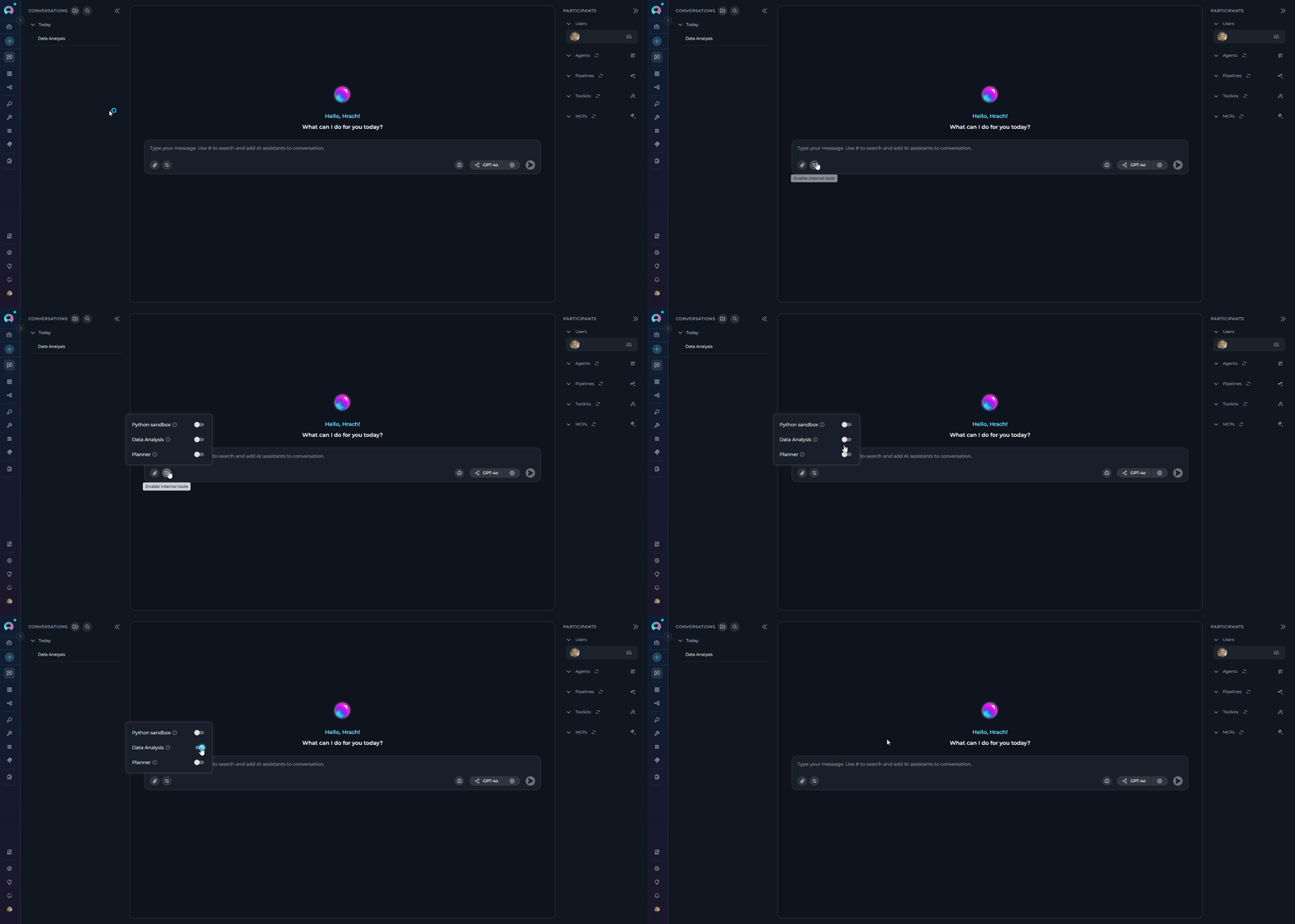
Enable the Data Analysis tool for ad-hoc data analysis in conversations.- Navigate to your conversation.
- Locate the chat input toolbar at the bottom of the screen.
- Click the Internal Tools icon (value icon) next to the attachment button.
- In the popup, find Data Analysis in the list.
- Click the toggle switch next to “Data Analysis” to enable it.
- Once enabled, a success toast notification appears: “Internal tools configuration updated” and the configuration is saved to the conversation metadata.
- Click anywhere outside the popup to close it.
Enabling Data Analysis in Agent Configuration
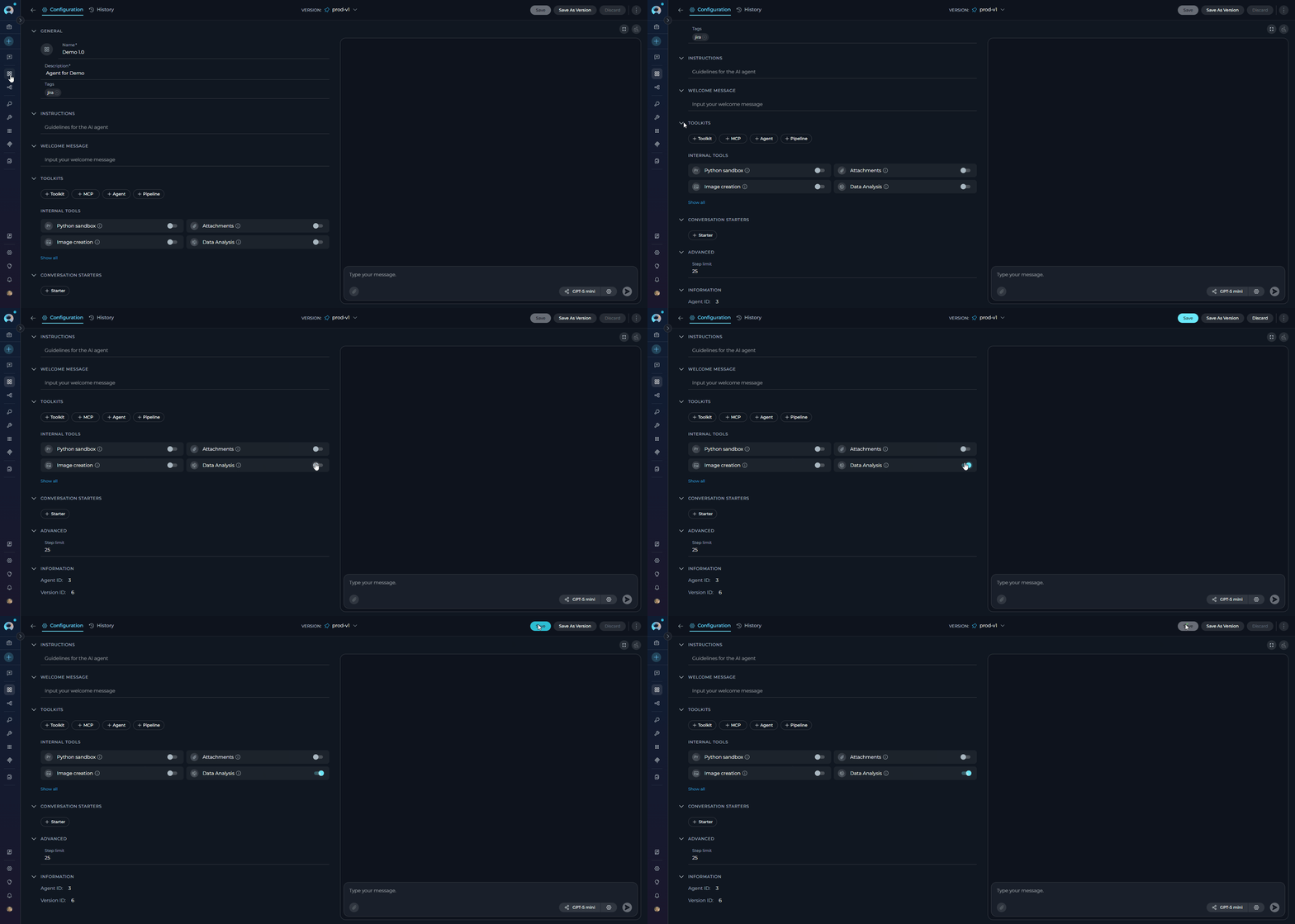
You can configure Data Analysis as part of an agent’s default configuration.- Navigate to Agents in the main menu.
- Select the agent you want to configure or create a new agent.
- On the Configuration tab, scroll down to the TOOLKITS section.
- Within the TOOLKITS section, locate the INTERNAL TOOLS subsection.
- Find the Data Analysis toggle. If it is not visible, click Show all to expand the full list of internal tools.
- Click the Data Analysis toggle to enable it.
- Click Save at the top of the configuration page to persist the change.
- New conversations created with this agent will have Data Analysis enabled by default.
- Agent Configuration: Sets the default state for all new conversations with that agent
- Conversation Configuration: Overrides the agent’s default for that specific conversation
- Changes to agent configuration do not affect existing conversations
Using the Data Analysis Internal Tool
Once enabled, the Data Analysis internal tool allows you to perform comprehensive data analysis directly in conversations using natural language commands. Simply upload your data files and request analysis operations in plain English. How It Works- Upload Data: Upload CSV, Excel, or other data files to your conversation
- Request Analysis: Ask the assistant to perform analysis using natural language
- Get Results: Receive summaries, transformations, charts, and downloadable files
- Data Summaries: Descriptive statistics, data profiling, and overview reports
- Data Filtering: Row and column filtering based on conditions
- Transformations: Data cleaning, column operations, and restructuring
- Aggregation: Grouping, totals, averages, and statistical calculations
- Visualization: Automatic chart generation (bar charts, line graphs, histograms, etc.)
- Export: Save transformed data as downloadable files
- Always upload your data file to the conversation before requesting analysis
- For very large datasets (>100MB) or complex custom operations, consider using the Python Sandbox instead
Example Workflows
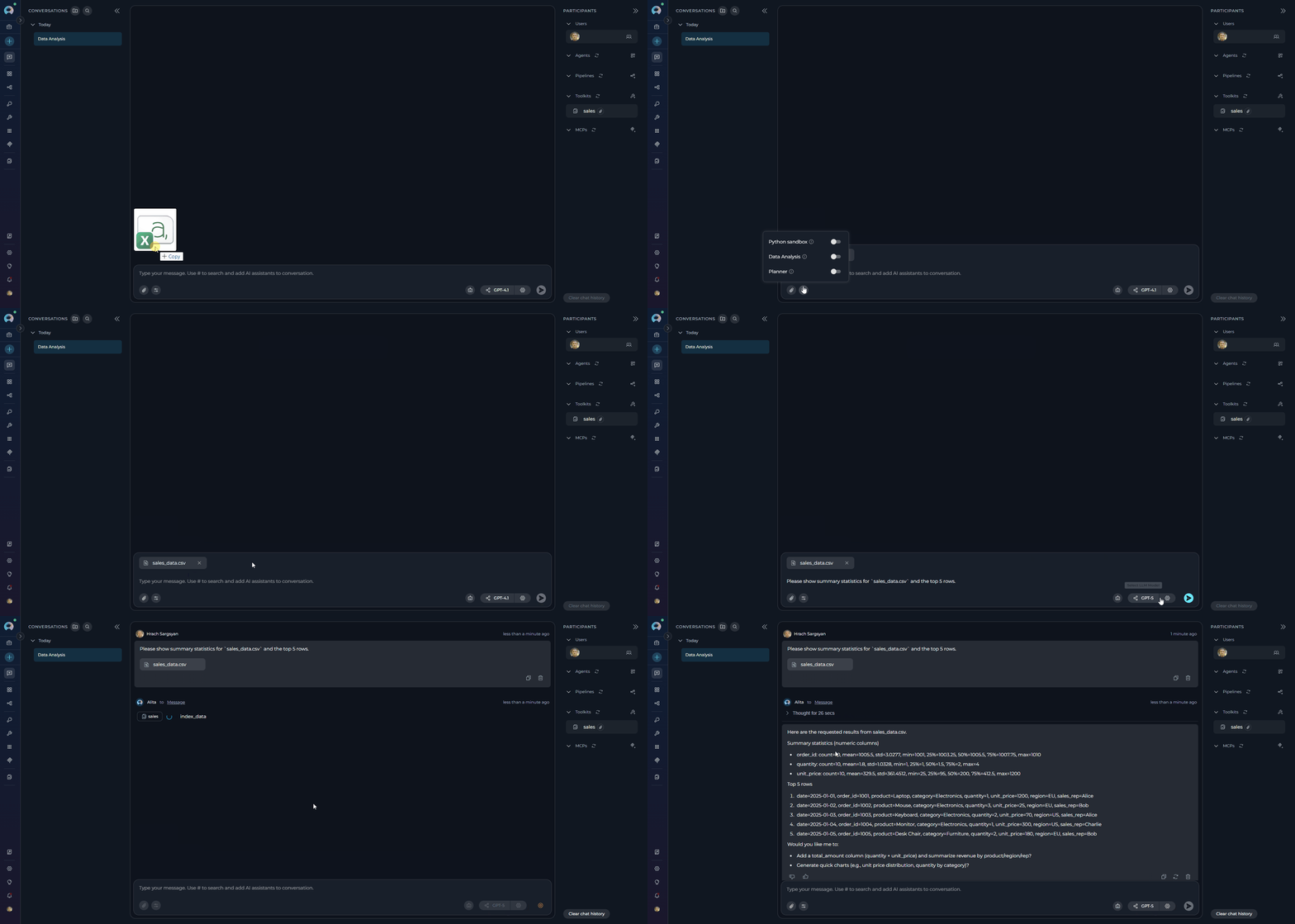
These examples show typical workflows using the Data Analysis tool. Example 1 — Natural language data summary- Open the conversation and click the Internal Tools icon (value icon) next to the attachment button.
- Verify
Data Analysisis visible in the popup and enable it. - Upload a small sample file (CSV) and ask the assistant to return a summary.
- Ask the assistant:
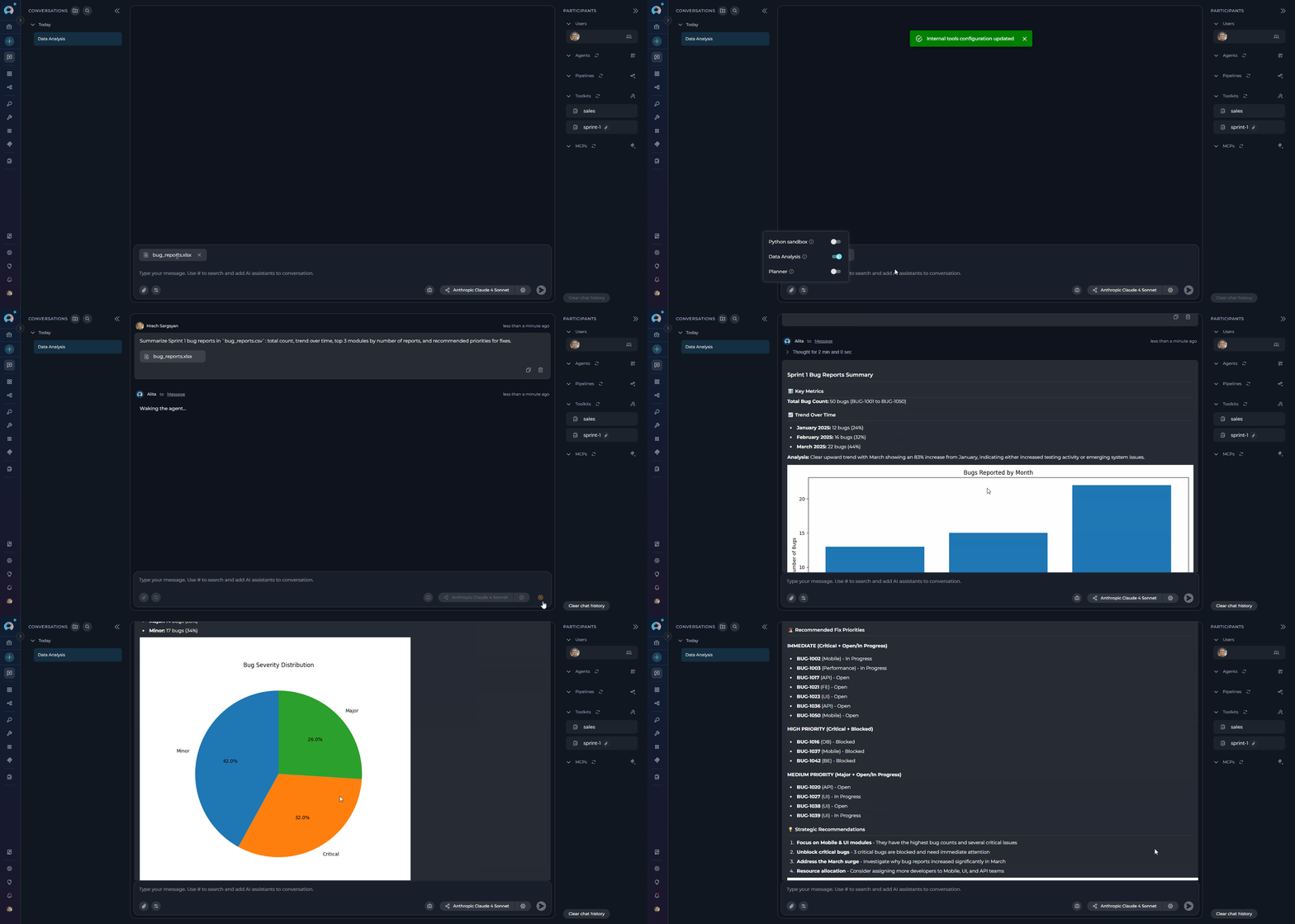
- Ensure
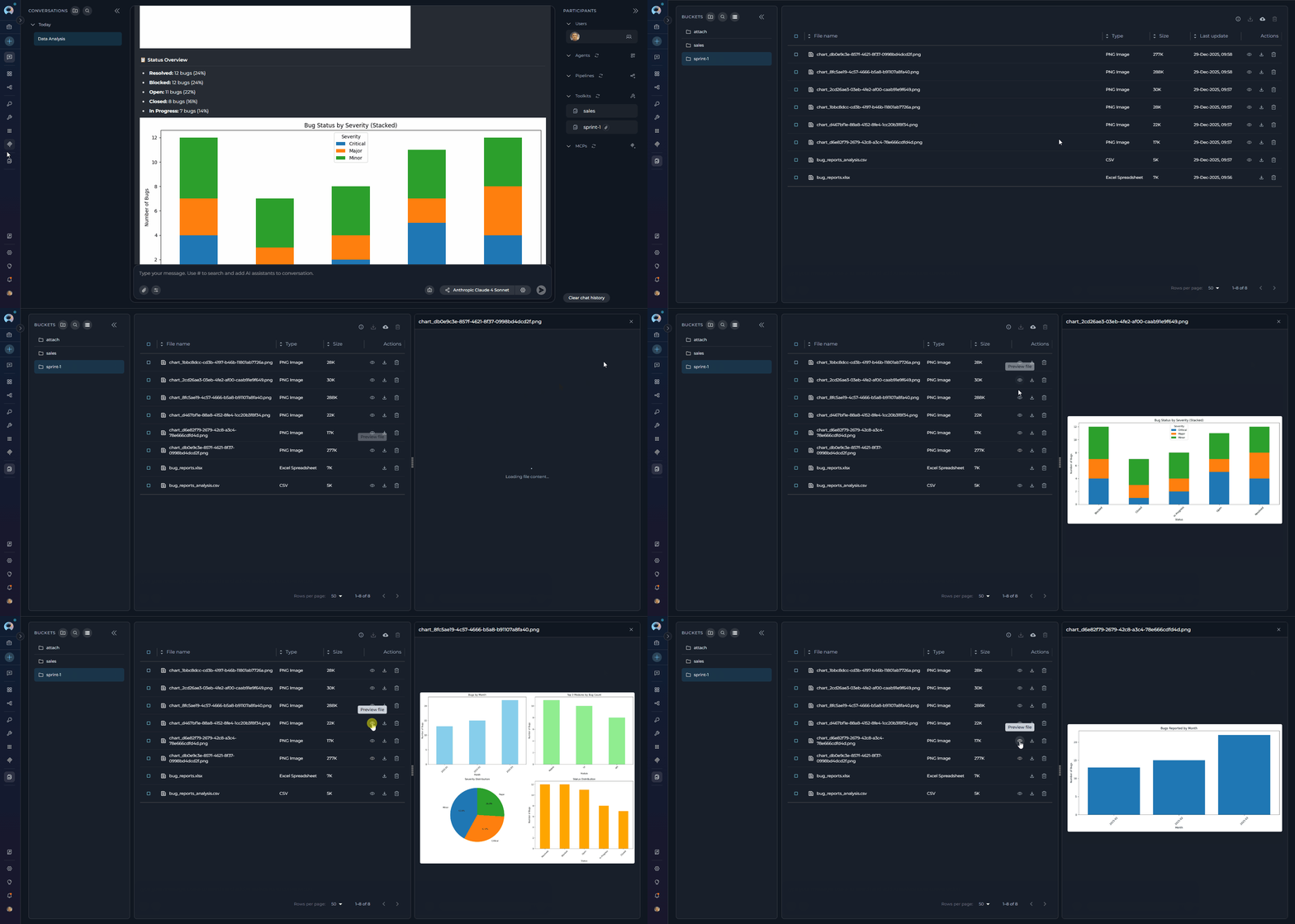
Data Analysisis enabled and uploadbug_reports.xlsx. - Ask the assistant:
Best Practices
Keep dataset size reasonable
Keep dataset size reasonable
Upload moderately sized files for interactive analysis. Very large datasets may cause timeouts or higher latency. Consider using Python Sandbox for datasets larger than 100MB.
Prefer common file formats
Prefer common file formats
Use widely supported formats like CSV, Excel for best compatibility. These formats work reliably across different systems.
Be explicit about outputs
Be explicit about outputs
When you need a specific output (for example: a downloadable CSV of filtered rows, an aggregated table, or a PNG chart), state it clearly in your request: “Save filtered rows as CSV” or “Generate a time-series chart and export as PNG”.
Expect saved files for charts and exports
Expect saved files for charts and exports
Charts and exported files are saved to your conversation. The assistant will provide links to view or download these files. Charts are saved as PNG files with auto-generated UUID filenames.
Small iterative steps
Small iterative steps
Break complex analyses into smaller steps (load → inspect → filter → aggregate → visualize). This reduces errors and makes results easier to validate.
Be precise with column names and formats
Be precise with column names and formats
Refer to column names exactly as they appear in your dataset and provide example values when helpful (for dates, currencies, or categories).
Prefer reproducible transformations
Prefer reproducible transformations
If you expect to re-run the same workflow, ask the assistant to “save transformed data” and include the intended filename. This makes it easy to re-open or share results later.
Use Python Sandbox for custom code
Use Python Sandbox for custom code
For advanced custom logic, very large datasets, or specialized operations, enable the Python sandbox and provide code snippets directly.
Watch output size
Watch output size
Requests that ask for extensive detailed outputs may be truncated. Prefer summaries or downloadable files for large results.
Validate sensitive data handling
Validate sensitive data handling
Avoid uploading highly sensitive data if you are unsure about retention policies. When in doubt, remove or anonymize personal information before uploading.
Handle encoding issues
Handle encoding issues
For CSV files with special characters, ensure UTF-8 encoding. UTF-8 files work most reliably.
Use descriptive queries
Use descriptive queries
Provide clear, specific analysis requests. Instead of “analyze this data”, try “Calculate monthly sales totals and create a bar chart showing top 5 products by revenue”.
Troubleshooting
Data Analysis tool requires file access
Data Analysis tool requires file access
Possible causes:
- Data Analysis tool not enabled in conversation
- Conversation configuration issue
- Enable Data Analysis in the Internal Tools popup for the conversation
- Refresh the conversation and re-enable the tool if needed
File format not recognized or read errors
File format not recognized or read errors
Possible causes:
- Unsupported file format uploaded
- Corrupted or malformed data file
- File encoding issues
- Large file causing read timeouts
- Ensure file is in a supported format (CSV, Excel, Parquet, or other common tabular formats)
- Check file integrity and try re-uploading a clean version
- Convert file to UTF-8 encoding if needed
- For large files, consider using Python Sandbox instead
No Data Analysis option in UI
No Data Analysis option in UI
Possible causes:
- Insufficient user permissions
- Internal Tools popup not accessible
- Internal Tools icon hidden because no tools pass the availability filter
- UI configuration issue
- Confirm you have conversation edit access permissions
- Check that the Internal Tools icon (value icon) is visible next to the attachment button — the icon is hidden entirely when no internal tools are available for the project
- Verify Data Analysis appears in the popup list after clicking the icon
- Refresh the page and try accessing the popup again
- If the icon is missing, contact your project administrator to confirm internal tools are enabled for the project
Data Analysis requests timeout or fail
Data Analysis requests timeout or fail
Possible causes:
- Very large datasets causing processing delays
- Complex analysis requests
- Network connectivity issues
- Reduce dataset size or use smaller sample files for testing
- Break complex requests into smaller iterative steps
- Prefer aggregated summaries over detailed outputs
- Check network connection and retry the request
- For very large data, consider enabling Python Sandbox instead
Charts or exported files not generated
Charts or exported files not generated
Possible causes:
- Chart generation failed due to data issues
- File saving permissions issue
- Invalid filenames
- Verify data is suitable for the requested chart type
- Check that file saving is working
- Use valid filenames without special characters
- Try simpler chart types first
- Request download links explicitly in your prompt
Code generation fails or produces errors
Code generation fails or produces errors
Possible causes:
- Ambiguous or overly complex queries
- Column names with special characters
- Data type mismatches
- Use clear, specific analysis requests with exact column names
- Break complex queries into simpler steps
- Provide example values for date formats, categories, etc.
- Try rephrasing the query if it fails
- Check for error messages and adjust accordingly
Memory or performance issues
Memory or performance issues
Possible causes:
- Loading very large datasets
- Complex operations on big datasets
- Multiple concurrent requests
- Insufficient system resources
- Use smaller sample datasets for initial testing
- Consider using Python Sandbox for memory-intensive operations
- Close other conversations to free up resources
- Optimize queries to use less memory
- Monitor system resource usage
- Pandas Toolkit Migration Guide - Complete migration guide from legacy Pandas toolkit
- Agent Configuration - Setting up agents with internal tools
- Chat Functionality - General chat features and usage
- Python Sandbox - Python Sandbox and internal tools overview
- Conversation Management - Managing conversations and settings